

The Service Management dashboard brings together work that needs planning, operational attention, billing review, or closure. Use it to find the next job requiring attention rather than searching through every work order.
Open Service Management → Dashboard. The queues relate to service work orders for your current company; Yard Storage work is managed separately.
Open a queue and review a work order
Select Refresh to update the dashboard counts.
Select the tile for the work you want to review.
Use the list filters to narrow the results, such as by work-order number, customer, status, or assigned staff member.
Select the row's View action, shown as an eye icon, to open the work order.
Review the details and use the available work-order actions. After making changes, return to the dashboard and refresh again.
A count of zero means that no work currently meets that queue's conditions. The same work order may appear in more than one queue, so the counts should not be added together.
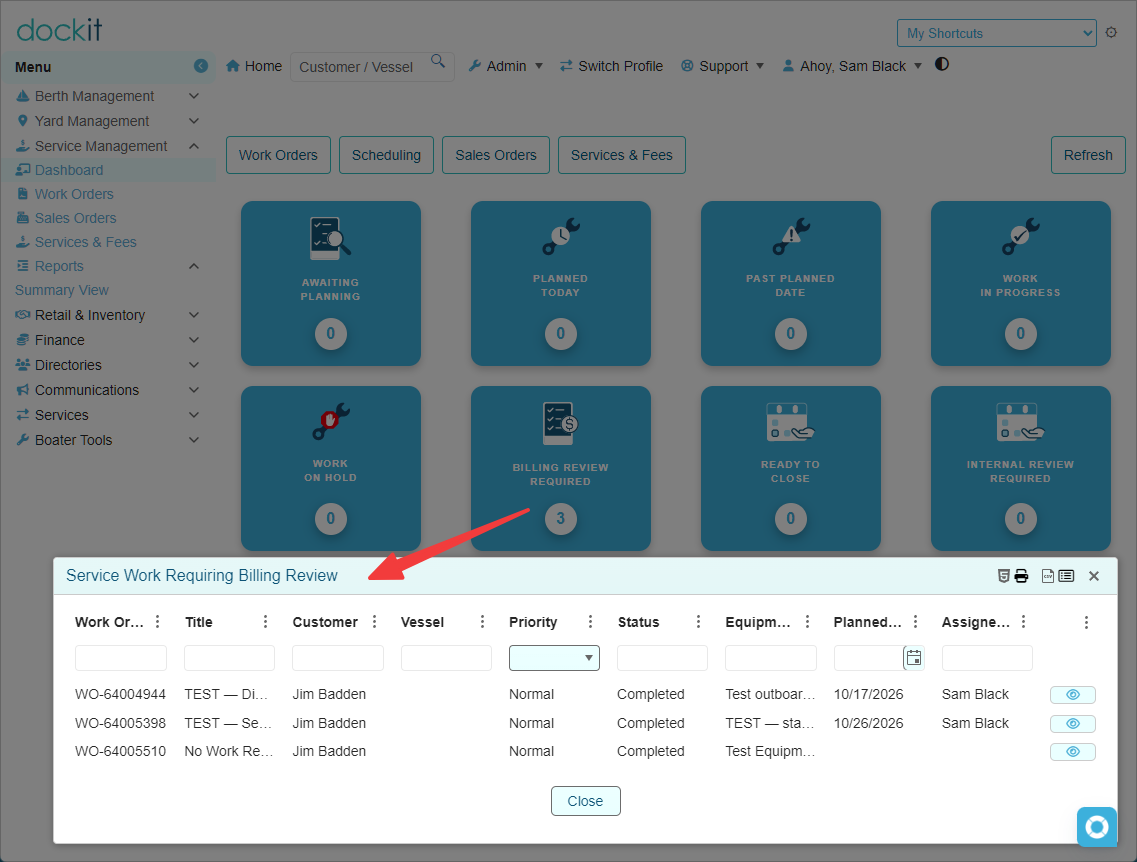
Planning and operational queues
Awaiting Planning
Shows work orders with status Authorized, In Progress, or On Hold that do not have a planned work date.
What to do: Open the work order and use Plan / Assign to record the planned date and assignment as appropriate. A job can appear here even if work has started, when its planned date has not been recorded.
Planned Today
Shows Authorized, In Progress, or On Hold work with a planned date of today, using the company's configured timezone.
What to do: Review the assignment, instructions, and current status. Print a worksheet if needed, start authorized work when it begins, or follow up on a held job. Being planned for today does not itself start the work.
Past Planned Date
Shows Authorized, In Progress, or On Hold work whose planned date is earlier than today.
What to do: Check what actually happened. If the work is finished, record completion. If it is still outstanding, review the plan or hold reason. Do not mark work completed simply to remove it from this queue.
This queue identifies a past planned date; it does not by itself establish that a contractual deadline was missed.
Work In Progress
Shows work orders currently marked In Progress, regardless of their planned date.
What to do: Follow up on progress, place work on hold when necessary, or record completed work when it is finished. Ensure the completion record describes what was actually done and identifies any exceptions.
Work On Hold
Shows work orders currently marked On Hold.
What to do: Review the recorded hold information and resolve the reason for the pause. Resume the work when appropriate. Resuming restores the recorded pre-hold status, which may be Authorized or In Progress.
Review and closure queues
Billing Review Required
Shows completed customer work flagged for billing follow-up. Common reasons include:
An item's billing treatment is missing or still needs review.
A chargeable item has not been transferred to an eligible billing order.
A linked sales order is still Draft.
No current billing order exists and no-additional-charge confirmation is outstanding.
A linked billing order has no usable status.
What to do: Review the item-level billing decisions and linked billing orders. Use Prepare Billing for eligible charges awaiting transfer, or View Billing to review existing billing. Where every item is Included or Waived and no active billing order exists, review whether to confirm that no additional charge is required.
A link to a Cancelled sales order does not settle a chargeable item. The work can require review and replacement billing while retaining the cancelled order as history.
Do not change a billing treatment merely to clear the dashboard. It must reflect the actual billing decision.
Ready to Close
Shows completed customer work that meets the dashboard's billing-readiness checks. This covers either reviewed no-additional-charge work or work with qualifying finalized billing.
What to do: Review the completion details, any recorded exceptions, and billing before selecting Close Work Order. Provide any explanation requested for closing work with exceptions.
Ready to Close does not mean Paid. An invoice balance may remain outstanding. The closure process performs its own validation when you use it; appearing in this queue does not bypass those checks.
Internal Review Required
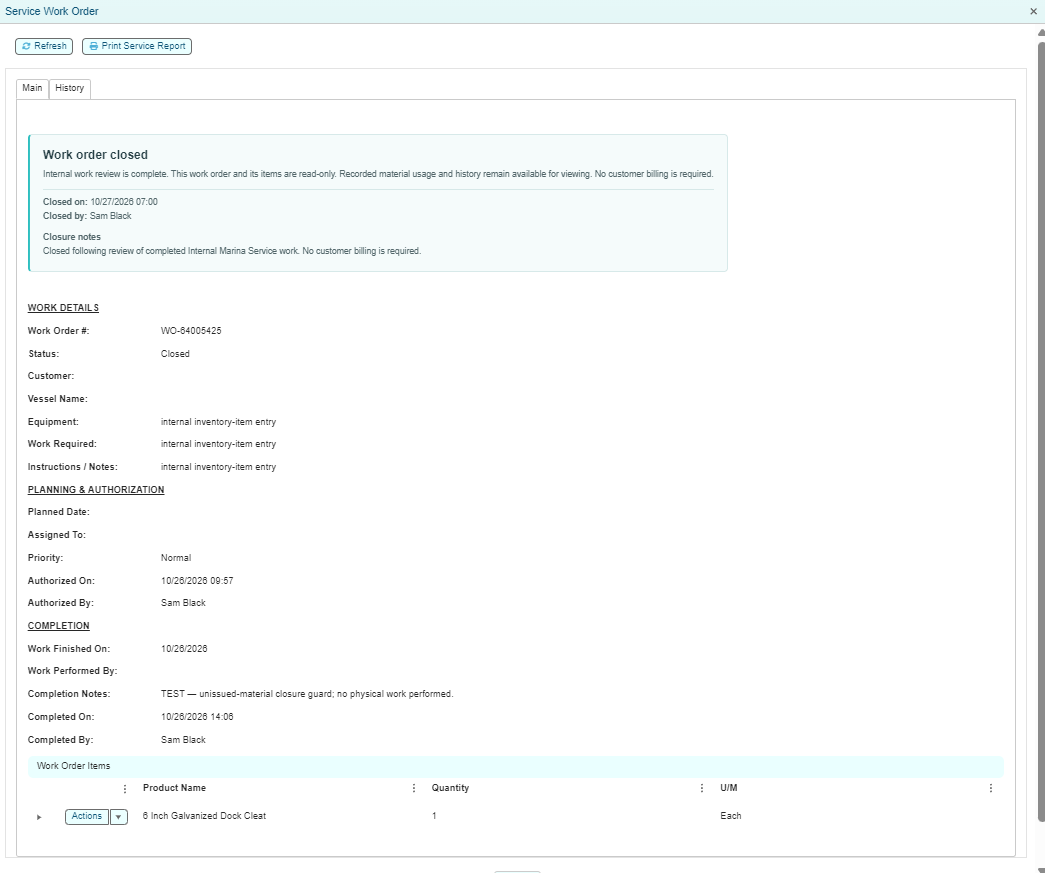
Shows all completed internal service work that has not yet been closed. Internal work does not require customer billing.
What to do: Review the completion details, exceptions, and material usage. For inventory items, use View Item to inspect the posted issue details. Issue materials actually used where still required. Unissued items that were not used must be resolved through the permitted item actions before closure.
Do not delete issued items or post a second issue to correct an earlier one. Ask your administrator for help with a recorded usage error.
After the review, select Close Work Order. Being in this queue does not mean that material usage is complete or that the work order is already eligible to close.
Navigation buttons
The buttons above the tiles provide access to the broader service workspace:
Work Orders: Find work beyond the dashboard queues, including Draft, Completed, Closed, or Cancelled records in the applicable lists.
Scheduling: Review and organize planned service work.
Sales Orders: Review service billing orders and their current status.
Services & Fees: Access the service and fee catalog.
The dashboard is an attention list, not a complete register of all service work. For example, Draft work orders do not appear in the planning queues, and closed work orders no longer appear in the completion-review queues.
Dashboard versus Summary View
The Dashboard tiles are clickable and open work-order lists.
The cards in Reports → Summary View display read-only statistics. That report includes activity for a selected date range and a separate current operational snapshot. Changing the report's date range changes its period activity, not its current operational queues.
Use Summary View to review trends, print the summary, or download a CSV. Use the Dashboard to work through the current queues.
If the count or list looks unexpected
Confirm that you are working in the correct company.
Refresh the dashboard, then reopen the queue.
Check for list filters that may be hiding records.
Check the work order's actual status, planned date, work type, and billing details against the queue description.
If the discrepancy remains, give your administrator the tile name, displayed count, work-order number, and a screenshot.
Counts can change as other staff update records. A work order can also move from one queue to another as planning, billing, and closure are completed.