

Create a service work order to record what needs to be done, who the work is for, and the instructions staff need. Review the draft before authorizing it for operational follow-up.
A work order records the work. Creating or authorizing it does not itself collect payment or issue internal materials from stock.
Before you begin
Search the existing work orders to avoid creating a duplicate for the same request.
Decide whether this is Customer work or Internal marina work.
Have the work description, relevant vessel or equipment details, and any access or scheduling instructions available.
Use Service Management for service work. Yard storage agreements and yard-specific workflows are handled through Yard Management.
Create the work order
Open Service Management → Work Orders.
Select Create Service Work Order.
Select whether the work is for a customer or for internal marina use.
Complete the applicable customer, vessel, equipment, and work-description fields.
Record any instructions that staff need before planning or starting the job.
Save the entry and review the resulting work order. Note its work-order number and current status.
Complete the fields marked as required on the form. If a validation message appears, correct the stated issue before continuing.
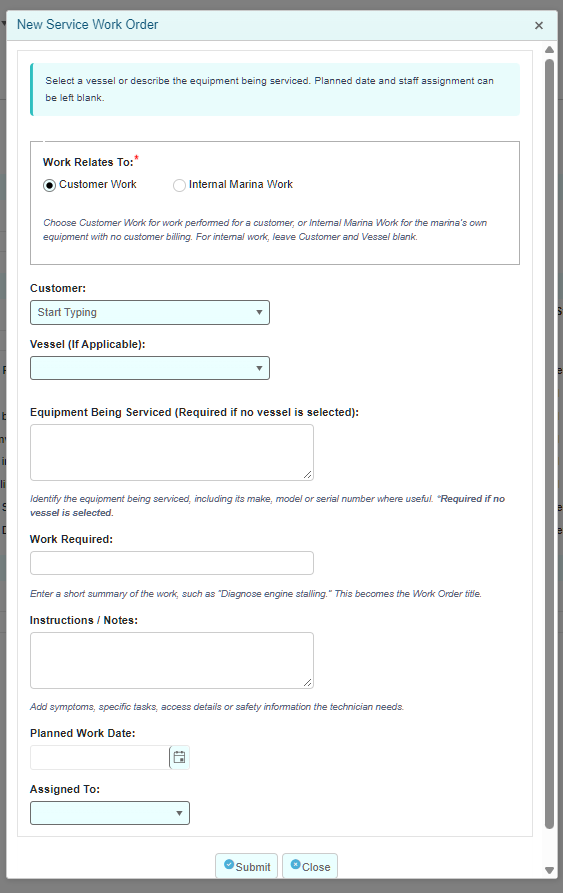
Choose the correct work type
Customer work
Select the customer whose work is being recorded. The customer must belong to the work-order company. Identify the vessel when relevant, or describe the equipment for work that is not tied to a vessel.
Customer work can include separately chargeable items, items covered by another charge or agreement, or waived items. Selecting Customer does not mean every item must incur a separate charge.
Internal work
Select Internal for work carried out for the marina without customer billing. Leave customer and vessel references unassigned and identify the equipment or marina asset in the equipment description.
Do not select a customer simply to fill a blank field on an internal job. Internal work follows a separate review and material-usage workflow.
Describe internal labour and tasks in the work instructions and completion notes. Use the internal material workflow for eligible inventory materials rather than creating customer billing for them.
Write a useful work description
Give staff enough information to understand the request without having to reconstruct the original conversation.
Equipment: Identify the item or asset being worked on. Include a useful location, model, or other identifying detail when appropriate.
Work Required: Describe the requested inspection, repair, installation, or other task. Distinguish a reported symptom from a confirmed diagnosis.
Instructions / Notes: Record access arrangements, constraints, customer instructions, and information that affects planning or execution.
Priority: Review the selected priority and use it consistently with your marina's procedures.
For example, “Inspect the loose cleat on the north fuel dock and report whether replacement is required” is more useful than “Fix dock.” Do not record work as performed before it has actually been completed.
Add work-order items
Use Add Catalog Item to select an existing eligible item. For customer work, Add One-Off Item is also available where permitted by the workflow.
Review the item's description, quantity, and unit of measure. For customer items, also review the price, tax treatment, and billing decision.
Charge customer separately: The item is intended for transfer to customer billing.
Covered by another charge or agreement: The item is included elsewhere. Record what covers it in the explanation field.
No charge — waived: No separate charge will be made. Record the reason.
Needs billing review: The billing decision is outstanding and must be resolved before closure.
Do not add the same charge twice because it has not yet appeared on a sales order. Work-order items and billing transfers are separate steps.
For internal materials: Saving a material item does not deduct or reserve stock. Materials are deducted only when an issue is explicitly posted. Check the quantity and stock unit before issuance; an issued item cannot be treated as an ordinary editable or deletable line.
Review and authorize
Before authorizing a Draft work order, check:
The Customer or Internal selection is correct.
The customer, vessel, or equipment identifies the intended job.
The work required and instructions accurately describe the request.
Any items already entered have the intended quantities and billing decisions.
The work has received any approval required by your marina's operating procedures.
Use the work order's authorization action and respond to any prompts. Afterward, verify that the status is Authorized and that Authorized On and Authorized By are recorded.
The application authorization record does not replace any separate customer consent or approval documentation your marina requires.
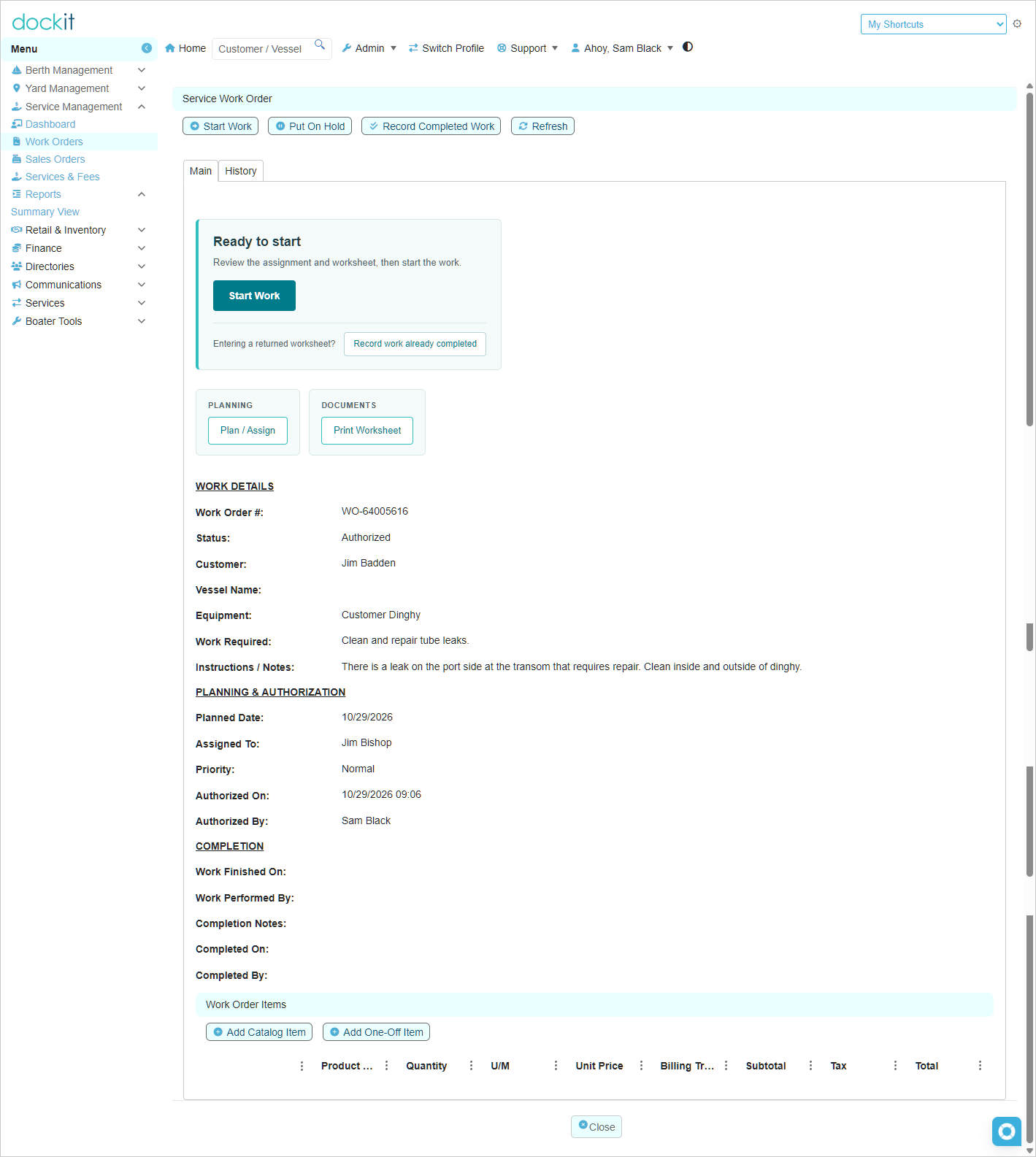
What happens next?
Use Plan / Assign to record planning and staff assignment details.
Use Print Worksheet if staff need a worksheet for the job.
Select Start Work when work begins.
For work already carried out, use the available Record Completed Work or Record work already completed action and record the actual completion information.
An Authorized work order without a planned date appears in Awaiting Planning. Authorization alone does not mark the work In Progress or Completed.
Correcting an entry
Use the permitted edit actions while the work order and its items are eligible for changes. Billing links, posted material usage, and closure can restrict what may be changed.
If an item has already been transferred to billing or its internal usage has been posted, do not delete related records or create duplicate items to bypass those restrictions. Ask your administrator how to correct the record while preserving its history.
If you cannot authorize or edit the work order, check its status and read the validation message. When requesting help, provide the work-order number and the exact message shown.