

Use Service Management to record requested work, organize staff assignments, track progress, record completion, and review any associated billing. It supports both work for customers and internal work carried out for the marina.
A service work order is the record of the work. Linked sales orders and invoices handle customer billing. Completing or closing a work order does not mean that the customer has paid.
Where to start
Expand Service Management in the left menu.
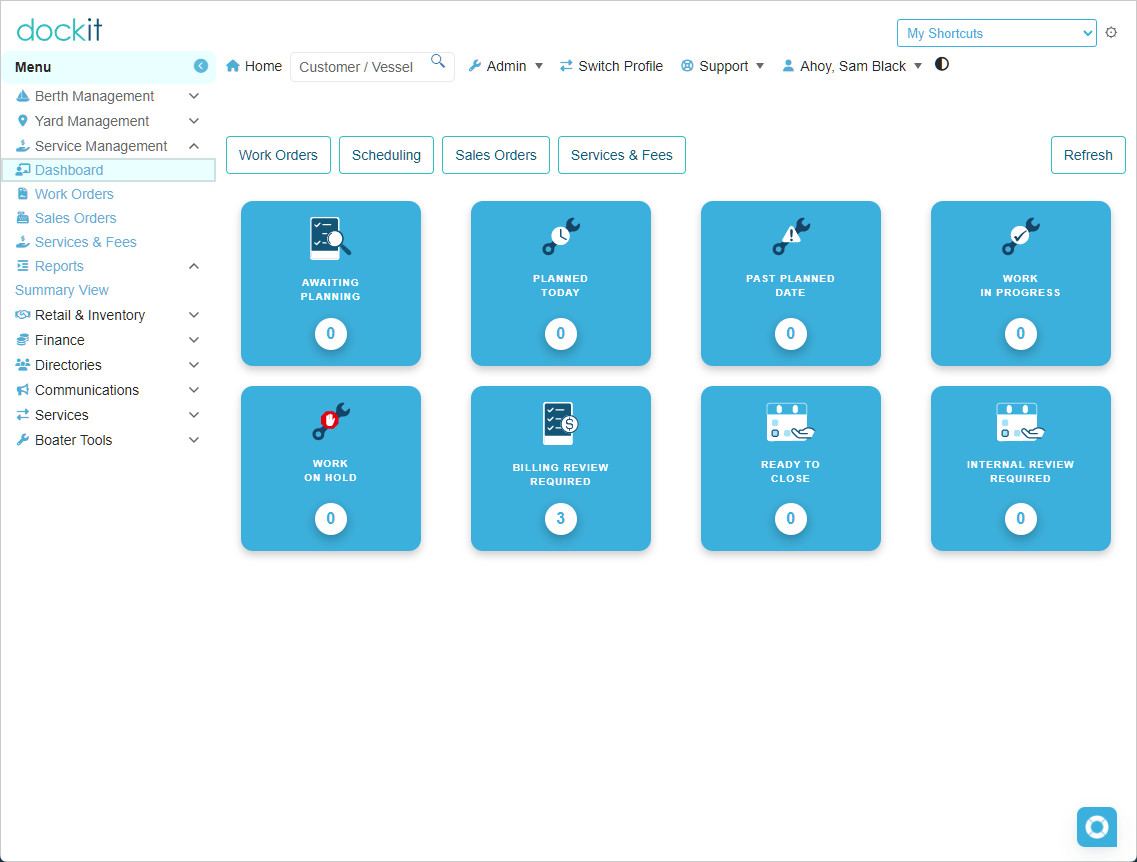
Dashboard: Find work requiring attention. Select a dashboard tile to open its work-order list.
Work Orders: Create, find, and open service work orders.
Scheduling: Review and organize planned work. This is also available from the dashboard navigation.
Sales Orders: Review the sales orders created for service work.
Services & Fees: Access the service and fee catalog available to your marina.
Reports → Summary View: Review service activity for a selected period and the current operational counts.
Customer work or internal work?
Customer work
Use customer work for services performed for a customer. Record the customer and the vessel or equipment details relevant to the job. Each work-order item needs a billing decision: charge separately, include it under another charge or agreement, waive it, or flag it for billing review.
Chargeable items are transferred to a sales order through Prepare Billing. Work that does not require an additional charge still needs an explicit billing review before closure.
Internal work
Use internal work for marina work that does not require customer billing. Describe the equipment or work clearly rather than selecting a customer merely to fill the field.
Where internal inventory usage is enabled, add eligible materials and explicitly issue the materials actually used. Adding an item, completing work, and closing a work order do not themselves deduct stock.
Internal material usage records retain the issued quantity, stock unit, cost at issue, source, issue date, and staff member. Use View Item to review these details.
The service workflow
Create and describe the work. Identify whether it is customer or internal work. Enter the work required, equipment details, instructions, and initial items as appropriate.
Authorize the work. Authorization makes the work available for the next operational steps. A Draft work order is not yet authorized.
Plan and assign. Use Plan / Assign to record planning details. Use Print Worksheet when staff need a worksheet for the job.
Start and track progress. Select Start Work when work begins. Use Put On Hold when work needs to pause, then resume when it can continue.
Record completion. Record the actual work-finished date, who performed the work when known, completion notes, and any completion exceptions. For a returned worksheet or work already done, use Record Completed Work or Record work already completed, as shown on the screen.
Finish the review. For customer work, resolve billing decisions and prepare or review the linked billing orders. For internal work, review the recorded material usage and any completion exceptions.
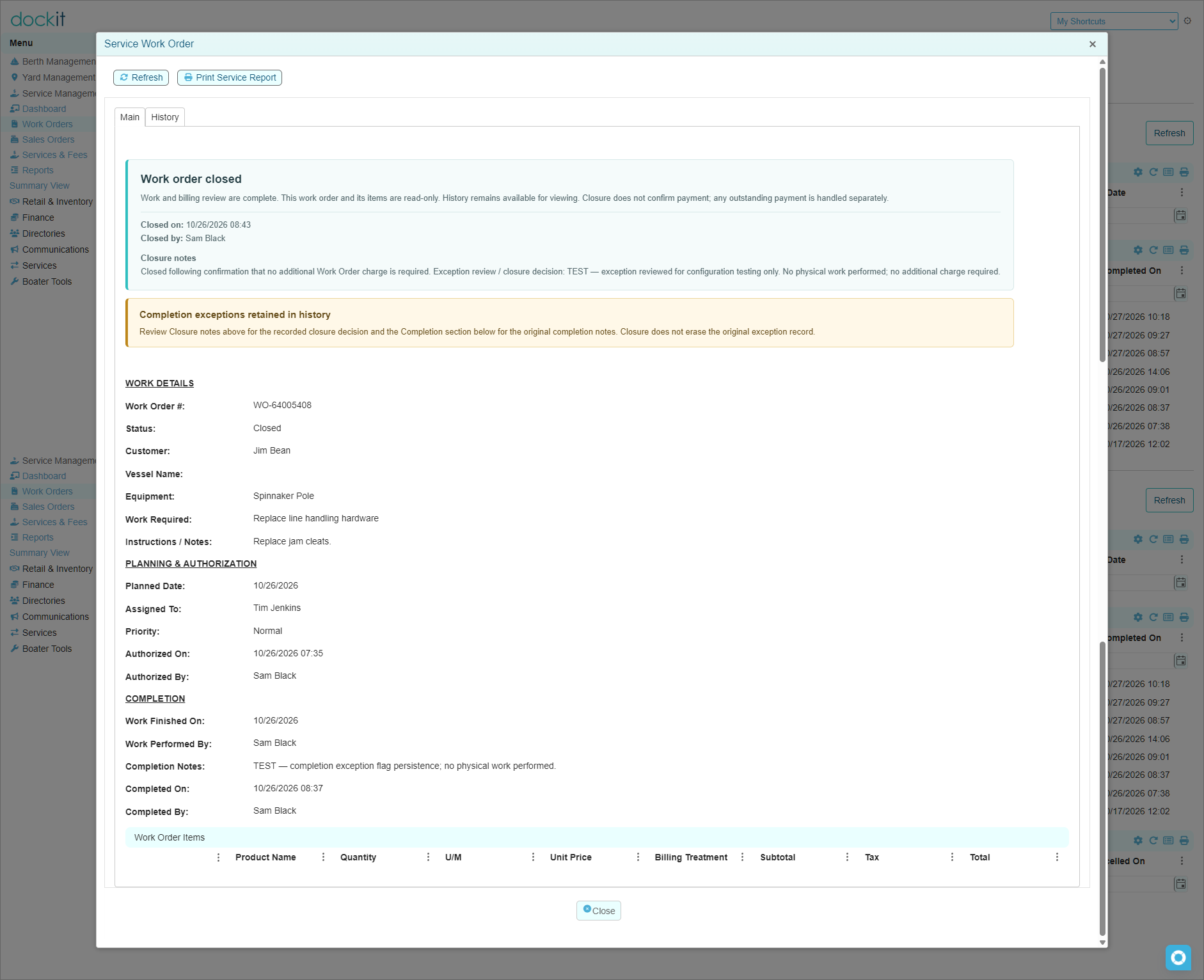
Close the work order. Select Close Work Order after the review is complete. Dockit checks the closure requirements. Closure makes the work order and its items read-only.
Customer billing can be prepared before the work is completed when appropriate. Additional chargeable items can be transferred later; the operational work status and billing status are separate.
Understanding work-order statuses
Draft: The work order is being prepared and has not been authorized.
Authorized: The work is authorized and ready for planning or starting.
In Progress: Work has started.
On Hold: Work has been paused. Resuming restores the recorded pre-hold status.
Completed: Completion has been recorded, but final review and closure remain outstanding.
Closed: Final review is complete and the work order and its items are read-only. An outstanding customer balance may still exist.
Cancelled: The work order has been cancelled. Cancelling a linked sales order is a separate action and does not cancel the work order.
Using the dashboard
Awaiting Planning: Authorized, In Progress, or On Hold work without a planned date.
Planned Today: Authorized, In Progress, or On Hold work planned for today.
Past Planned Date: Authorized, In Progress, or On Hold work whose planned date has passed.
Work In Progress: Work currently marked In Progress.
Work On Hold: Work currently marked On Hold.
Billing Review Required: Completed customer work flagged for follow-up, such as unresolved billing decisions, charges awaiting transfer, or Draft billing orders.
Ready to Close: Completed customer work that meets the dashboard's billing-readiness checks. Review the work and any exceptions before closing; the closure process performs its own validation.
Internal Review Required: Completed internal work awaiting closure. This does not necessarily mean that all material usage has been posted.
Queues can overlap, so do not add the tile counts together to calculate a total number of work orders. Refresh the dashboard after making changes.
The count cards on Service Management Summary are read-only. Use the Dashboard tiles to open work-order lists. The summary's activity totals use the selected date range; its current operational snapshot does not.
Important billing and material rules
Preparing billing is not collecting payment. It transfers eligible chargeable items to a Draft sales order.
Additional charges do not require duplicating earlier charges. Prepare Billing can add eligible items to an existing matching Draft order or create a new Draft when earlier billing has been finalized.
Proceed To Payment can finalize billing before payment is collected. Do not use it merely to preview an order. Leaving the payment screen does not necessarily return the order to Draft.
Draft billing orders block customer work-order closure. Resolve them through the normal billing workflow.
Cancelling a Draft sales order preserves history. Its work-order links remain, and eligible chargeable items can be prepared for replacement billing. Do not delete historical links to force a transfer.
Issue internal materials only when appropriate. Posting an issue deducts stock and records the usage. Do not issue an item again to correct an earlier issue; ask your administrator for assistance.
Closing is not payment confirmation. Payment collection remains a separate workflow.
Reports and history
Use the work order's History tab to review its recorded events. Use Print Service Report for the completed service record.
The completed service report is not an invoice or payment receipt. Its recorded item table is not a separate certification of material consumption and does not show internal issue costs. Review internal usage through View Item.
Use Reports → Summary View for activity counts, completion trends, current operational counts, and CSV export. Choose a date range that includes the work you want to report on.
If an action is unavailable or blocked
Available actions depend on the work-order status, customer or internal work type, billing links, recorded material usage, and your access. Refresh or reopen the record first. If Dockit displays a validation message, resolve the stated issue rather than changing a status or deleting a link to bypass it.
When asking for assistance, provide the work-order number, any linked sales-order number, the action you selected, and the exact message displayed. Do not include payment-card details or other sensitive information.