

Keep the work-order status aligned with what is happening on the job. Start the work when it begins, record a hold when it must pause, and enter completion details when the work is finished.
These steps apply to customer and internal service work. Customer billing and internal material issuance are separate actions; changing the work status does not perform them automatically.
Before starting
Open the work order from Service Management → Work Orders or a dashboard queue.
Confirm the work-order number, customer or internal work type, and vessel or equipment.
Review the requested work, instructions, assignment, and any existing history.
Confirm that the work is authorized and that staff have the information and arrangements needed to proceed.
A planned date is not evidence that work has started. A printed worksheet is a working document, not a status change.
Start work
Open the Authorized work order.
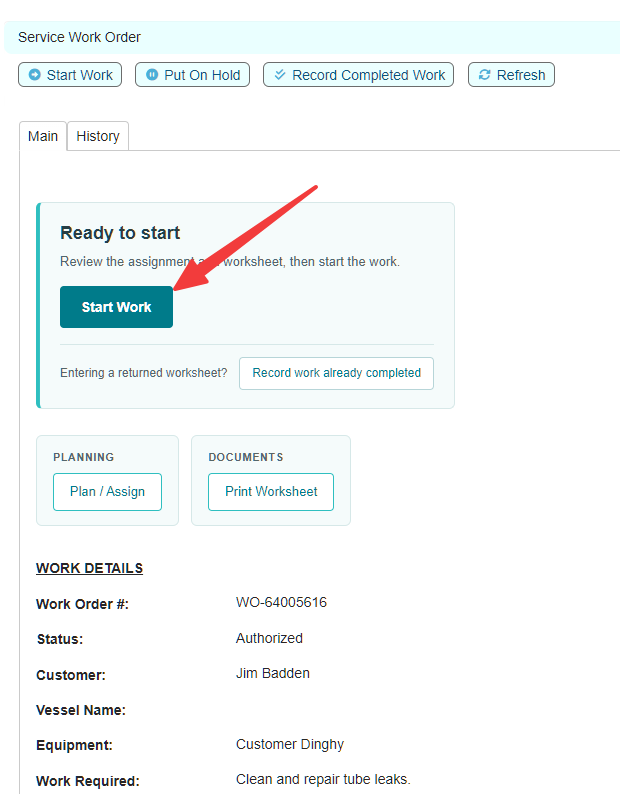
Select Start Work.
Respond to any prompts and verify that the status changes to In Progress.
Use the Work In Progress dashboard queue to find jobs currently being carried out. A job may also appear in a planning queue depending on its planned date.
Put work on hold
Use a hold when authorized work cannot proceed or work already in progress must pause. For example, staff may be waiting for access, parts, or further instructions.
Open the work order and select Put On Hold.
Complete the requested hold information. Explain why work cannot proceed and what needs to happen next.
Save or confirm the action and verify that the status is On Hold.
Make the reason useful to the next staff member. “Waiting for replacement pump; check delivery before resuming” is more informative than “On hold.” Follow your marina's normal procedure for communicating the issue.
Putting work on hold is not the same as cancelling it. A held work order remains available for follow-up in Work On Hold.
Resume held work
Review the hold information and confirm that the reason for the pause has been resolved.
Use the work order's resume action and complete any requested information.
Check the resulting status.
Resuming restores the recorded pre-hold status:
Work held while Authorized returns to Authorized. Select Start Work when it actually begins.
Work held while In Progress returns to In Progress.
Review the planned date and assignment after a delay. Resuming work and revising its plan are separate decisions.
Record completed work
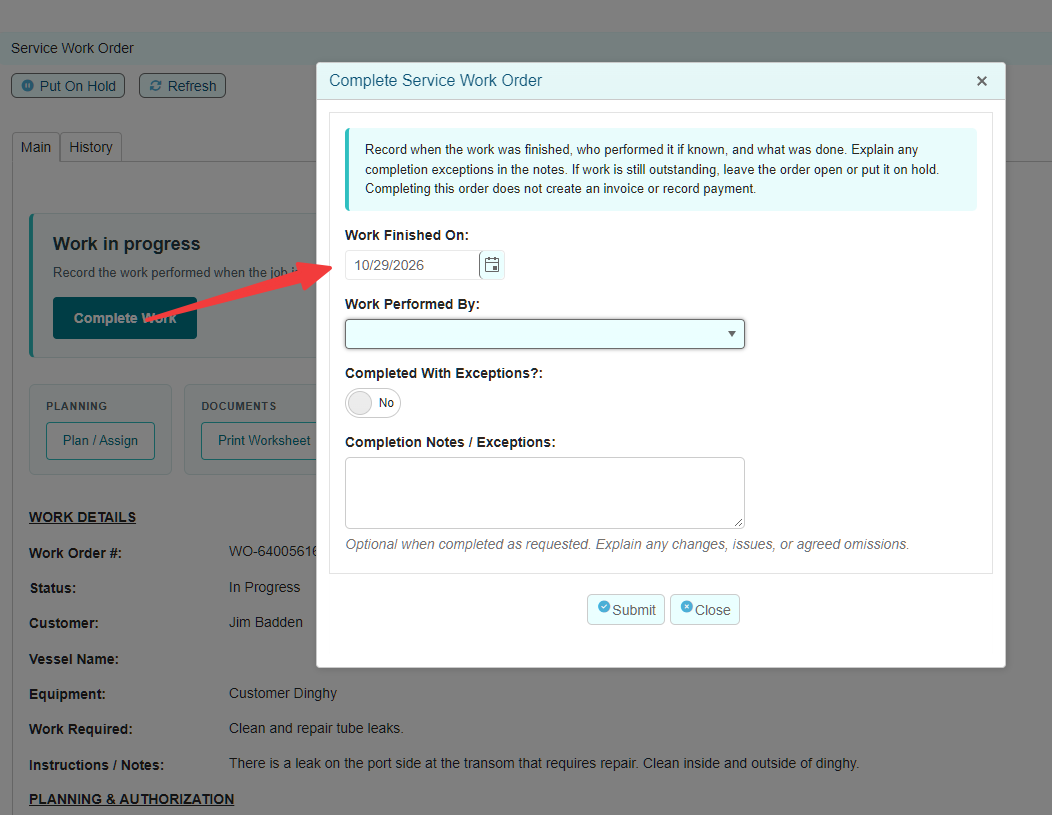
Record completion when the actual result is known. For a returned worksheet or work already performed, use Record Completed Work or Record work already completed, as shown on the work-order screen. You do not need to invent an earlier start event merely to enter completed work through that available action.
Open the correct work order and review what was requested.
Select the available completion action.
Enter the actual Work Finished On date. It must not be a future date.
Record Work Performed By when known. This identifies who performed the work, not necessarily who is entering the completion record.
Enter Completion Notes describing the work performed, the result, and any relevant limitations or follow-up.
Set Completed With Exceptions appropriately. If Yes, explain the exceptions in the completion notes.
Save and verify that the status is Completed.
If the work is On Hold and the completion action is unavailable, review and resolve the hold through the normal resume workflow before recording completion. Do not change statuses solely to bypass a validation message.
Record exceptions clearly
A completion exception identifies a qualification or unresolved issue that needs to be understood during final review. Do not use completion to imply that unfinished or unverified work was performed successfully.
Where an exception applies, select Yes and explain:
What was completed.
What was not completed, could not be checked, or differs from the original request.
Why the exception occurred.
What follow-up or decision is needed.
For example: “Replaced the damaged fitting. Operational check could not be completed because equipment access was unavailable. Follow-up check required before confirming operation.”
Writing an exception in the notes does not replace selecting the exception flag. Review both before saving. Closing work with recorded exceptions requires an explanation of the closure decision through the closure workflow.
Check the saved completion record
Work Finished On: The actual date the work finished.
Work Performed By: The recorded person who performed the work, if supplied.
Completion Notes: The saved description of the result.
Completed On: When completion was recorded in Dockit.
Completed By: The staff member who recorded completion.
The actual finish date and the date completion was entered may differ, particularly when entering a returned worksheet. Do not substitute one for the other.
If Work Performed By was not supplied, the completed service report can show Not recorded. Do not assume that Completed By is the technician who did the work.
Completed is not Closed
A Completed work order remains available for final review. Completion does not confirm that billing has been finalized, that an invoice has been paid, or that internal materials have been issued.
For customer work
Resolve the billing treatment of each item. Prepare eligible charges, review existing billing, or confirm no additional charge where that applies. A Draft billing order must be resolved before the work order can close.
For internal work
Review material usage and any completion exceptions. Issue eligible materials actually used through the explicit issue action. Resolve unissued items that were not used through the permitted item actions; do not delete posted usage or issue the same materials again to correct an error.
After review, use Close Work Order. Closure is a separate action that makes the work order and its items read-only. Any outstanding customer payment is handled separately.
History and reporting
Use the work order's History tab to review recorded events. Use Print Service Report to produce the completed service record.
The Service Management Summary groups completion activity by Completed On, the date completion was recorded, rather than by Work Finished On. This explains why work completed physically on an earlier date may appear in a later reporting period.
If an action is blocked
Check the current work-order status and read the validation message. Refresh or reopen the record if another staff member has updated it. If the issue remains, provide your administrator with the work-order number, the action attempted, and the exact message.
Do not create a duplicate work order or record inaccurate completion information simply to clear a dashboard queue.