

Use an internal service work order for marina work that does not require customer billing. Record the requested work, identify the equipment or asset, and record completion in the same service workspace used for customer jobs.
Where inventory materials are used, post their usage explicitly. Adding a material to a work order, printing a worksheet, completing work, and closing the work order do not themselves deduct stock.
Create and identify internal work
Open Service Management → Work Orders and select Create Service Work Order.
Select Internal as the work-for option.
Leave customer and vessel references unassigned. Describe the marina equipment, asset, or work location in the equipment description.
Record the work required and any instructions staff need.
Save, review, and authorize the work through the normal service workflow.
Describe labour and other tasks in the work instructions and completion notes. Do not create customer billing or add a customer merely to fill a blank field on an internal job.
Which materials can be issued?
The current internal issuance workflow supports eligible active, stocked inventory items with on-hand tracking enabled and an item-tracking setting of Not Tracked. It does not provide the tracked-instance selection workflow used for individually tracked equipment.
The item must have a valid inventory record, a defined stock unit and cost, and a single configured primary warehouse stock record. Sufficient stock must be available for the issue, taking existing reservations into account.
If an item is unavailable or its configuration is rejected, ask the inventory administrator to review it. Do not substitute an unrelated product, change a tracking setting to bypass a guard, or enter a one-off customer charge for internal stock usage.
Add the material item
Open the internal work order and locate Work Order Items.
Select Add Catalog Item and choose the eligible inventory material.
Review the description, quantity, and unit of measure.
Save and check the item in the work-order list.
The saved line records the intended material quantity. It does not reserve stock or record that the material has been issued.
Internal material items are included in the internal work rather than separately billed to a customer. Customer prices and billing controls are not the basis for recording their usage cost.
Check before issuing
Confirm that this is the correct internal work order and material.
Verify the quantity actually being issued and the stock unit. The work-order unit must match the inventory stock unit.
Confirm that the configured primary warehouse is the intended stock source. This workflow uses that primary warehouse record; it is not an arbitrary source-selection screen.
Make sure the material has not already been issued for this line.
Check that the work order is Authorized, In Progress, or Completed. Issuance is not available while it is On Hold or after closure.
The current workflow issues the full quantity on the line in one posting. It does not support partial issues against that line. Correct an unissued line through the permitted edit action before posting if its quantity is wrong. Do not record the full quantity as issued when only part was actually used.
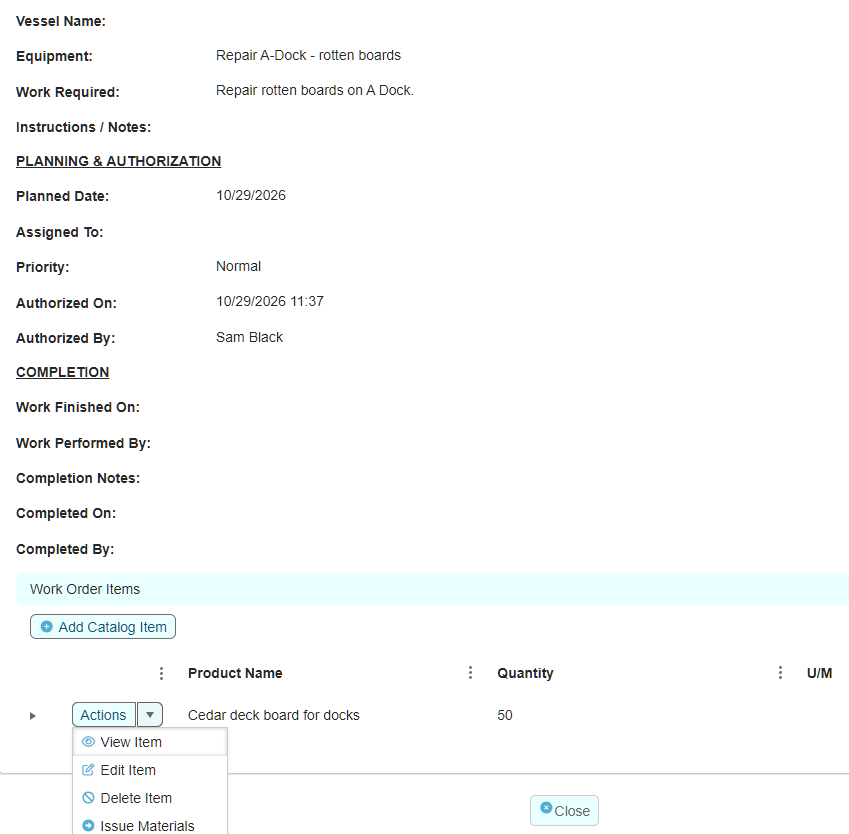
SCREENSHOT PLACEHOLDER — Issue internal materials
Capture an eligible demonstration internal work order with an unissued inventory item. Open its Actions menu and highlight Issue Materials. Include the item description, quantity, and unit. Crop tightly to the Work Order Items area. Do not post a real issue solely to obtain the screenshot.
Caption: Check the material and quantity before using the explicit issue action.
Post the issue
Open the item's Actions menu.
Select Issue Materials, as labelled on your screen.
Read and respond to any prompts. Treat this as a stock-changing action, not a preview.
After the action completes, refresh or reopen the work order and use View Item to review the usage details.
A successful issue deducts the recorded quantity from stock and creates an internal-usage transaction. It also records the quantity, stock unit, cost at issue, source stock record, issue time, and staff member on the work-order item.
If the action reports an error or the outcome is unclear, inspect the item before attempting it again. Do not repeatedly click Issue Materials or create another line to work around an already-posted message.
Review the recorded usage
Open Actions → View Item and review:
Qty Issued: The quantity recorded by the issue.
Stock Unit: The unit used for that quantity.
Unit Cost At Issue: The inventory unit cost captured when the issue was posted.
Total Material Cost: The recorded issued quantity multiplied by the unit cost, rounded to two decimal places.
Issued From: The recorded stock source, displayed using the configured source information.
Issued On: When the usage was recorded.
Issued By: The staff member who posted the issue.
These are usage records, not customer charges. The recorded cost at issue is distinct from a product's selling price.
A warehouse identifies the stockholding area; a shelf or bin provides a more specific location where configured. Do not infer a shelf or bin from a warehouse name alone. Ask the inventory administrator about missing or incorrect source information rather than inventing a location.
Unused materials and incorrect issues
Material was added but never issued
If a material line was added but the material was not used, resolve it through the permitted item actions before closure. Remove an unissued item that is not required rather than posting stock usage simply to satisfy a closure check.
Usage has already been posted
Issued items are protected from ordinary editing and deletion. The current workflow does not provide a staff reversal or partial-return action.
If the item, quantity, or source was wrong, contact your administrator. Provide the work-order number, item description, recorded issue details, and an explanation of what actually happened. Do not delete history, change stock directly, enter a negative quantity, or post another issue as an improvised correction.
Complete and close the internal work order
Record the actual completion details, including any exceptions, through the service completion action.
Review all material lines. Materials actually used need complete posted usage records; unissued materials not used need to be resolved.
Review any completion exceptions and the proposed closure decision.
Select Close Work Order and complete the confirmation and any requested explanation.
Verify the Closed status and closure details.
Completed internal work appears in Internal Review Required until it is closed. That queue includes work that still needs material review; it is not a guarantee that the work is ready for closure.
Internal work with no material items can still follow the completion and closure workflow. Do not add a fictitious item merely to close a labour-only internal job.
Closing the work order does not issue materials or create customer billing. Closed work orders and their items are read-only, while the recorded usage remains available for viewing.
Reports and follow-up
Print Service Report produces the completed service record. Its item table lists recorded work-order items; it is not a separate certification of material consumption and does not show the internal issue-cost details. Use View Item to inspect those details.
If a validation message blocks issuance or closure, follow the message and ask your administrator for assistance where needed. Do not bypass the check by changing the work type, removing historical links, or duplicating an issued item.