

Use planning details to record when service work is intended to take place and who is assigned to it. Use a worksheet to give staff the recorded job information when they need a working copy.
Planning, starting work, and recording completion are separate steps. Setting a planned date or printing a worksheet does not mean that work has started or finished.
Find work that needs planning
Open Service Management → Dashboard and use the appropriate queue:
Awaiting Planning: Authorized, In Progress, or On Hold work without a planned date.
Planned Today: Work in those statuses with today's planned date.
Past Planned Date: Work in those statuses with a planned date earlier than today.
Work On Hold: Work that may need its hold reason resolved before it can proceed.
Select a tile and open the work order using its View action. You can also find a work order directly through Service Management → Work Orders.
Record a plan and assignment
Open the work order and review its work required, equipment or vessel details, instructions, and current status.
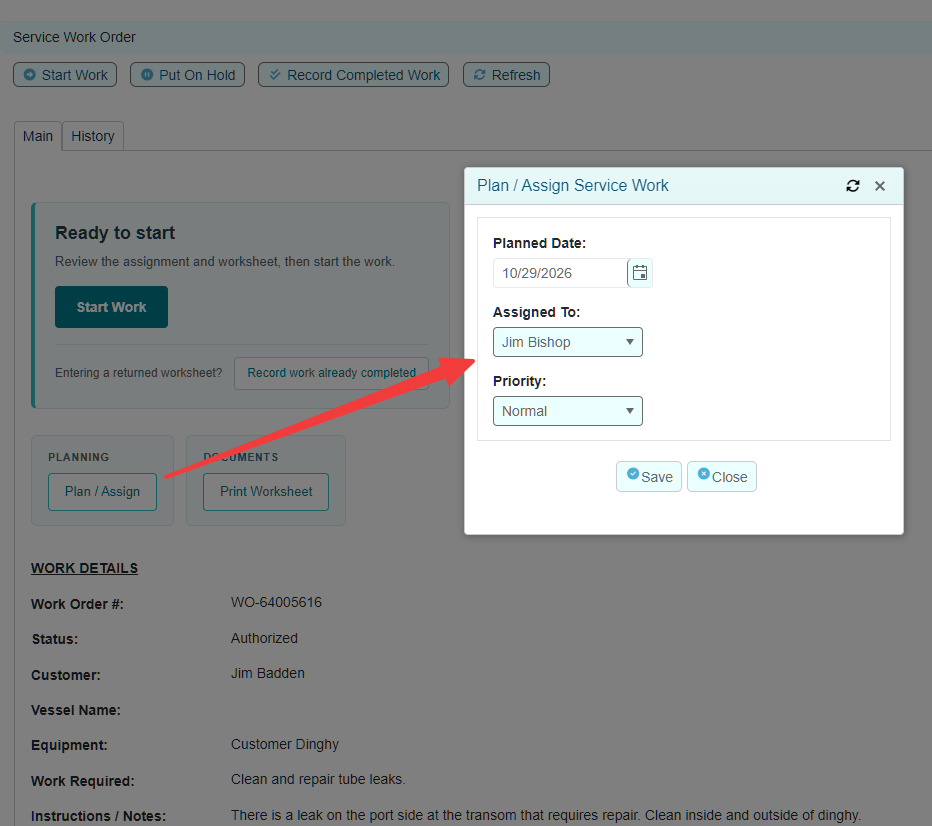
Select Plan / Assign. This action is available for eligible Authorized, In Progress, and On Hold service work.
Enter or revise the planned date and staff assignment as appropriate.
Review the available planning fields and save the changes.
Check the work order's Planned Date and Assigned To details to confirm the intended values were recorded.
Use your marina's scheduling procedures to confirm staff availability, equipment access, parts, and any customer arrangements. A saved date or assignment is not, by itself, proof that those arrangements have been confirmed.
Review scheduled work
Open Scheduling from the Service Management dashboard navigation or the Scheduling tab in the work-order workspace.
Use the scheduling view to review planned service work. For changes to a job's plan, open the work order and use Plan / Assign. Review the work-order status as well as its planned date: an On Hold job may still have a date on the plan.
Do not assume that a job missing from a particular scheduling view has been cancelled or completed. Check the work-order record and any active filters.
Reschedule or reassign a job
Open the work order and confirm why its plan needs to change.
Use Plan / Assign to update the applicable planning details.
Save and verify the revised date and assignment.
Communicate the change to the affected staff using your marina's normal procedure.
If a worksheet has already been distributed, replace it with a current copy or clearly communicate the changed instructions.
Changing the planned date is not a substitute for recording the actual work status. If work has finished, record completion. If it has paused, use the hold workflow when appropriate.
A job with a past planned date should be reviewed, not simply moved forward to remove it from the dashboard. Establish what happened before updating the record.
Print a worksheet
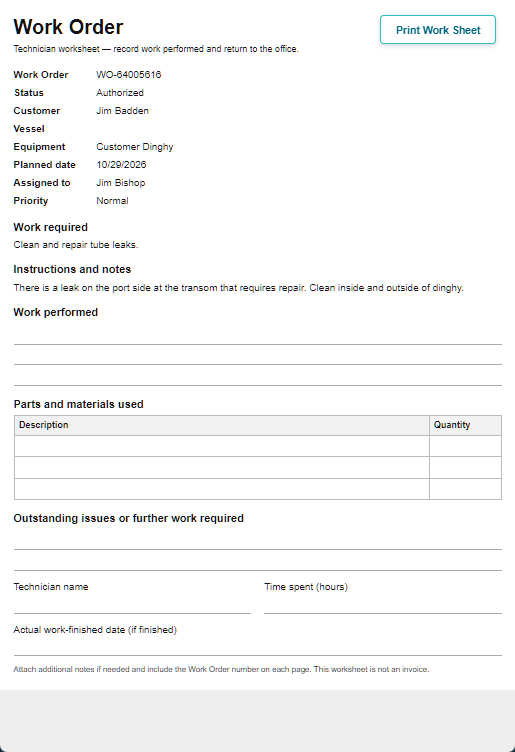
Use Print Worksheet to produce a working document for staff before or during the job. It is available on eligible Authorized, In Progress, and On Hold work orders.
Review the work order and save any permitted changes to its instructions, items, or planning details.
Select Print Worksheet.
Review the generated document before printing. Confirm that the work-order number and job details identify the correct work.
Print or distribute the worksheet according to your marina's procedures.
A generated worksheet reflects the information available when it was produced. It will not automatically update a paper copy after the work order changes.
Printing a worksheet does not start the work, post an internal material issue, prepare customer billing, or record completion.
When work starts
Select Start Work on the Authorized work order when work begins. The operational status then tracks the work separately from its planned date.
If work cannot proceed, record the hold through the appropriate action and follow up on the reason. Resuming held work restores its recorded pre-hold status; check whether it returns to Authorized or In Progress.
Record a returned worksheet
When staff return a worksheet for work already performed, use it as the source for recording the actual result.
Find the work order using the number on the worksheet.
Confirm that the worksheet belongs to the correct job and that any changes or handwritten notes are understood.
Use the available Record Completed Work or Record work already completed action.
Record the actual work-finished date, who performed the work when known, completion notes, and any exceptions.
Review any material usage or customer billing that still needs to be recorded. Completion does not perform those steps automatically.
Do not use the planned date as the actual work-finished date unless the work really finished on that date. If information is missing or unclear, check with the person who performed the work rather than guessing.
Worksheet or completed service report?
Print Worksheet: A working document used to support carrying out and reporting back on a job.
Print Service Report: A record of completed service work, available through the completed/closed workflow.
Neither document is a payment receipt. Recording completion does not close the work order; final review and closure are separate steps.
If the planning action or worksheet is unavailable
Check the work-order status. Draft work needs authorization before these operational actions; completed or closed work uses the completion-review and reporting workflow.
Confirm that you opened the intended service work order in the correct company.
Refresh or reopen the work order after a status change.
If a validation message remains, provide your administrator with the work-order number, the action selected, and the exact message.
Do not create a duplicate work order solely because a planning or printing action is unavailable.