

Close a service work order after the work has been recorded as Completed and its final review is finished. Closure makes the work order and its items read-only while retaining their history for viewing.
Completed and Closed are different statuses. Completion records the result of the work. Closure records that final review is complete. Neither status, by itself, confirms customer payment.
Find work awaiting closure
Open Service Management → Dashboard and use:
Ready to Close: Completed customer work that meets the dashboard's billing-readiness checks.
Billing Review Required: Completed customer work with billing follow-up still outstanding.
Internal Review Required: Completed internal work awaiting review and closure, including work whose material usage may still need attention.
You can also open the record through the completed/closed work-order list. A dashboard queue does not bypass validation: Dockit checks the work order again when you attempt closure.
Review every work order before closing
Confirm the work-order number and whether the work is Customer or Internal.
Verify that the status is Completed.
Read the requested work, completion notes, actual finish date, and recorded staff details.
Review any completion exceptions and establish whether closure is appropriate.
Check the item list and follow the applicable billing or internal material review below.
Do not close a record simply to clear a dashboard queue. If work or review is still outstanding, leave the work order open for follow-up.
Customer work with billing
Review all linked billing orders, not just the first one. A work order can have an earlier finalized order and a later Draft for additional charges.
Every item needs a resolved billing treatment.
Each chargeable item must be linked to qualifying finalized billing for this work order and company.
No linked Draft billing order can remain unresolved.
Finalized orders must have the qualifying invoice records required by the closure checks.
Cancelled orders may remain as history, but they do not settle chargeable items.
Use Prepare Billing for eligible charges awaiting transfer and View Billing to review existing billing. Resolve any reported mismatch or missing invoice through the appropriate billing workflow.
Outstanding payment does not necessarily prevent work-order closure. Finalized billing can remain payable after the work order closes. Review the actual invoice balance when checking payment; Closed is not a substitute for Paid.
Customer work without an additional charge
Use the no-additional-charge path only when that accurately reflects the billing decision.
Resolve every item as Covered by another charge or agreement or No charge — waived, as appropriate.
Check the explanations for covered and waived items.
Confirm that no active billing order remains. Cancelled orders can remain as history.
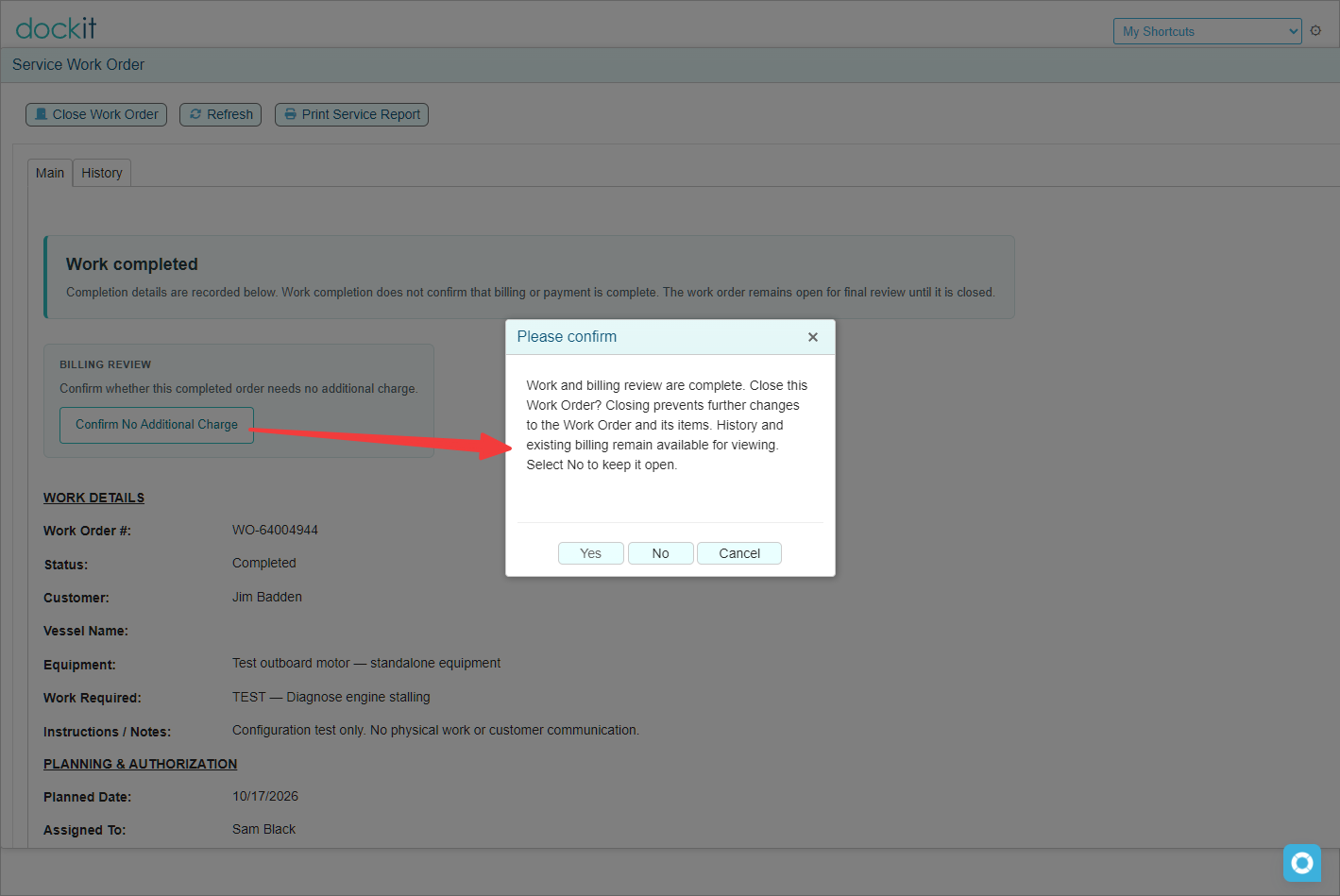
Use Confirm No Additional Charge when offered and complete the confirmation.
Review the work order before proceeding to closure.
A chargeable item, an unresolved billing decision, a zero-priced line, or a cancelled sales order does not by itself establish that no additional charge is required.
If billing records already exist and require correction, resolve them through the billing workflow. Do not remove their links to force the no-additional-charge path.
Internal marina work
Internal closure does not require customer billing or customer no-additional-charge confirmation. It does require review of the work and any material usage.
Review the internal equipment description, completion details, and exceptions.
Check every material item through View Item.
Materials actually used must have complete posted usage records matching the recorded item quantity.
Resolve unissued items that were not used through the permitted item actions.
Do not delete issued items or post another issue as an improvised correction.
An internal work order with no material items can still be completed and closed. Do not add a fictitious item just to support closure.
Closing does not issue stock. If a material issue is required, perform and review that explicit action before attempting closure again.
Work completed with exceptions
If completion exceptions were recorded, read them before deciding to close. The closure workflow requests an explanation of the closure decision.
Explain why closure is appropriate despite the recorded exception and identify any agreed follow-up. Do not rewrite the history to imply that unperformed or unverified work was completed.
If the exception still requires work or a decision before closure, leave the work order unclosed and arrange follow-up.
Close the work order
Select Close Work Order near the top of the completed work-order view.
If validation blocks closure, resolve the stated issue and review the record again.
Read the confirmation. It describes the effect of closure and distinguishes customer billing from internal work.
Select Yes only when review is complete. Select No to keep the work order open.
Provide any required exception-closure explanation.
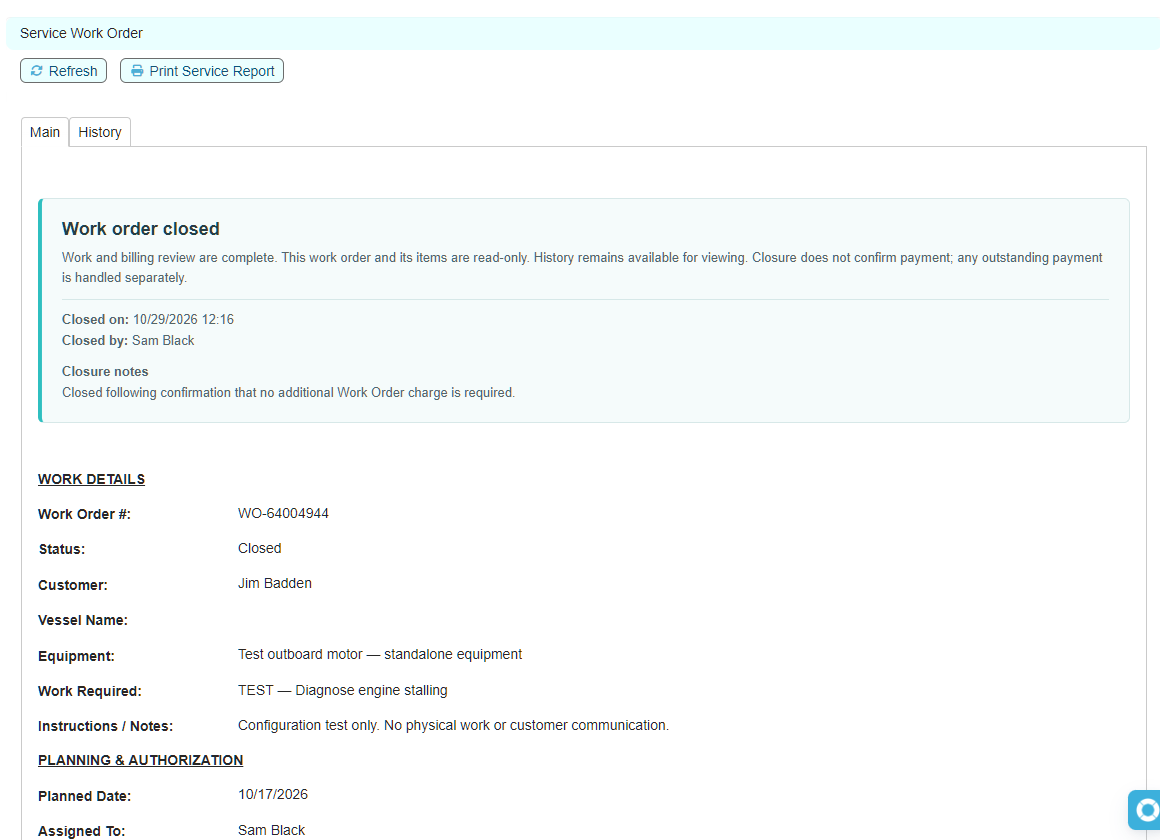
Verify the resulting Closed status and closure details.
The ordinary Close button at the bottom of a popup exits the view. It is not the same as Close Work Order and does not perform business closure.
Verify the closed record
Check that the view shows:
The Work order closed banner and Closed status.
The recorded closure date and staff member.
Closure notes, including the exception explanation where applicable.
The retained work-order items and relevant billing or usage history.
Item viewing remains available, while ordinary add, edit, delete, and internal issue actions are no longer available on the closed work order. History and the completed service report remain available for review. Customer billing can still have an outstanding balance.
Common reasons closure is blocked
The work order is not Completed: Record the actual completion through the normal workflow first.
Billing decisions remain unresolved: Review every item's billing treatment.
Chargeable items have not been transferred: Prepare eligible billing, then review and finalize it as appropriate.
A Draft billing order remains: Resolve that order even if other linked orders are already finalized.
No additional charge has not been confirmed: Review and use the explicit confirmation only where the no-charge path applies.
Internal usage is incomplete: Review the material items and posted usage. Do not issue unused stock to get past the check.
An exception explanation is required: Record the reason for the closure decision, or leave the work order open if review is not complete.
A company or billing-reference mismatch is reported: Ask the administrator to investigate rather than changing or removing links.
If a correction is needed after closure, contact your administrator with the work-order number and the required correction. Do not change the status directly or duplicate the work order merely to bypass its read-only state.