

Use Prepare Billing to transfer eligible customer work-order items to a sales order. You can prepare initial charges and transfer additional items later without duplicating the earlier charges.
Preparing billing, finalizing a sales order, collecting payment, and closing the work order are separate steps. Internal marina work does not use this customer-billing workflow.
Before preparing billing
Confirm that the work order is for Customer work and belongs to the correct company.
Review the selected customer and the requested work.
Resolve missing billing decisions and items marked Needs billing review.
Review each chargeable item's description, quantity, unit, price, and tax setting.
Check existing billing orders so you understand which items have already been transferred.
The preparation process supports eligible Authorized, In Progress, On Hold, and Completed work orders. It does not permit adding billing through a Closed work order. Follow your marina's policy on when charges should be prepared.
Inventory items require the Retail & Inventory suite and a valid inventory-item selection. If an inventory validation fails, ask the responsible administrator to correct the item configuration rather than substituting a one-off charge.
Prepare the initial billing order
Open the customer service work order.
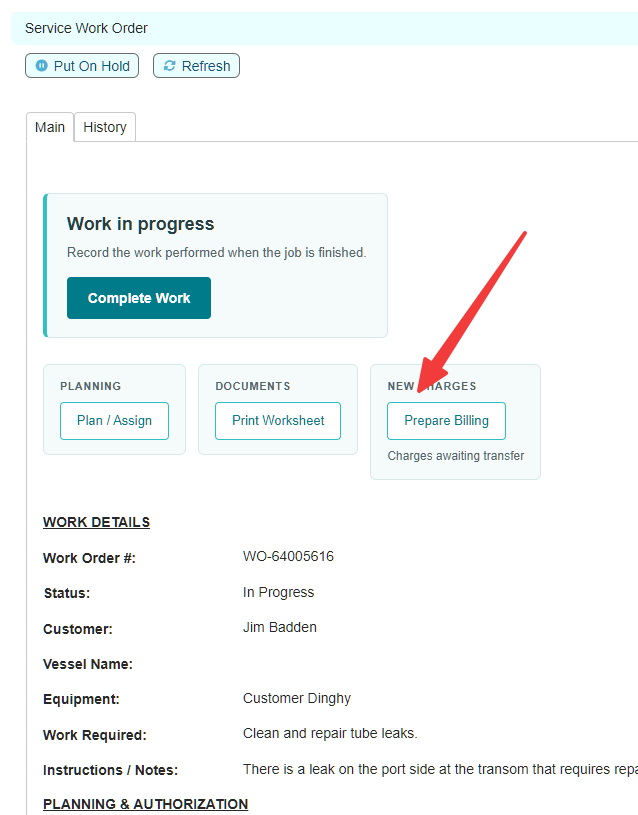
Locate New Charges and select Prepare Billing.
Review the Draft sales order that opens.
Verify the customer, order number, item descriptions, quantities, units, subtotal, tax, and total.
Resolve any discrepancies before moving on to finalization.
Prepare Billing transfers eligible items marked Charge customer separately. Included and waived items are not transferred as separate charges by this process.
The created sales order is linked to the work order, with Order Source set to Work Order and Fulfillment Method set to Service. Do not change the customer or other identifying information merely to bypass a mismatch warning.
Review the Draft sales order
A Draft sales order is a billing record still awaiting finalization. Preparing it does not collect payment.
Check the transferred lines against the intended work-order charges. Avoid adding the same charge directly to the sales order as well as through the work-order transfer.
If a transferred item needs correction, follow the permitted correction workflow or ask your administrator. Do not assume that changing a sales-order line will also change the original work-order item.
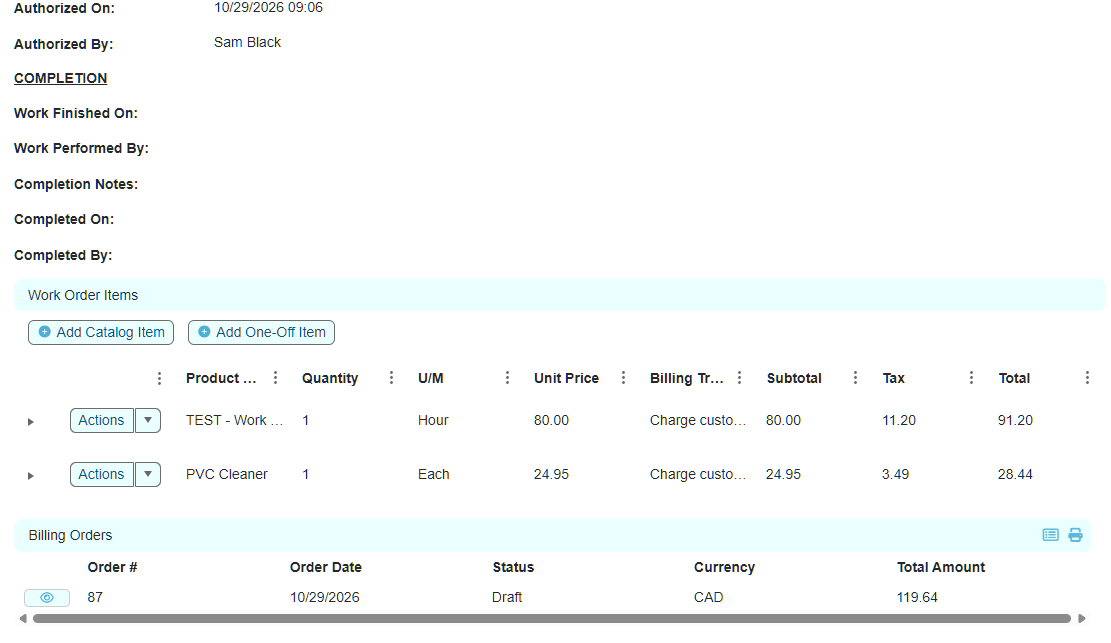
Use the work order's Billing Orders list to review linked orders and their statuses. Where displayed, item-level linked billing information helps identify where a particular item was transferred.
Add further charges before finalization
Return to the eligible work order.
Add the genuinely additional item and review its billing details.
Set its treatment to Charge customer separately if appropriate.
Select Prepare Billing when it becomes available.
Verify that the existing matching Draft sales order now includes the new item and that earlier items have not been duplicated.
When there is one suitable Draft sales order, the preparation process reuses it. If more than one Draft exists, or the existing Draft does not match the work order's customer, company, currency, or service fulfillment settings, Dockit blocks the transfer for review.
Do not create another order manually just to bypass that message. Review the existing billing records with the responsible staff member.
Add further charges after earlier billing is finalized
Earlier finalized billing does not need to be duplicated to bill additional work. While the work order remains eligible for changes, add only the additional work-order items.
When you select Prepare Billing, Dockit uses a suitable current Draft if one exists. Otherwise it creates a new Draft order for the eligible additional items. The earlier finalized order remains linked as history.
For example, if an earlier order contains 1 hour of labour and the job later requires another 0.5 hour, enter the additional 0.5-hour item. Do not enter a new 1.5-hour charge unless that is part of an explicitly reviewed correction, because the original hour is already billed.
Finalize billing and handle payment
After reviewing the Draft order, use Proceed To Payment when you intend to advance it into the invoicing/payment workflow.
This action can finalize the sales order and create the invoice before a payment is collected. It is not a preview button. Leaving or cancelling the payment-entry screen does not necessarily return the sales order to Draft or cancel the invoice.
If payment is being collected, use the approved payment method and your marina's payment procedures. If payment is to remain outstanding, follow the established invoicing procedure and verify the resulting order and invoice statuses and balance. Do not record a fictitious payment to complete a work-order review.
An Open order or invoice is not proof of payment. Verify payment through the invoice balance and related payment records.
Return to the work order
Refresh or reopen the work order after billing changes.
View Billing provides access to current linked billing where available.
Prepare Billing appears when eligible chargeable items remain to be transferred.
Both cards can appear when existing billing is present and additional items await transfer.
The Billing Orders table retains linked records, including cancelled orders kept as history.
Once all eligible items have been transferred, Prepare Billing should no longer be offered for those same items. Do not add duplicates simply because the button disappears.
Billing and work-order closure
Completing the work does not finalize its billing. Before closing a completed customer work order, review every item and every linked billing order.
A Draft billing order blocks closure even if another linked order is already finalized. The closure process also checks the company, billing links, and qualifying invoice records. Resolve any message rather than removing a link to get past the check.
Where billing is finalized and other closure requirements are satisfied, the work order can close while customer payment remains outstanding. Closing makes the work order and its items read-only; it does not mark an invoice Paid.
Cancelled billing orders
A cancelled Draft order remains as history. Eligible chargeable items linked only to explicitly cancelled orders can be prepared for replacement billing through the work-order process.
Cancellation does not waive the underlying work-order charge. If the item should no longer be billed, arrange the appropriate reviewed correction rather than repeatedly preparing and cancelling orders.
See the separate cancellation and re-billing procedure before cancelling an order. An order with an invoice or posted inventory impact is not eligible for the ordinary Draft cancellation action.
If Prepare Billing is missing or blocked
Confirm that this is customer work and that the work-order status permits billing preparation.
Check that a genuinely untransferred item is marked Charge customer separately.
Review its linked billing history; a current link may mean it has already been transferred.
Refresh or reopen the work order after changes.
If an error remains, record the exact message and ask your administrator to review the work-order and sales-order numbers.
If a transfer's outcome is unclear, inspect the linked orders before trying again. Do not delete historical links, change statuses directly, or create duplicate items to force a transfer.