

Use work-order items to record the labour, services, parts, or materials associated with a service job. For customer work, each item also records how it should be treated for billing.
This article focuses on customer work-order items. Internal marina work uses a separate material-usage workflow and does not require customer billing.
Before adding an item
Confirm that you have opened the correct work order and customer.
Check the existing items to avoid entering the same work or charge twice.
Identify the quantity and unit of measure. For example, 0.5 Hour is not the same as 0.5 Each.
Decide whether the item should be charged separately, covered elsewhere, waived, or reviewed before a billing decision is made.
Adding a work-order item is not the same as transferring it to a sales order or collecting payment.
Add a catalog item
Open the work order and locate Work Order Items.
Select Add Catalog Item.
Select the appropriate product or service.
Review the description, quantity, unit of measure, and unit price.
Review the tax setting and select the appropriate billing treatment.
Complete any explanation required for the billing decision, then save.
Check the saved row, including its quantity and any displayed amounts.
Choose the item that actually represents the work or material. Do not select an unrelated item merely because its price is similar.
Add a one-off customer item
Use Add One-Off Item where available for a customer charge that needs to be entered through that workflow rather than selected as an existing catalog item.
Complete the description, quantity, pricing, tax, and billing information requested by the entry form. Use a description that will remain understandable when the item is reviewed later.
Do not use a one-off item to bypass inventory tracking or to record internal stock usage. Ask your administrator to resolve a missing or unsuitable inventory item.
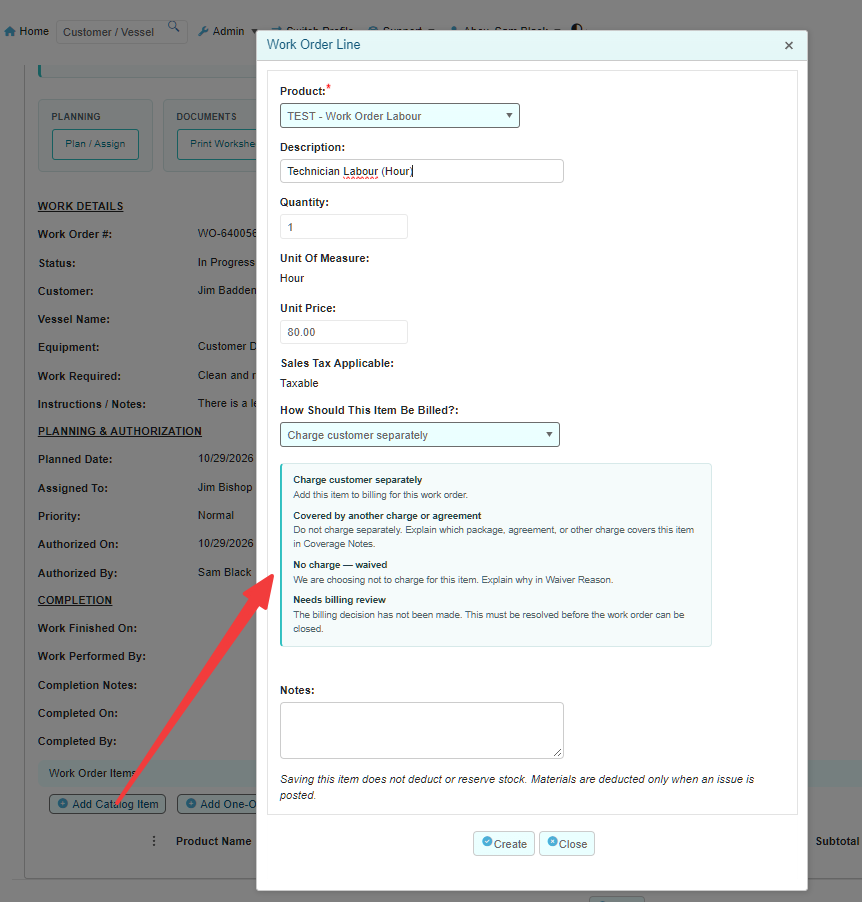
Choose the billing treatment
Charge customer separately
Choose this when the item should become a separate customer charge through work-order billing.
Review the quantity, price, and tax details before transferring the item. When the work order is eligible, Prepare Billing transfers eligible chargeable items to a sales order.
Saving this billing treatment does not itself create an invoice or take payment.
Covered by another charge or agreement
Choose this when the item is included under an existing package, agreement, or other charge and should not be charged separately.
Explain what covers the item in the coverage or included-charge explanation field. For example: “Included in the agreed spring commissioning package.”
Make sure the explanation identifies the basis for coverage. Selecting this option records the billing decision; it is not proof that the referenced agreement has been checked or paid.
No charge — waived
Choose this when the marina has decided not to charge separately for the item.
Enter the Waiver Reason and follow your marina's approval procedures. For example: “Courtesy adjustment approved by the service manager.” Do not waive an item simply to remove it from a billing-review queue.
Needs billing review
Choose this when a billing decision has not yet been made.
Record any useful context in the notes and arrange for the appropriate staff member to review it. This treatment must be resolved before the work order can close.
Review quantities, prices, and tax
Quantity: Use the quantity intended for the item and its unit. Check decimal quantities carefully for labour or other measured services.
Unit of measure: Confirm that the displayed unit matches the way the quantity was entered.
Unit price: Review the recorded price before billing. Do not assume the correct price solely from the product name.
Tax: Use the configured tax treatment appropriate to the item and your marina's procedures. Ask the responsible administrator if the setting appears incorrect.
Displayed totals: Review the subtotal, tax, and total where shown. A work-order amount is not evidence that an invoice has been paid.
Included or waived items are not intended for separate charging through Prepare Billing. A customer billing decision also does not, by itself, establish whether stock has been consumed.
Review or change an existing item
Use the item's Actions menu to view the available operations. Select View Item to inspect its saved details, or use Edit when the item is eligible for changes.
Available actions depend on the work-order status, billing history, and any recorded internal usage. An item without a current charge is not necessarily editable: historical billing links may still restrict changes.
If a permitted delete action is used, confirm that the item was entered in error or is not required and that removing it is appropriate. Do not remove records merely to bypass a billing or stock validation message.
Closed work orders and their items are read-only. If a correction is needed after closure or billing transfer, ask your administrator how to preserve the record's history.

Understand billing links
When an item is transferred, its link to the sales-order line records where it was billed. Use the linked billing information to review that history.
An item already linked to current billing should not be entered again just to make it appear on a sales order.
Additional eligible items can be prepared later without duplicating earlier charges.
A cancelled Draft sales order remains as history. Its retained links do not prevent eligible items from being transferred through the replacement-billing workflow.
Do not delete historical links or create duplicate work-order items to force replacement billing.
A Cancelled sales order is not the same as a waived work-order item. If the underlying item remains chargeable, its billing still needs to be resolved.
When no additional charge is required
For a completed customer work order with no active billing order, resolve all items as Included or Waived where appropriate, then use the available no-additional-charge confirmation action.
A zero price, a cancelled sales order, or an empty billing list does not replace that review. If any item remains chargeable or needs billing review, resolve it through the appropriate workflow before closure.
Internal work-order items
Internal marina work does not follow the customer billing choices described above. Use the internal workflow for eligible inventory materials, and describe labour or other tasks in the work and completion notes.
Adding an internal material item does not deduct or reserve stock. An explicit material issue records the usage and deducts stock. The recorded quantity, stock unit, cost at issue, source, issue time, and issuer can be reviewed through View Item.
Posted usage is not an ordinary editable charge. Do not delete an issued item or issue it again to correct an error; ask your administrator for assistance.
Before moving on
Check that the item list represents the work and materials intended for this job.
Resolve missing or uncertain billing treatments.
Check explanations for covered and waived items.
Review quantities, units, prices, and tax settings before transfer.
Use Prepare Billing for eligible customer charges, or the internal material-issue workflow for internal stock usage.
If Dockit blocks an action, retain the existing records and give your administrator the work-order number, item description, linked sales-order number where applicable, and the exact message shown.