

This article is for administrators preparing Service Management for staff use. It describes the records, access, and operating procedures to review. It is not an instruction to change application rules, database values, or financial records directly.
Administrative screens and available settings depend on your deployed configuration and access. If a setting is not exposed in your administrative interface, ask the Dockit configuration administrator to review it.
Company information
Company identity: Check the marina name and contact details used on service documents.
Logo: Review the generated worksheet and completed service report to confirm the correct branding appears.
Currency: Configure the company currency before staff prepare customer billing.
Timezone: Confirm the company's calendar timezone. It affects daily dashboard queues and the summary report's calendar interpretation.
Do not change a timezone or currency casually to resolve a single record. These settings affect more than the work order currently being viewed.
Staff access and responsibilities
Confirm which staff should be able to create and authorize work, plan assignments, record completion, issue internal materials, prepare billing, cancel eligible Draft sales orders, and close work orders.
Test the intended staff access, not only an unrestricted administrator login. A hidden button alone is not sufficient evidence that an operation is protected; the underlying action must also enforce the appropriate checks.
Check access to Service Management, Work Orders, Scheduling, Sales Orders, and Summary View.
Check that staff work in the intended company and can select appropriate company records.
Review staff assignment choices and remove or resolve unsuitable records through the normal administration workflow.
Establish who approves waived charges, completion exceptions, and corrections to posted usage or finalized billing.
Customer and equipment records
Customer work requires a customer belonging to the work-order company. Keep customer and vessel information accurate and ensure that the selected vessel represents the intended customer's job.
Equipment-only customer work should clearly identify the equipment. Internal marina work should be marked Internal, with customer and vessel references left unassigned and the equipment or asset described clearly.
Do not create placeholder customers merely to make internal work resemble customer billing.
Service and fee catalog
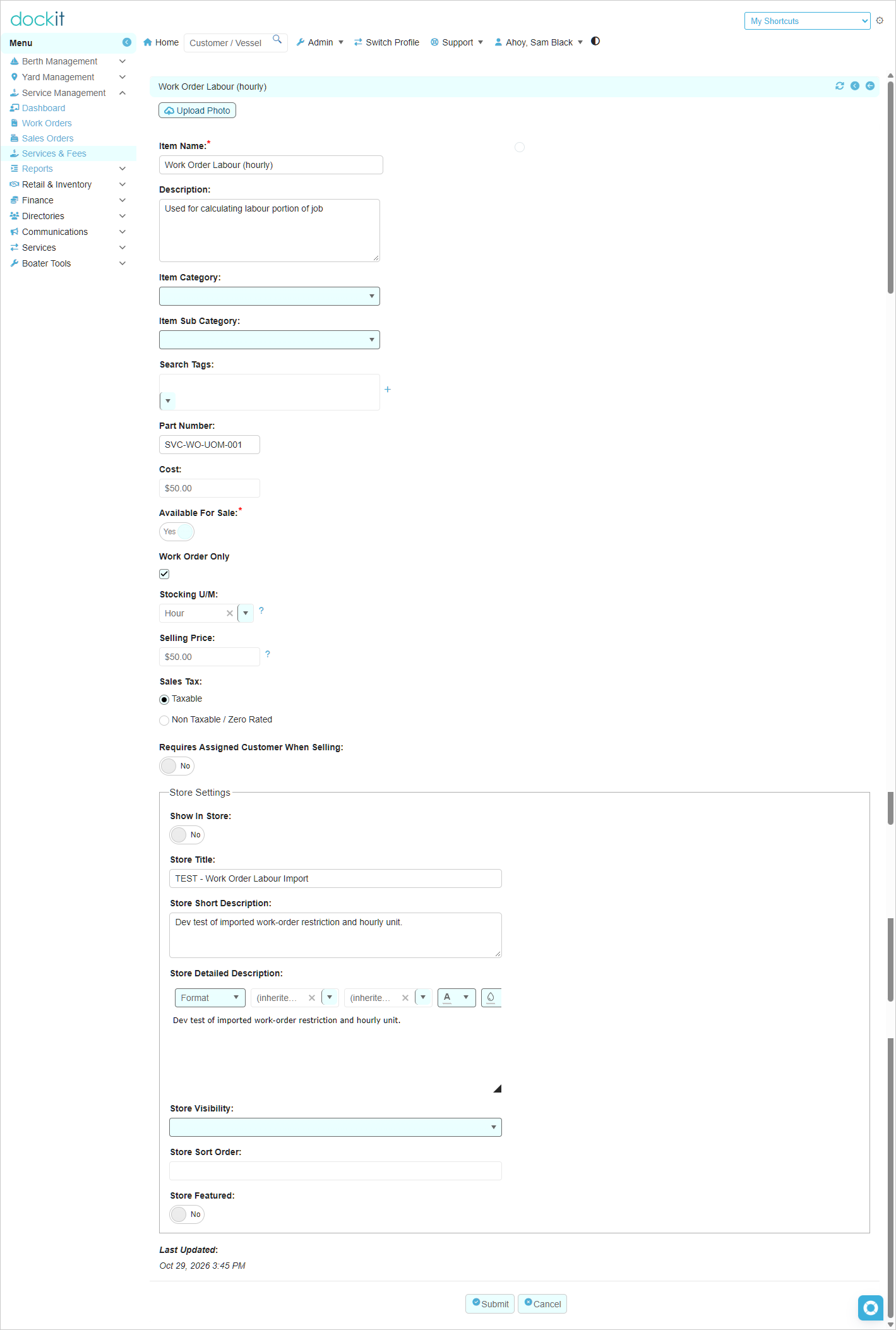
Review the products and services staff will select through Add Catalog Item. For each applicable item, check:
A recognizable name and description.
The correct product type: inventory or non-inventory.
The intended unit of measure, such as Hour or Each.
The selling price used for customer charges.
The configured tax treatment and rate where applicable.
The company ownership and relevant active/availability settings.
Verify the values on an actual saved work-order item. Do not assume that updating a catalog price changes previously recorded work-order or billing lines.
If your configuration exposes a service shop rate and its unit, review both together. Confirm the actual price populated by the applicable entry workflow rather than assuming that this rate overrides every catalog product.
Customer billing readiness
Confirm that staff understand the four item-level billing decisions: Charge customer separately, Covered by another charge or agreement, No charge — waived, and Needs billing review.
Establish the explanations and approvals required for covered or waived items.
Confirm the company currency and customer records are ready for sales-order creation.
Review access to linked sales orders and invoices.
Make the permitted Draft cancellation action available to the appropriate staff.
Establish a separate procedure for invoice corrections, payments, refunds, and any financial integration.
Proceed To Payment is not a preview action. It can finalize an order and create an invoice before payment collection. Staff must understand that leaving the payment screen does not necessarily undo those changes.
Non-inventory charges can be billed without the Retail & Inventory suite. Inventory items require that suite and valid inventory records.
Internal inventory readiness
The current internal material-issue workflow supports eligible active, stocked inventory items with on-hand tracking enabled and item tracking set to Not Tracked. Individually tracked items require a different supported workflow; do not change their tracking classification merely to make them selectable here.
For each material intended for internal use, verify:
The product and inventory item belong to the correct company and refer to each other correctly.
The product's stock unit and the inventory item's unit are populated and consistent. The unit displayed on the work-order line must match the stock unit used for issuance.
The inventory cost is defined and appropriate. A zero cost should be intentional, not a workaround for missing data.
There is exactly one configured primary warehouse stock record for the item.
Warehouse stock, item on-hand quantity, and reservations have been reviewed for consistency.
Any configured shelf or bin reference points to an existing location associated with the intended warehouse and company.
A warehouse-only arrangement and a broken shelf/bin reference are not the same thing. Where optional detailed locations are used, retain valid references. When moving data between environments, related warehouse and location records must be included and checked.
The issue uses the configured primary warehouse stock record. Do not assume staff will be asked to select an arbitrary warehouse at posting time.
Material-usage limits and correction procedures
Adding an internal item does not deduct or reserve stock.
An explicit issue posts the full line quantity once.
The current staff workflow does not provide partial issues, issue reversals, or partial returns.
Posted usage retains quantity, unit, cost, source, time, and issuer information.
Posted items must not be edited or deleted as ordinary unissued lines.
Define who investigates incorrect usage and how an approved correction will be recorded. Do not instruct staff to use negative quantities, duplicate issues, or direct stock changes as improvised reversals.
Dashboard and reports
Check that the dashboard displays numeric counts, including zero, and that each tile opens the intended company-scoped queue.
Keep the dashboard counts, linked query lists, and Summary View definitions aligned. In particular:
Billing Review Required must surface unresolved customer billing, including chargeable items whose billing orders were cancelled.
Ready to Close is a customer-work billing-readiness queue, not a paid-invoice queue.
Internal Review Required includes completed internal work awaiting closure, including items still needing material review.
Review the generated worksheet and service report using demonstration records. Check company identity, field labels, dates, item rows, and print layout.
For Summary View, check the selected date range, current snapshot counts, and CSV export. Report access should be launched through Dockit; private report links should not be treated as permanent public links.
Readiness checks before staff rollout
Use approved demonstration records in a controlled environment wherever possible. Obtain authorization before any test that changes real stock, creates financial records, sends messages, or processes payment.
Confirm access and company scoping with the intended staff roles.
Check customer and internal work entry, planning, start, hold, resume, and completion.
Check that completion exceptions and closure explanations are retained.
Check customer billing preparation, additional charges, and eligible Draft cancellation/re-billing.
Check closure validation and read-only behavior after closure.
Where internal inventory is in scope, reconcile an authorized test issue across item stock, warehouse stock, transaction history, and saved usage details.
Check reports, dashboard lists, and exports.
Record which checks passed, which remain untested, and any known limitations. A successful single-user example does not establish concurrent-operation safety, rollback behavior, or protection against direct process invocation. Have the configuration administrator assess these separately before relying on them.
Payment collection, payment after work-order closure, external notifications, refunds, and integrations need their own approved checks. A service workflow test is not a substitute for payment-system verification.
Maintain the configuration
When changing catalog settings, permissions, billing rules, stock setup, or reporting definitions, assess the effect on both Service and Yard workflows where components are shared.
Keep configuration changes separate from historical data correction. Preserve work-order, billing, and inventory history, and document any approved correction. Update the knowledge base when staff-visible behavior changes.