

Use the work-order history and completed service report to review an individual job. Use Service Management Summary to review activity across a date range, see current operational counts, and export a CSV.
These views serve different purposes. A completion report is not an invoice, and operational counts do not establish whether customers have paid.
Review a work order's history
Open the service work order.
Select the History tab.
Review the recorded events alongside the work order's current details.
History provides context for the workflow events that have been recorded. Use the item's View Item action for internal usage details and the linked billing records for sales-order and invoice information. Do not assume that the history list contains every field change or every payment event.
Print a completed service report
Open a Completed or Closed service work order.
Select Print Service Report.
Review the generated document and confirm its work-order number.
Use the report's Print Service Report button to open the browser's print options. Where supported, choose a PDF destination to save a copy.
The report presents the saved service record, including the current status, customer or internal work information, vessel or equipment, requested work, completion details, recorded items, and closure information where applicable.
Review it before sharing. A generated copy reflects the record when it was produced; an older browser tab or saved PDF does not automatically update when the work order changes.
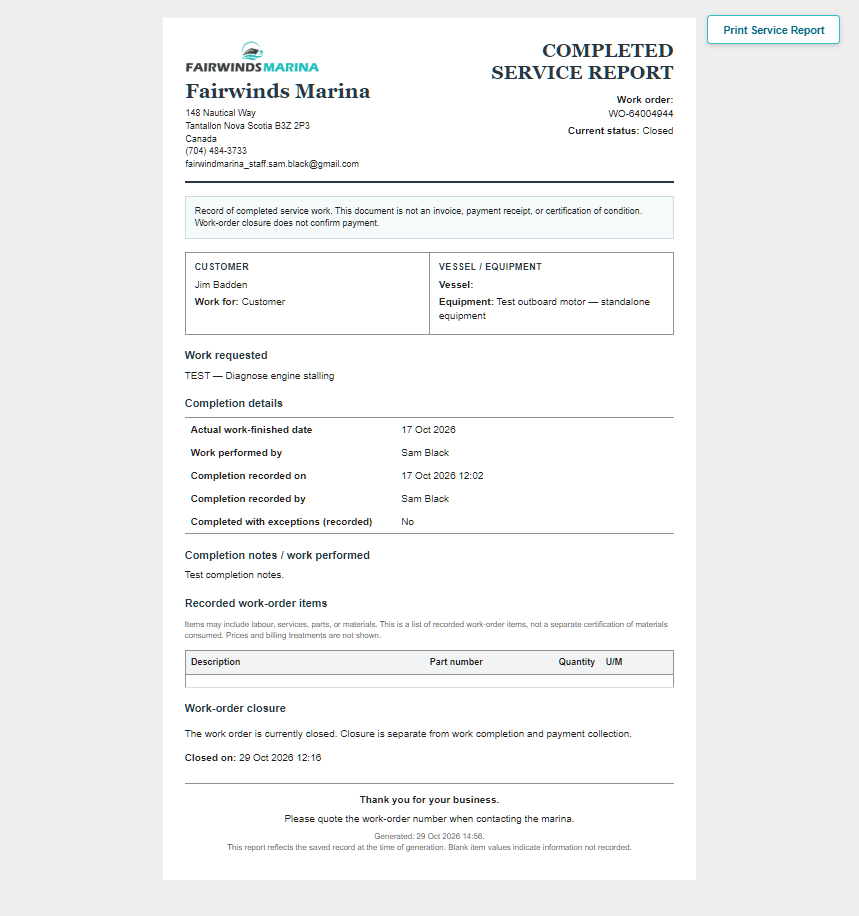
Understand the completion fields
Actual work-finished date: The date entered for when the work physically finished.
Work performed by: The recorded person who performed the work. Not recorded means that this information was not supplied.
Completion recorded on: When completion was entered in Dockit.
Completion recorded by: The staff member who entered completion, who may differ from the person who performed the work.
Completed with exceptions: The recorded exception flag. Read the completion notes for the explanation.
Do not interpret blank or unrecorded information as confirmation that a task was performed. Ask the responsible staff member if the record needs clarification.
What the service report does not establish
It is not an invoice or payment receipt.
Closure does not confirm that an outstanding balance has been paid.
The recorded-item table is not a separate certification of materials consumed.
Customer prices and billing treatments are not shown in the recorded-item table.
Internal issue quantities, costs, source, and issuer should be reviewed through View Item, rather than inferred from the report's work-order quantity.
Open Service Management Summary
Open Service Management → Reports → Summary View.
Use the report's date-selection controls to choose the period you need, then load the report.
Check the company name and displayed start and end dates at the top.
Review the selected-period activity separately from the current operational snapshot.
The displayed end date is included in the reporting period. Check the dates before concluding that activity is missing. For example, a period ending October 3 will not include completion records entered on October 26.
The report identifies the company's calendar time-zone. Completion timestamps are displayed and grouped using that time-zone. Cancellation dates are date-only values.
Activity during the selected period
Each card uses its own event date:
Work orders created: Service work orders created during the selected period.
Work orders completed: Work orders currently Completed or Closed whose completion-recorded date falls within the period.
Work orders closed: Work orders currently Closed whose closure date falls within the period.
Work orders cancelled: Work orders currently Cancelled whose cancellation date falls within the period.
Completed with exceptions: The period's counted completions with the exception flag set.
The cards are not additive. One work order can be created, completed, and closed during the same period. They are also not a completion-rate calculation: work completed this month may have been created earlier.
Cancelling a sales order does not count as cancelling a work order. A work order can remain Completed and require billing review after its Draft billing order is cancelled.
Completion chart and detail list
Work orders completed by day groups the counted completions by the date completion was recorded, not the actual work-finished date entered by staff. Only days with completions are shown.
The completion detail list shows the matching records, including their current status and available identifying information. Names, equipment descriptions, and other details reflect the current saved records rather than a historical copy of every field at completion.
The report does not reconstruct past status changes or count repeated completion events from history. It reports from the current records and their saved event dates.
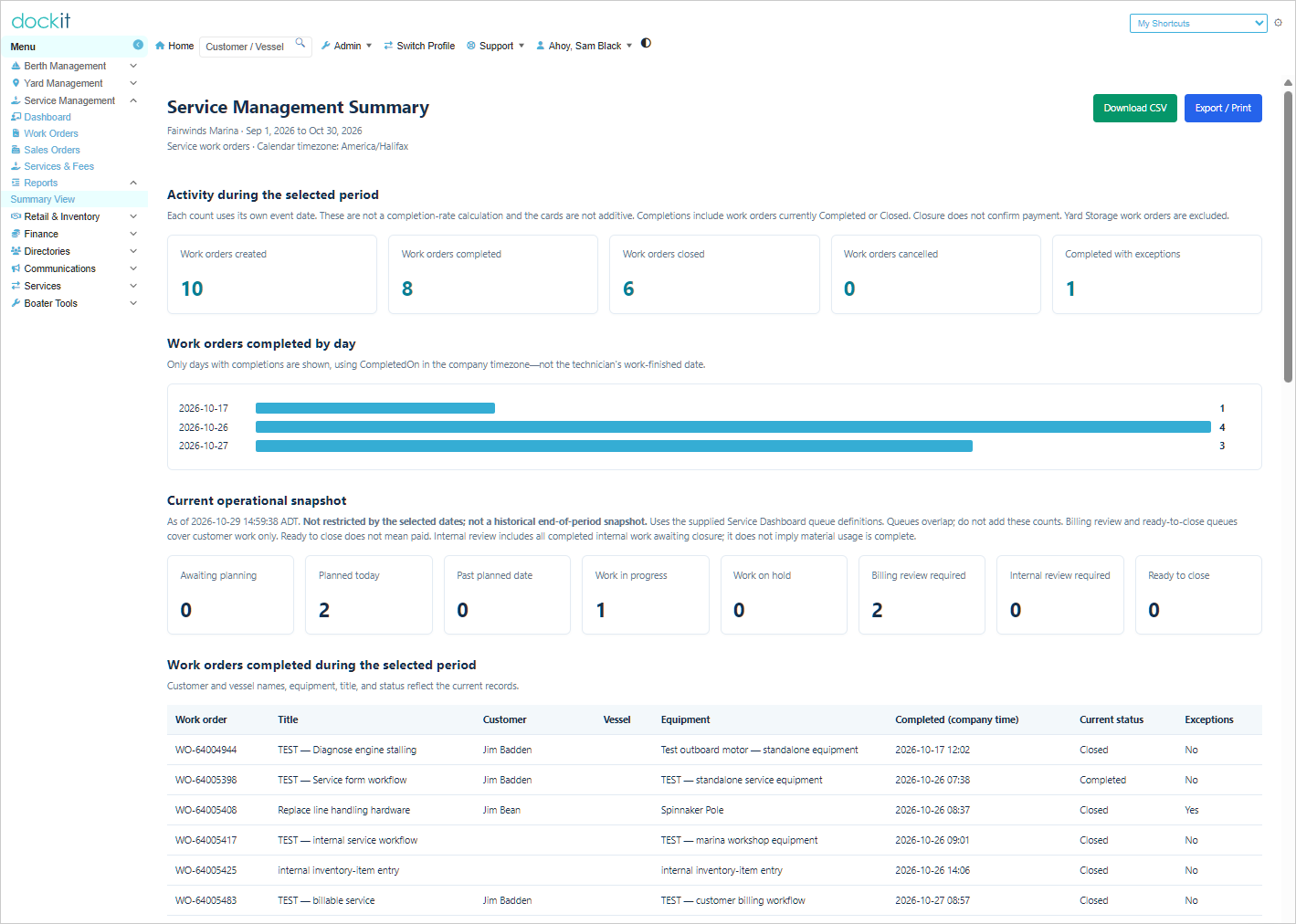
Current operational snapshot
This section shows the current service queues as of the displayed timestamp. It is not restricted by the selected date range and is not a historical end-of-period snapshot.
The eight counts correspond to Awaiting Planning, Planned Today, Past Planned Date, Work In Progress, Work On Hold, Billing Review Required, Internal Review Required, and Ready to Close.
Queues can overlap; do not add their counts together.
Billing Review Required and Ready to Close cover customer work.
Internal Review Required includes completed internal work awaiting closure, even if material usage still needs attention.
Ready to Close does not mean Paid.
The summary cards are read-only. To open the work-order lists, go to Service Management → Dashboard and select the corresponding tile.
When comparing the summary with the dashboard, refresh both close together. Other staff may change records between the two views.
Download CSV or print the summary
Select Download CSV to export the report's data. The export includes period metrics, current queue counts, data-quality counts, daily completions, and completion details in separate sections.
This is a multi-section report, not a single flat work-order table. When analysing it in a spreadsheet, use the relevant section and do not add current queue counts to period activity totals.
Select Export / Print to open the browser's print options. Review the preview and choose the required printer or PDF destination where supported.
Store exported files according to your marina's information-handling procedures. Exports can contain customer and vessel names; use demonstration data for training screenshots.
Missing dates or unexpected results
If the report displays a missing-event-dates notice, some records cannot be assigned to the relevant reporting period. Those data-quality counts cover all time, not just the selected dates. A record can appear in more than one data-quality category.
Ask your administrator to review missing dates. Do not guess completion or closure dates simply to make a report balance.
If results look unexpected:
Check the company, date range, and calendar timezone.
Distinguish period activity from current queue counts.
Check whether you are comparing work-order status with sales-order or invoice status.
Review the relevant work order's event dates and current status.
Reload the report through Dockit if a saved report link has expired.
When requesting help, provide the report date range, affected metric, work-order number where known, and the exact message or discrepancy. Do not share a report access URL as a substitute for an approved export.