

Use the Yard Dashboard to identify storage requests, unscheduled work, movements requiring attention, and vessels currently recorded in storage. It is a starting point for operational review, not a financial statement or a historical activity report.
Open Yard Management → Dashboard. Check that you are working in the correct company, then refresh the dashboard before reviewing the queues. Tile labels and available actions depend on your marina's configuration.
How to read the counts
Requests awaiting review counts storage requests.
Awaiting scheduling and awaiting agreement acceptance count work orders, not individual job steps.
Movements today and overdue movements count individual qualifying movement jobs.
Vessels currently stored counts vessels with a matching active current yard-location record.
These are different units, and queues can overlap. Do not add the tile counts together to calculate a total number of vessels, bookings, or work orders.
Today is determined using the company timezone. A count of zero means no records currently meet that queue's definition; it does not mean that the marina has no other outstanding work.
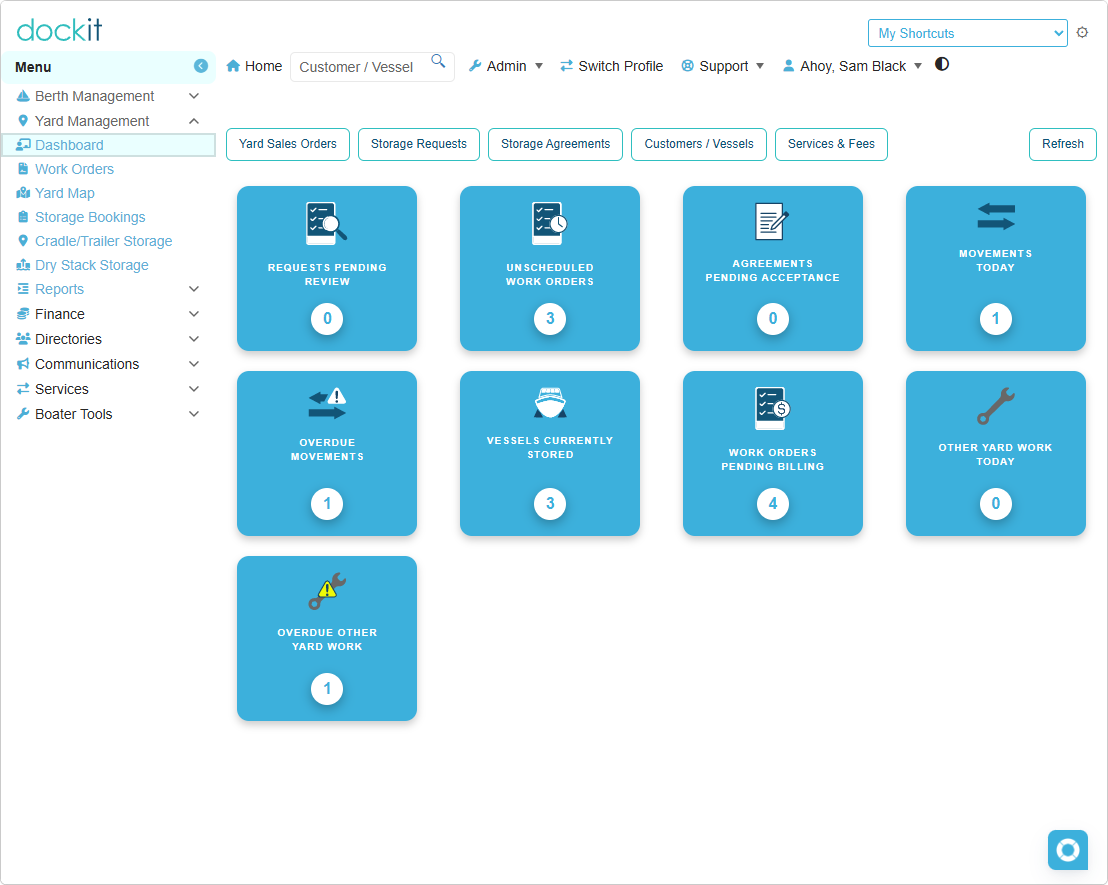
Requests awaiting review
This queue includes storage requests currently marked Submitted or Under Review. Draft requests and requests awaiting further information are not included in this definition.
Next action: Open the request and review the customer, vessel, requested storage arrangements, and outstanding information. Follow the available review and approval actions. A request appearing here is not evidence that its storage arrangements have been approved or activated.
Awaiting scheduling
This queue counts work orders marked Authorized or In Progress that have at least one qualifying movement job without a planned movement date.
The qualifying jobs are intake placement or release movements, with a job status of Planned or Scheduled. A work order is counted once even if more than one of its jobs meets these conditions.
Next action: Review the work order and its movement jobs, resolve applicable agreement or operational prerequisites, and assign the appropriate planned movement date through the supported scheduling action.
This is not a count of every unscheduled task. For example, the saved queue excludes work orders on hold and jobs outside the qualifying movement categories.
Awaiting agreement acceptance
This queue uses the same unscheduled-movement conditions as Awaiting scheduling and additionally requires the work order's agreement scheduling status to be Acceptance Required.
It is therefore a subset of the Awaiting scheduling queue, not a separate group to add to it. It is also not a list of every agreement awaiting acceptance across the marina.
Next action: Review the linked agreement and the required acceptance step. Confirm that the correct terms and revision are in use. Do not mark an agreement accepted merely to clear the tile or make scheduling available.
Movements today
This queue counts intake placement and release movement jobs planned for today. It includes jobs marked Planned, Scheduled, In Progress, or Blocked, whose linked work order is Authorized, In Progress, or On Hold.
Next action: Review the day's movement list, confirm each vessel and job, and check readiness before acting. A blocked job or a job belonging to an on-hold work order can appear in this count; inclusion does not mean the movement is cleared to proceed.
Record placement or release only when the corresponding physical action has occurred. Completed movements are not included in this outstanding-work count.
Overdue movements
This queue uses the same job and work-order status conditions as Movements today, but includes planned movement dates before today.
Next action: Determine whether the movement is still outstanding, was completed but not recorded, or needs an authorized scheduling change. Record the actual situation through the appropriate workflow.
Do not mark unfinished work complete simply to remove it from the overdue list. Do not assume that automatic carry-forward is running or that a calendar change has rescheduled the job.
Vessels currently stored
This queue counts vessels whose current yard-location link points to an Active location record for that same vessel and company.
It reflects recorded current locations, not future bookings, total storage capacity, or the number of accepted agreements.
Next action: Review the vessel and its location on the available storage list or yard map. If the saved location differs from the physical yard, investigate before recording further movements. A missing or inconsistent location link can prevent a vessel from appearing in this count.
Working from a queue
Refresh the dashboard and identify the queue requiring attention.
Open its configured list or use the corresponding Yard Management screen.
Review any list filters before comparing the visible rows with the tile count.
Open the relevant record and confirm the company, vessel, and linked work order or movement.
Read any prerequisites or validation messages before completing an action.
Return to the dashboard and refresh after saving changes.
A movement's presence on the dashboard does not override agreement requirements, permissions, job sequence, or other operational controls.

Why counts and lists may differ
Different counting units: One work order can have several movement jobs.
Overlapping queues: A work order awaiting acceptance can also be awaiting scheduling.
List filters: A search or column filter can hide otherwise qualifying records.
Recent changes: Another staff member may have updated a record since the dashboard was refreshed.
Company and dates: Confirm the current company and company timezone before comparing today's work.
Different definitions: A report, booking list, or map may show a different population from a dashboard queue.
If a difference remains after refreshing and checking filters, report the tile name, displayed count, relevant record references, and the comparison you made. The administrator should verify that the tile's count and destination query use matching definitions.
If a tile does not open a list
Check whether that tile has a configured action in your marina's dashboard. If an expected action does nothing, report the tile label and screen to your administrator. Use the corresponding existing Yard Management screen in the meantime; do not create duplicate records to work around a navigation problem.
The dashboard is a current operational snapshot. Where summary reports are available, review their stated date range and scope separately rather than treating dashboard counts as historical activity totals.