

Use the yard map to record where a vessel has been placed and when it has been released from storage. These actions record operational changes; they are different from preparing an agreement or changing a planned movement date.
Record what has actually happened. Do not place or release a vessel merely to clear a dashboard tile, advance a booking, or obtain a screenshot. Map records do not replace the marina's physical handling and safety procedures.
Before recording a movement
Confirm the current company, storage area, vessel and work order.
Check whether the selected job is an arrival placement or departure release.
Review the vessel's operational notes and any handling requirements.
Resolve the preparation, agreement or job-status requirements displayed by the application.
Confirm the actual physical location or departure with the staff responsible for the work.
Available actions depend on your permissions, the work and job statuses, and the marina's operating settings. A visible movement is not necessarily ready to complete.
Open the correct yard map
For an agreement-backed storage booking, open Yard Management → Storage Bookings and select the booking. Check that the vessel and agreement in the lower details match the booking header.
Use the available Open Arrival Map or Open Departure Map action for the relevant stage. You can also access the yard map through the enabled Yard Management navigation.
Opening a map does not record a movement. Once it opens, check the selected storage area and explicitly select the intended movement before acting. Do not assume that opening the map from a booking has automatically selected its job.
Why is a scheduled movement missing?
The map's operational movement queue shows outstanding movements due today or overdue in the selected area. A future scheduled departure may therefore be absent even though the booking correctly shows it as scheduled.
Review future work through the scheduling screens. Do not move its planned date forward just to make it appear on the map. If the physical plan has genuinely changed, use the supported scheduling action and follow your marina's approval procedure.
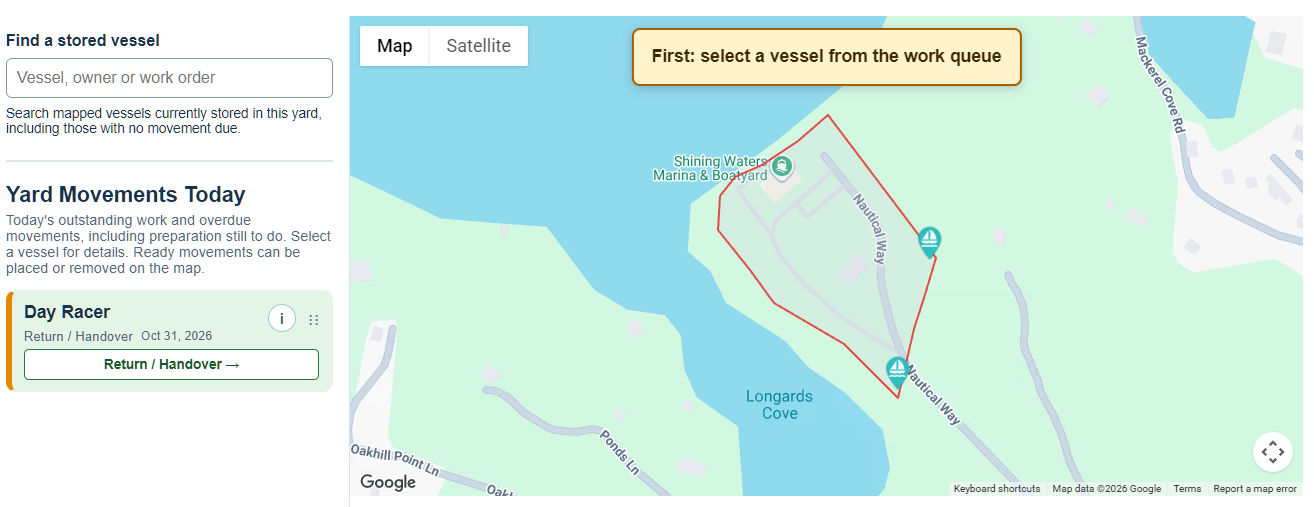
Record arrival and placement
Confirm the vessel has actually been placed and identify its position in the yard.
Open the appropriate map and select the vessel's eligible arrival placement job.
Review any displayed blockers or outstanding preparation steps.
Click or tap the map at the vessel's actual storage position.
Read the confirmation carefully, including which associated jobs the action will complete.
Confirm only when the vessel, position and completion statement are correct.
After the map refreshes, verify the stored marker and the saved arrival information.
For a booking, reopen or refresh the booking workspace and check that the arrival and storage information reflects the recorded movement. Check the linked work order separately for any remaining work.
If the marker is in the wrong place or does not match the physical yard, stop and arrange a correction through the supported workflow. Do not record a false departure and arrival to reposition a marker.
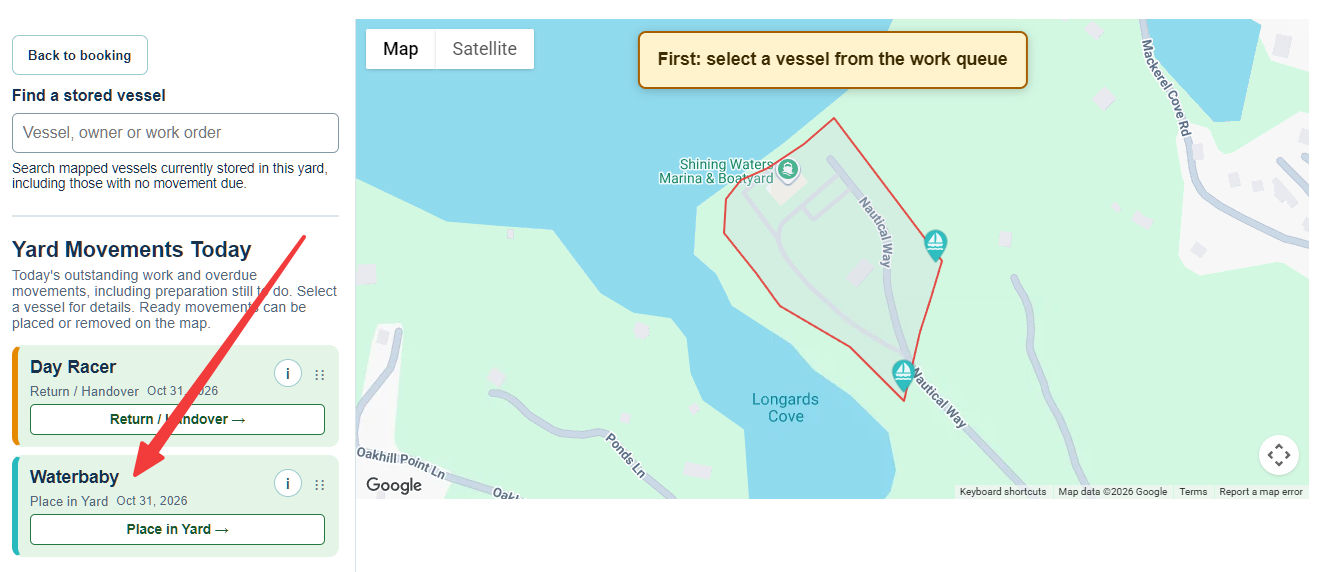
Understand job-completion controls
The confirmation wording depends on the marina's configuration. A movement can complete only the movement job, or it can also complete eligible associated preparation and handling jobs. Read the confirmation rather than assuming the same behaviour at every marina.
Where separate completion checkboxes are available, use them only for work that has actually been completed. Some steps may be unavailable because of their status, sequence or other prerequisites.
A blocked action is a prompt to review the work, not to bypass it. Do not change operating mode, complete unfinished preparation, or remove job links simply to enable placement or release.
Review a vessel while it is in storage
The recorded marker helps staff locate the vessel and review the information available for it. Keep operational notes factual and relevant. A note or photograph does not itself move the vessel, complete a job or change its agreement.
A booking can remain at In storage while departure is already scheduled. That is expected: a planned departure is not a recorded release.
Record departure and release
Confirm the departure work and any required preparation have been carried out.
Open the departure map for the appropriate area and select the correct release job.
Follow the map instruction to select that vessel's stored marker.
Read the release confirmation, including the associated work it will complete.
Confirm only when the vessel has actually been released from storage.
After refresh, verify that the vessel is no longer shown as actively stored for this movement and that the release job reflects the completed action.
Reopen the booking and review its departure result and any outstanding work-order or billing tasks.
Release is not rescheduling. To change a future departure plan, use the scheduling action. Do not release a vessel that is still physically in storage.
Verify the result before repeating an action
If the application reports a timeout, connection problem or uncertain result, reopen the map and review the job, vessel location and booking before trying again. A missing success message does not prove that nothing was saved.
If map access has expired, reopen the map from Dockit. Do not reuse an old access link or share it with another staff member.
If the header, vessel details and selected job disagree, stop. Give your administrator the booking, agreement and work-order references, the action attempted, and the exact message. Do not include private acceptance links or access tokens.
Finish the operational and billing review
Recording a movement does not mean every linked work order is finished or that the customer has paid. Review remaining jobs and complete the work-order workflow through its own available actions.
Arrival completion does not end the storage arrangement. Departure completion does not itself establish financial closure. Agreement changes, customer charges and payment collection remain separate workflows.