

Use Yard Management to organize vessel storage and the work associated with arrival, placement, and departure. Linked records help staff review storage arrangements, plan yard jobs, record vessel locations, and follow up on billing.
Storage arrangements, physical movements, work completion, and customer billing are separate parts of the workflow. An accepted agreement does not mean that a vessel has arrived. A planned movement does not mean that it has happened. Completing work does not confirm payment.
Where to start
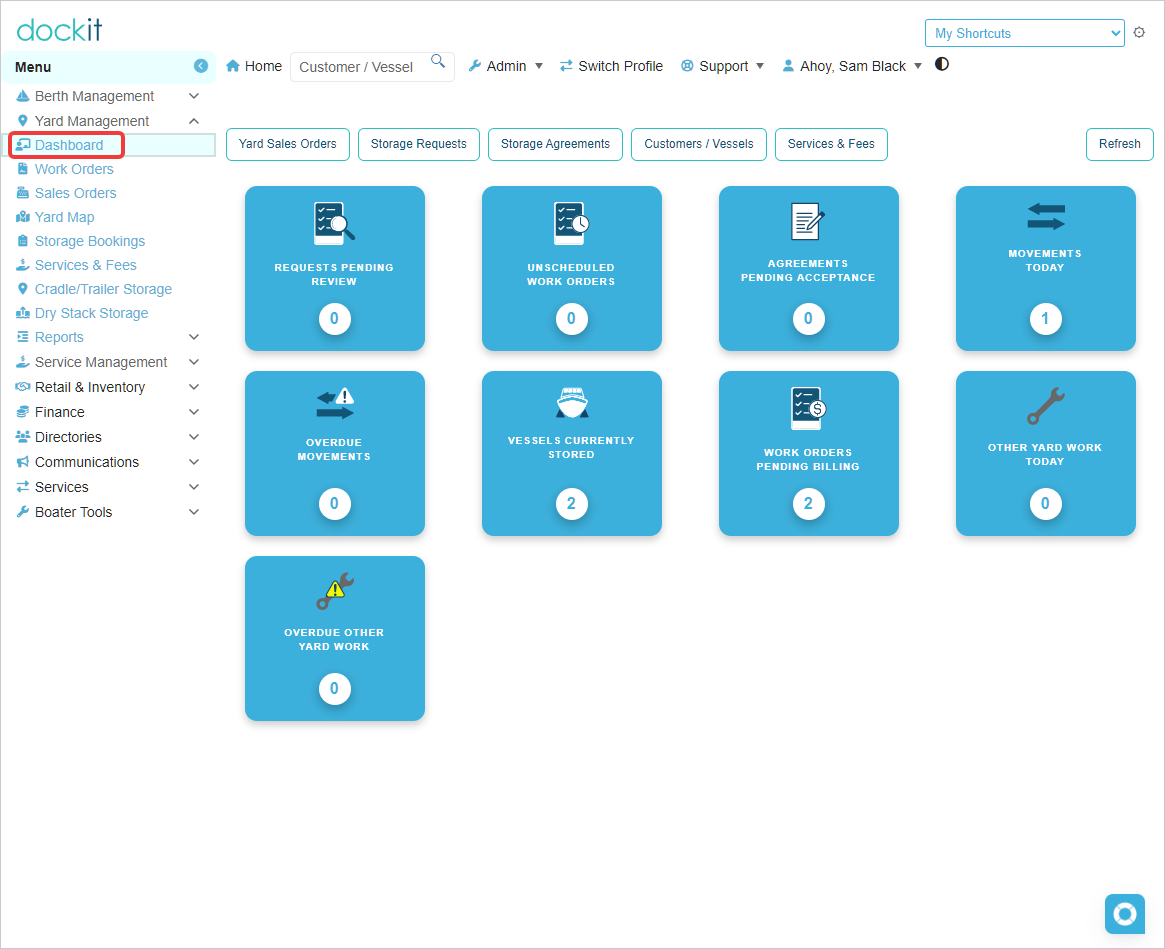
Expand Yard Management in the left menu. Available screens and actions depend on your marina's configuration and your staff permissions.
Dashboard: Review yard work requiring attention and open the relevant operational list.
Storage requests and bookings: Find the customer and vessel's storage arrangements and review the next required step.
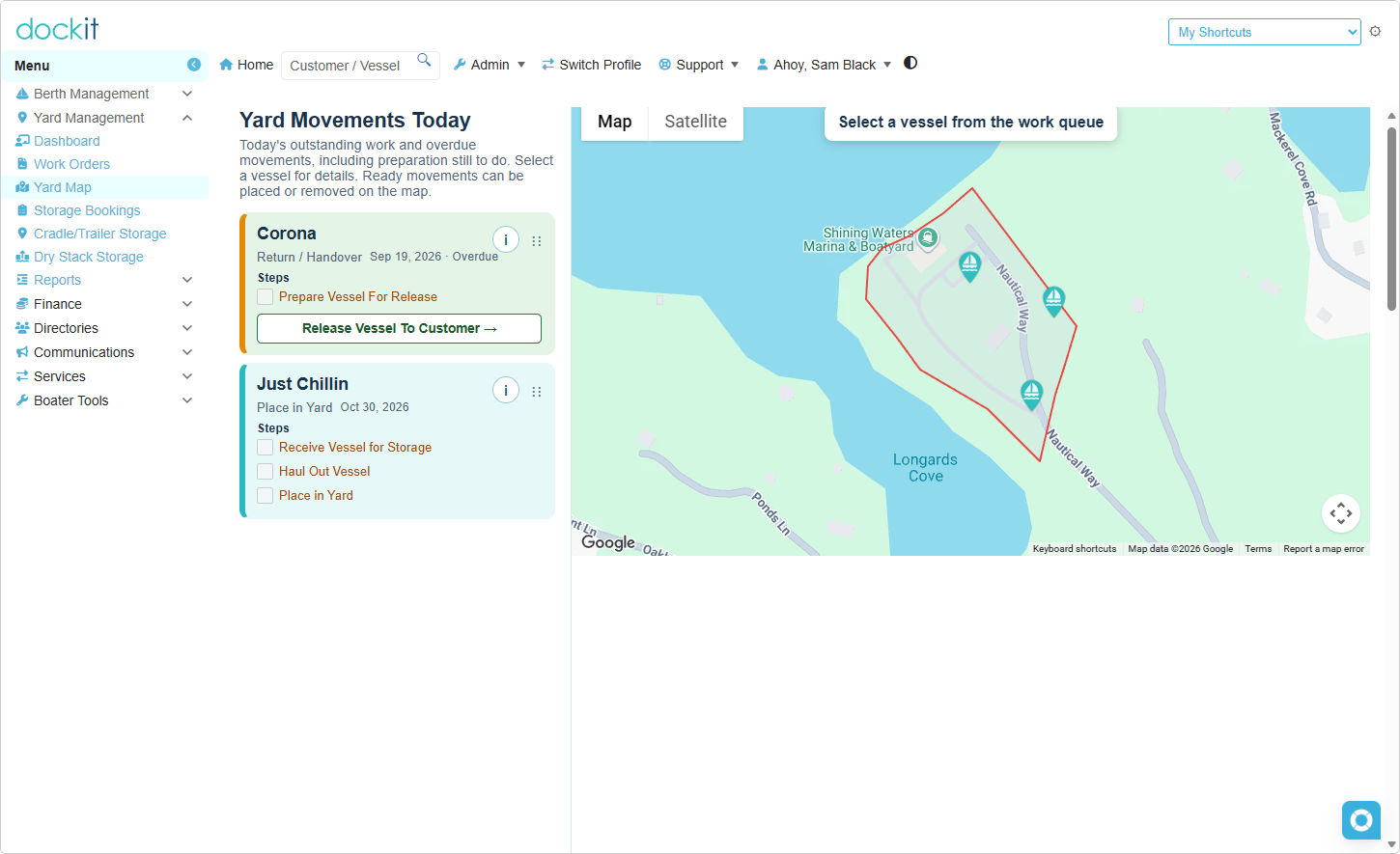
Movement schedule and yard map: Review planned movements and recorded vessel locations. Use the available movement actions to record completed placement or departure.
Work orders: Review the work associated with storage, linked jobs, and billing.
Customer and vessel records: Check identifying details and relevant operational notes before acting.
Some marinas use a different menu arrangement or an existing seasonal storage workflow. Follow the screens enabled for your marina; do not create replacement records simply because your menu differs from an illustration.
Understanding the linked records
Request or booking: Records the proposed or arranged storage requirement for a customer and vessel.
Storage agreement: Records the applicable storage terms and agreement workflow, where required.
Work order: Organizes the work associated with the arrangement.
Yard job: Represents an operational task, such as an intake or departure movement.
Yard location: Records where the vessel is currently stored. This is distinct from a future movement date.
Sales order and invoice: Handle customer charges and the associated financial workflow.
Review the linked records together. For example, a vessel may have an active storage arrangement while its arrival movement is still unscheduled, or it may already be stored while billing still needs attention.
The yard workflow
Review the storage requirement. Confirm the current company, customer, vessel, requested dates, and relevant operational information. Check for an existing arrangement before creating another.
Complete the required approval and agreement steps. Follow the booking or request workflow shown on screen. Review the terms before issuing an agreement or recording acceptance. Do not treat a saved draft as accepted.
Plan the work. Review the associated work order and yard jobs. Schedule the appropriate arrival or departure movement and resolve any prerequisites identified by the application.
Record arrival and placement. When the physical movement has occurred, use the appropriate placement action and record the vessel's actual yard location. Confirm the correct vessel and job before saving.
Manage the storage period. Keep relevant vessel notes current and review outstanding yard work. If a location needs correction or a vessel needs moving, use the applicable supported action rather than recording a false departure or arrival.
Plan and record departure. Review the departure job and any required preparation. Record release only when the corresponding physical departure has occurred, then verify the location and job records.
Finish operational and billing review. Check outstanding jobs, work-order requirements, and linked billing. Complete or close records through their own available actions; do not assume that one action completes every linked record.

Streamlined and Managed operation
Your marina's configuration determines how much job-level control staff see.
Streamlined operation
Streamlined operation reduces the separate job-control steps required during routine yard movements. Staff must still confirm the correct vessel, record actual movements accurately, and follow the marina's storage and billing procedures.
Managed operation
Managed operation can expose additional controls for job scheduling, assignment, preparation, blocking, sequence, or completion. The controls in use depend on which options your marina has enabled; selecting Managed operation does not mean that every optional control applies.
If a movement is blocked, read the explanation and review its prerequisites. Do not change the operating mode, bypass permissions, or mark unfinished work complete just to make an action available.
Using the movement schedule and map
The movement schedule describes planned work. The yard map helps staff review recorded storage locations and perform available movement actions. Always confirm which vessel and movement an action refers to.
Changing a planned date is not the same as completing the movement.
A future departure plan does not mean the vessel has left the yard.
Review the saved result after placement or release, especially if another staff member is also working on the same vessel.
If the displayed location does not match the physical yard, report the discrepancy before making further changes.
Billing is separate from yard operations
Work included in another charge or agreement still needs to be carried out and recorded. Conversely, scheduling or completing a job is not evidence that a customer has paid.
Review how each charge is covered before preparing additional billing.
Check existing linked sales orders before creating another charge for the same work.
Preparing a billing draft is not payment collection.
Cancelling a draft sales order is a separate action from cancelling a work order, agreement, or movement.
Do not delete historical billing links to force a new transfer or to clear an operational warning.
Operational notes and photos
Use vessel operational notes and photos to help staff identify relevant handling information and observations. Keep entries factual and relevant to the work. Review existing notes before adding duplicates, and use the available archive action when an entry should no longer be active.
A note or photo does not complete a yard job, record a movement, or replace a required agreement step.
If an action is unavailable or blocked
Check your current company, the record's status, linked agreement and work-order information, and any displayed preparation or sequence requirements. Available actions can also depend on your permissions and the marina's operating mode.
Refresh or reopen the record if another staff member has recently updated it. If the problem remains, give your administrator the vessel name, booking or agreement reference, work-order or job reference, action attempted, and exact message. Do not include payment-card details, passwords, or private acceptance links.