

This article is for administrators preparing Yard Management for staff use. Review the marina's operating settings, working calendar, storage arrangements, staff access, and billing setup before relying on the workflow for day-to-day operations.
Available settings depend on your deployed configuration and permissions. Use the supported administrative screens. If an option is not exposed, ask your Dockit configuration administrator to review it rather than changing database values or application rules directly.
Choose the yard operating mode
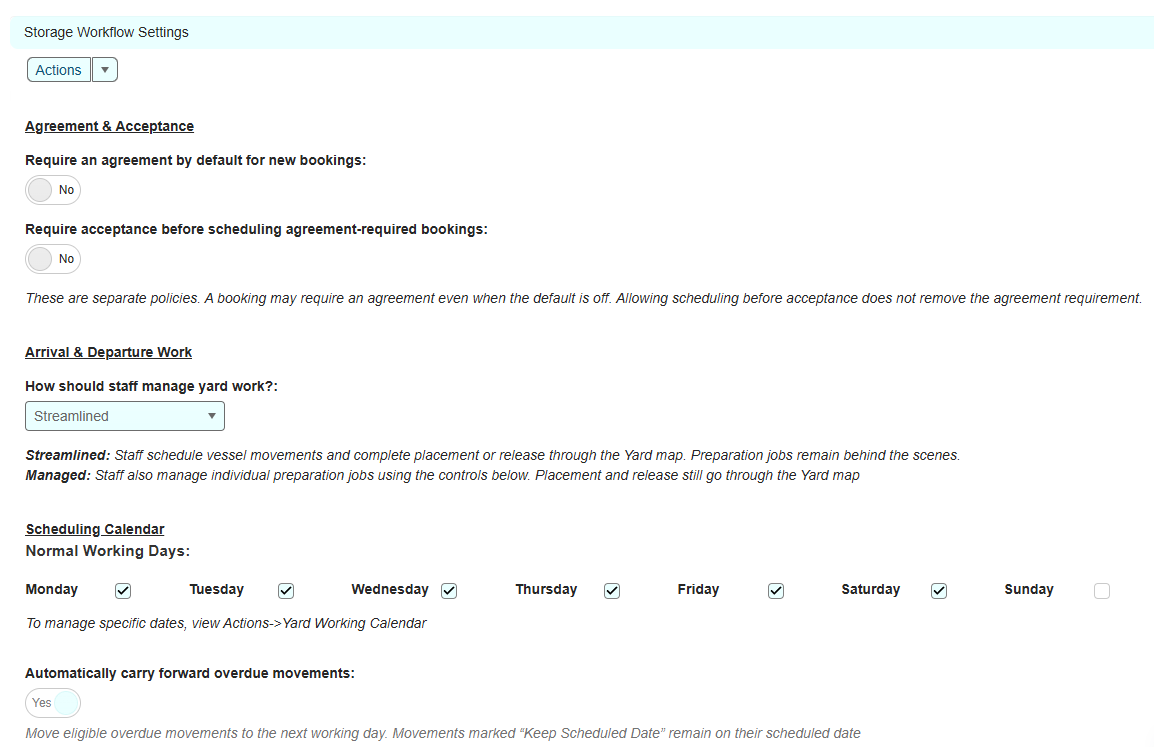
In Yard Management Settings, confirm whether the marina uses Streamlined or Managed operation. A valid selection is required by the yard map.
Streamlined
Streamlined operation reduces separate job-control steps for routine movements. Staff must still record actual placement and departure accurately and follow the marina's approval, agreement, and billing procedures.
Managed
Managed operation supports additional job controls. Review the options available in your configuration, including individual job completion, sequence enforcement, and start tracking. Other scheduling, assignment, or blocking controls may also be exposed.
Choose the controls that match the marina's operating procedure and staff responsibilities. Do not assume that choosing Managed enables every optional control. Test the resulting workflow with a representative job before staff begin using it.
Set the normal working week
Set and save all seven normal weekday values in Yard Management Settings. Specify whether the yard normally works on each day; do not leave unused days unconfigured.
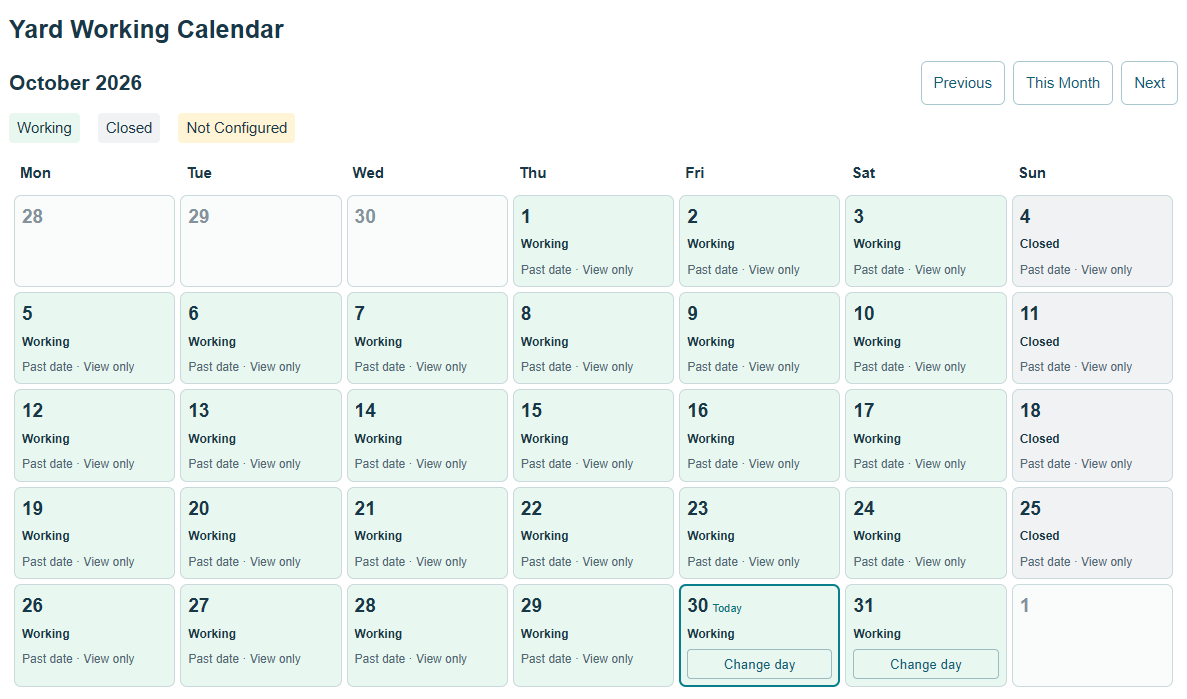
Open the Yard Working Calendar and confirm that the normal week displays correctly. Its day labels distinguish Working, Closed, and Not Configured.
Record exceptions to the normal week
Where calendar editing is enabled, use Change day for an eligible date. You can select Working day, Closed day, or Restore normal weekly schedule. Add a reason where useful, such as a holiday closure or an additional operating day.
Past dates are view-only in this calendar editor. Restoring the normal weekly schedule removes the date-specific override; it does not necessarily make the date a working day.
If your marina uses automatic movement carry-forward, have the administrator confirm that the relevant automation is enabled, scheduled, and operating in the intended environment. A configured working calendar alone is not proof that an overnight process is running. Movement carry-forward is not a renewal of a storage agreement or creation of a new seasonal booking.
Review staff access and responsibilities
Identify who may review requests, approve bookings, issue agreements, manage scheduling, record movements, and handle billing. Give staff the access required for their role, using the marina's governance settings.
Test with a representative staff account, not only an administrator account.
Confirm that staff can reach the screens needed for their responsibilities.
Check that restricted actions remain unavailable to staff without the required authority.
Confirm the escalation contact for blocked jobs, inconsistent records, and billing questions.
A missing button may reflect permissions, record status, or an unmet prerequisite. Do not widen access merely to make a button appear.
Prepare storage agreements and customer records
Review the storage agreement workflow enabled for your marina. Confirm when an agreement is required, which terms apply, who may issue it, and how acceptance is recorded. Where a gate before scheduling is configured, test that workflow explicitly.
Check that the correct customer and vessel are linked and belong to the intended company.
Review the applicable terms and current agreement revision before issuing it.
Distinguish preparation, issue, invitation delivery, acceptance, and activation. Do not assume that completing one step completes all later steps.
If email acceptance invitations are enabled, verify delivery and the acceptance workflow using an approved test recipient before sending live invitations.
Agreement preparation is not evidence of customer acceptance. Acceptance is not evidence that a vessel has arrived or that payment has been received.
Check the yard map and operational records
Before staff record movements, review the yard areas and location information used by the map. Confirm that staff can identify the intended area and distinguish recorded locations from future movement plans.
Check representative vessels against their actual physical locations.
Investigate duplicate or conflicting active location records before further movements.
Review linked work orders and intake or departure jobs for the sample storage arrangement.
Confirm that the selected operating mode exposes the intended actions and prerequisites.
Review relevant vessel operational notes and photos for accuracy.
Do not record a false arrival or departure to correct a configuration problem. Ask the administrator to resolve the underlying records through the supported workflow.
Review billing setup
Confirm the products and non-inventory services used for customer charges, including descriptions, units, prices, and tax settings. Review how package or agreement coverage is represented so staff do not charge again for work already covered.
If inventory products will be billed, confirm that the Retail & Inventory suite is enabled and that the required inventory records are valid. Scheduling and operational completion do not replace inventory or billing validation.
Test preparation of a draft sales order separately from invoice finalization and payment. Do not use a payment action simply to preview the next screen: billing may be finalized before payment is collected.
Complete a controlled readiness check
Navigation and access: Sign in as a representative staff member and confirm the correct company, menus, and permitted actions.
Storage preparation: Review an approved test customer and vessel through the enabled request, booking, and agreement workflow.
Planning: Schedule representative work and verify the company dates, calendar, and applicable prerequisites.
Operational recording: In a test environment, exercise placement and departure and check the resulting job and location records. Do not simulate physical movements on live operational records.
Billing: Check the expected charges and coverage, existing billing links, and controlled draft cancellation or recovery procedures.
Follow-up: Refresh the dashboard and compare the relevant lists with the records just tested. If reports are enabled, check their scope and dates independently.
Record the environment, settings, test results, and unresolved issues. Confirm any automated processes separately. Successful manual testing does not demonstrate that overnight automation, every permission boundary, or simultaneous staff updates have been tested.
Once the checks are complete, tell staff which workflow to follow, which controls are enabled, and who to contact when an action is blocked. Preserve any agreed existing seasonal workflow until its replacement has been approved for use.