

Use yard work orders to organize operational work, review its associated jobs, and follow up on progress and billing. Schedule movements to record when arrival or departure work is planned.
A scheduled movement is a plan, not a record that the vessel has moved. Record actual placement or release through the appropriate movement action when the physical work has occurred.
Choose the right starting point
Work associated with a storage booking
Open Yard Management → Storage Bookings and select the existing booking. Review its agreement and current journey stage, then use the available arrival or departure action.
The booking brings together the storage arrangement. Its work orders organize the operational work and are linked through the agreement. One booking can involve separate arrival and departure work orders.
Do not create another booking or a standalone work order just because an arrival or departure action is unavailable. Check the existing arrangement and the message shown first.
Standalone yard work
Open Yard Management → Work Orders. Search the existing records before selecting Create Yard Work Order for a genuinely new task that does not require a new storage booking.
Review the customer or internal-work context, vessel, work required, and relevant operational details. Follow the available authorization and planning actions for your role. A standalone work order is not a substitute for a required storage agreement.
Find and review a work order
The Work Orders screen separates active, completed, and cancelled records. Use the list filters and the row's view action to open the intended record. The screen also provides a Scheduling tab for reviewing planned work.
Before scheduling or changing work, check:
The current company, work-order reference, customer, and vessel.
Whether the work concerns arrival, departure, or other yard work.
The work-order status and any linked agreement.
The relevant yard jobs, existing dates, and outstanding requirements.
Handling notes and any information needed by the staff carrying out the work.
A work order and its jobs have separate roles. A work-order status alone does not tell you whether every associated job is scheduled or completed.
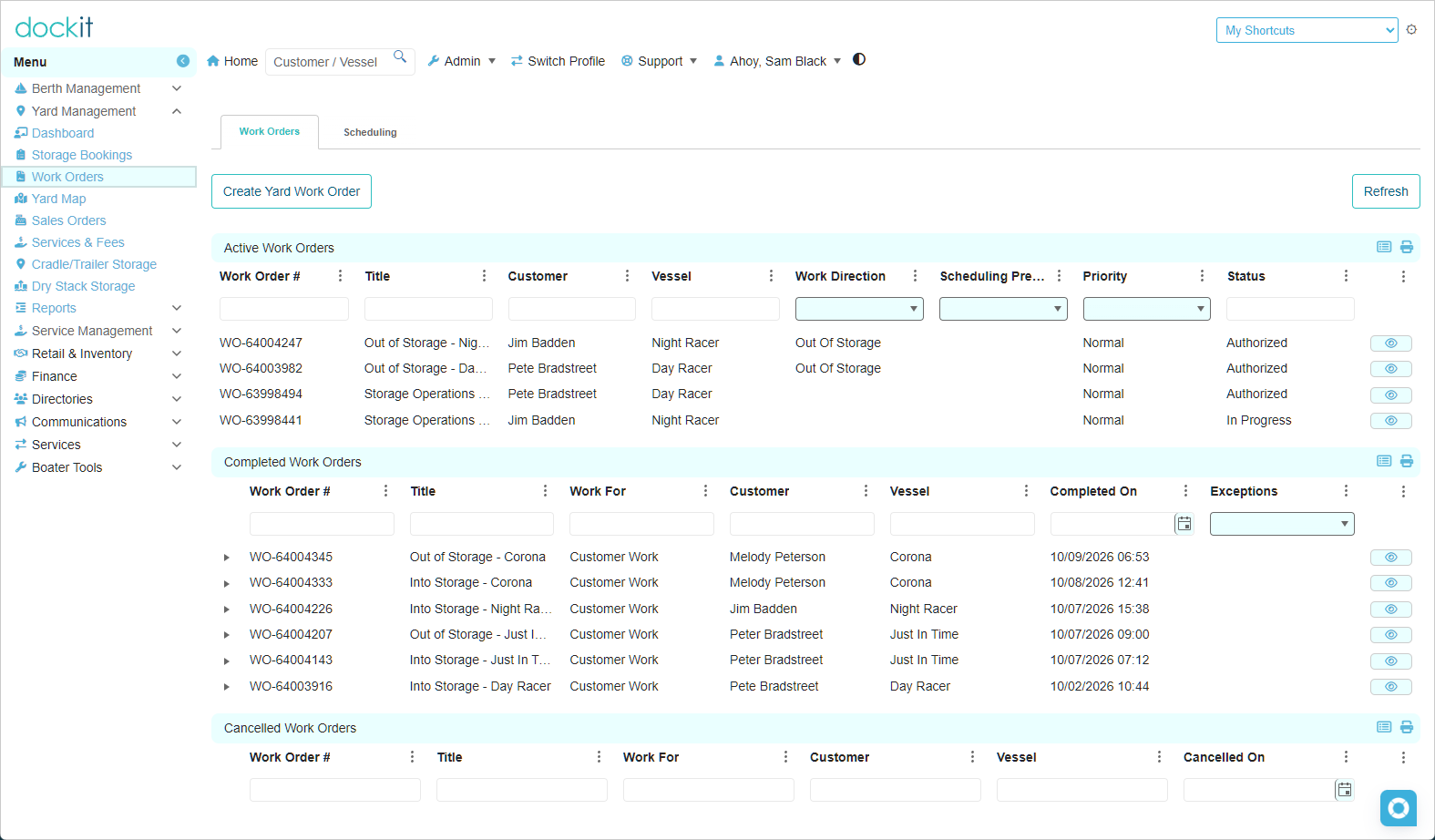
Schedule an arrival from a booking
Open the existing storage booking and review its Arrival stage.
Confirm that the required agreement is active and the arrival is shown as unscheduled.
Select the available arrival-scheduling action.
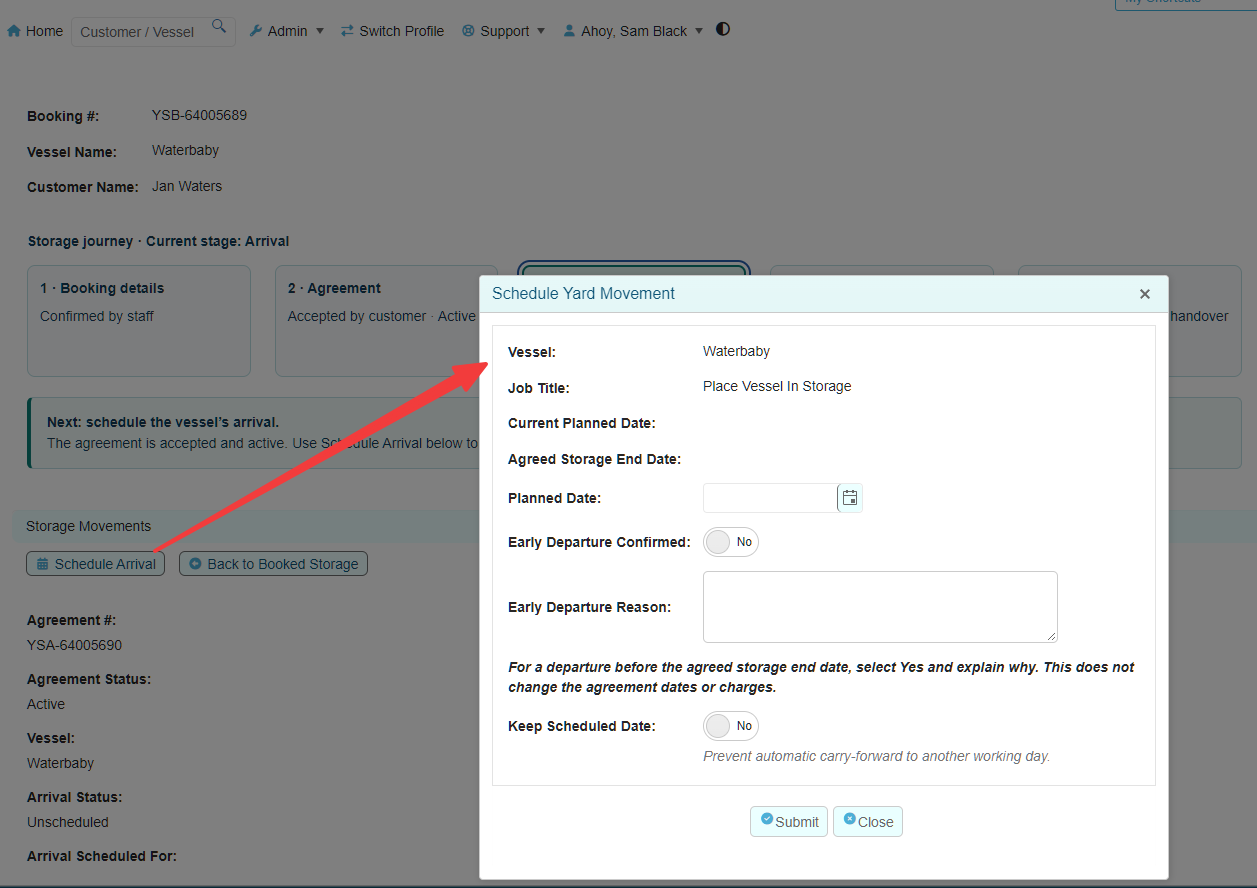
Review the movement details and enter the intended planned date. Review any additional scheduling options presented.
Save, resolve any validation messages, and verify the resulting date and state in the booking workspace.
The booking's arrival-scheduling action uses its existing eligible intake placement job. It does not create a replacement work order or job. If the application reports missing or duplicate eligible jobs, ask an authorized administrator to review the linked records.
Plan departure from storage
For the agreement-backed booking workflow, departure scheduling requires an active accepted agreement, completed arrival, and the vessel recorded in storage. Review the booking's storage and departure information before proceeding.
Open the booking and confirm the correct vessel and recorded storage location.
Review any existing departure work and planned date.
If departure is not yet scheduled, use the available departure-scheduling action. This workflow can prepare missing departure work before opening the date form.
Review the proposed date against the accepted storage agreement and the customer's arrangements.
Save and verify the departure schedule without recording release prematurely.
If you cancel the date form, reopen the booking and check its saved state. Departure preparation may already have created unscheduled work. Do not assume that cancelling the form removed those records, and do not manually create duplicates.
Departure before the agreed storage end date
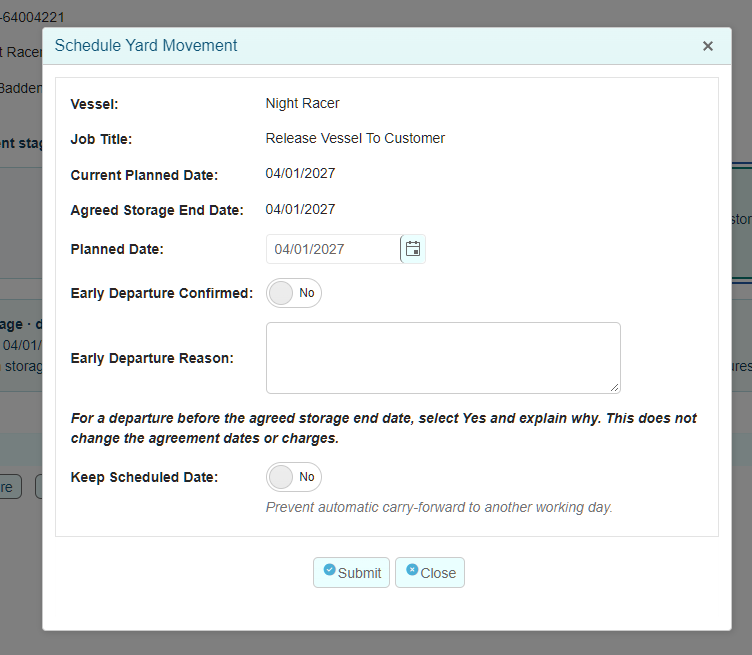
Where the scheduling form provides early-departure controls, review the agreed end date and enter the required confirmation and reason for an earlier departure. Follow your marina's authorization procedure; do not treat confirmation as a way to bypass an agreement issue.
Changing a movement date does not itself change agreement dates or charges. Any contractual or billing adjustment must be reviewed through its separate workflow.
Review today's work and overdue work
Use the dashboard's Yard Work Today and Overdue Yard Work tiles to open the corresponding lists. These combine eligible movement-related work and Other yard work.
Movement-related work: Inclusion depends on the relevant arrival or departure job's planned movement date.
Other yard work: Inclusion depends on the work order's planned work date.
Counts: Each tile counts distinct work orders, not individual jobs. One work order can appear in both lists when different jobs have today and overdue dates.
Open the work order to identify the particular job needing attention. A planned work date shown in a general list is not necessarily the movement date responsible for that record appearing in the queue.
The Unscheduled Work Orders tile is a separate follow-up list. Refresh the dashboard after changes and review the underlying records if a count or status is unexpected.
Change an existing plan carefully
Open the existing work order or movement and use its available scheduling action. The initial booking-stage scheduling action may no longer be available once a date has been saved.
Check the existing date before entering a replacement.
Review calendar, agreement, and other validation messages rather than forcing the change.
If another staff member has changed the record, reopen it and review the current details before trying again.
Verify the saved result and communicate changes to the staff affected.
Your marina's operating mode and permissions determine which planning and job-control actions are available. Do not switch operating modes or mark unfinished work complete to make a scheduling action available.
Scheduling, completion, and billing are separate
After scheduling, carry out the physical work and record the actual movement through the supported placement or release action. Review any remaining jobs and work-order requirements separately.
Completing an arrival work order does not mean that the vessel has left storage. Scheduling departure does not mean that departure has occurred. Neither scheduling nor operational completion confirms customer payment.
If scheduling is blocked
Read the displayed message and check the company, booking stage, agreement status, existing work order, relevant job, and planned date. Refresh or reopen the record if necessary.
If the issue remains, provide your administrator with the booking or agreement reference, work-order reference, vessel, action attempted, and exact message. Do not delete linked records, duplicate the booking, or alter historical acceptance information as a workaround.