

A storage booking brings together the customer's storage request and its linked agreement. Use the booking workspace to review the requirement, prepare the agreement, follow acceptance, and continue to the arrival, storage, and departure stages.
This article describes the agreement-required booking workflow. Available actions depend on your marina's configuration, staff permissions, and the record's current status. If your marina uses another approved storage workflow, follow that workflow rather than creating a second booking.
Before you begin
Confirm the correct customer and vessel.
Search for an existing booking or request for the same storage requirement.
Have the requested storage dates, relevant vessel information, and agreed requirements available.
Check who is authorized to approve the booking and issue its agreement.
Review the intended recipient before using an invitation action.
A saved request is not necessarily approved. A prepared agreement is not necessarily issued, accepted, or active. Always read the current status rather than inferring progress from the existence of a record.
1. Enter or review the storage request
Open the relevant booking or request through your marina's Yard Management screen. For a new requirement, use its available creation action and enter the required details. Review the customer, vessel, dates, storage arrangements, and notes before saving.
In the booking workspace, requests marked Draft or Needs Information can be presented for editing. Requests at later review stages may be read-only.
If information is missing, resolve it through the available request workflow. Do not enter invented dates or customer details merely to progress to the next stage.
2. Submit or confirm the booking
Staff without approval authority may see Submit for review. Authorized staff may see Confirm booking & prepare agreement for an eligible request.
Before confirming, review the request rather than treating confirmation as a routine navigation step. Confirmation leads into agreement preparation; it is not customer acceptance of the agreement.
If the expected action is missing, check the request status and your permissions. Do not create another request to work around an approval restriction.
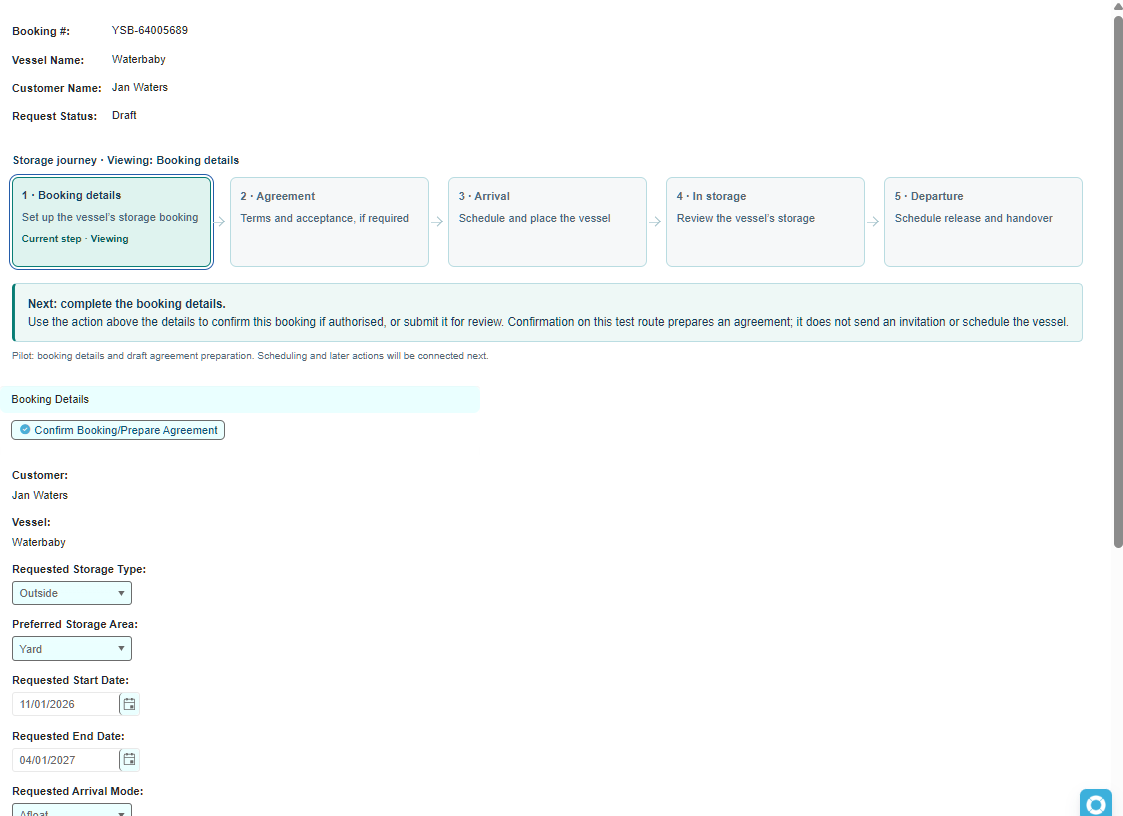
3. Prepare the agreement
The agreement-preparation stage displays the current draft revision of a Proposed agreement. Review the details shown, including the applicable storage terms, dates, pricing, and agreement document.
Check that the agreement belongs to the intended booking, customer, vessel, and company.
Confirm that the correct terms and document version apply.
Check pricing and the scope of any included work before issuing the agreement.
Save changes and resolve any validation messages.
Do not assume that preparing an agreement sends an email, records acceptance, creates a payment, or records a vessel movement.
4. Issue the agreement
When the current draft is ready and you have the required authority, select Issue agreement. The agreement and revision must belong to the correct company and booking.
The issued stage uses an Issued revision with the agreement Awaiting Acceptance. The booking workspace displays that revision read-only.
Issuing the agreement does not itself send an acceptance invitation or record acceptance. Review the resulting status and use the appropriate next action.
If you discover an error after issue, stop and ask the authorized administrator to follow the supported revision procedure. Do not alter historical acceptance information or assume that an old invitation covers changed terms.
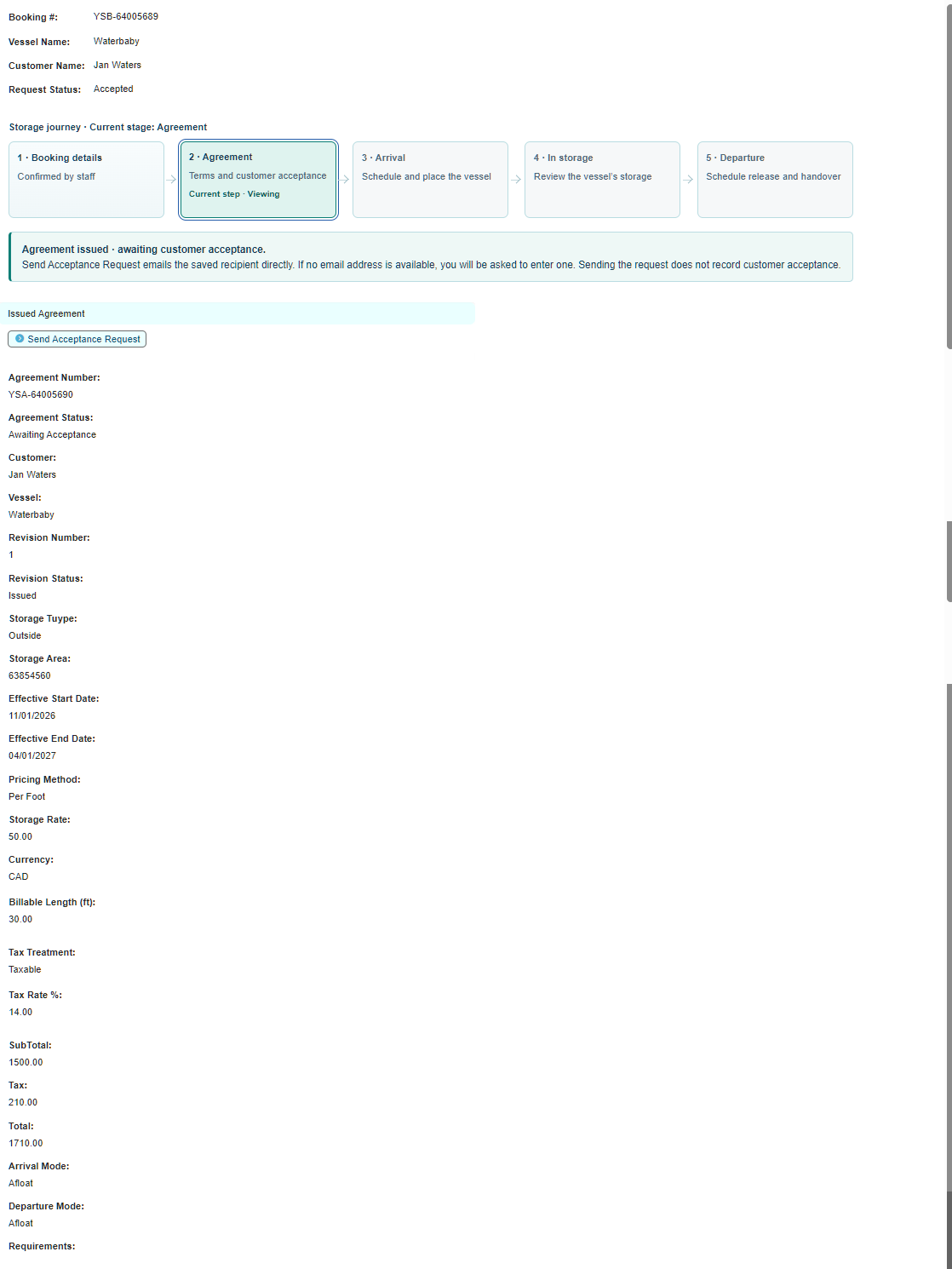
5. Arrange acceptance
Email invitations, where enabled
Use the available invitation action for the current issued revision. Check the intended signer's details first.
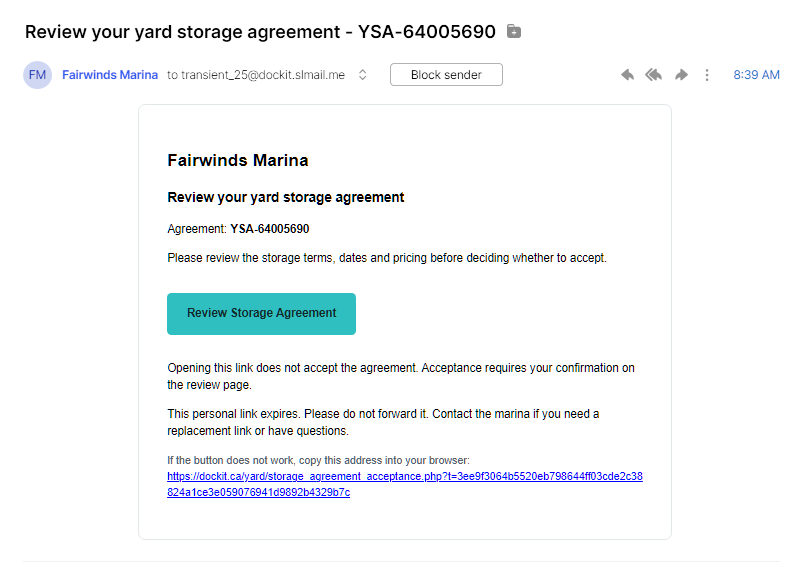
Sending an invitation does not record acceptance. Follow up using the saved agreement and acceptance status rather than assuming that email delivery means the customer agreed.
Treat acceptance links as private. Do not publish them in screenshots, knowledge-base articles, or general staff notes. If a customer reports an invalid, expired, withdrawn, or outdated link, review the current revision and invitation record before using the supported invitation workflow again.
Customer electronic acceptance
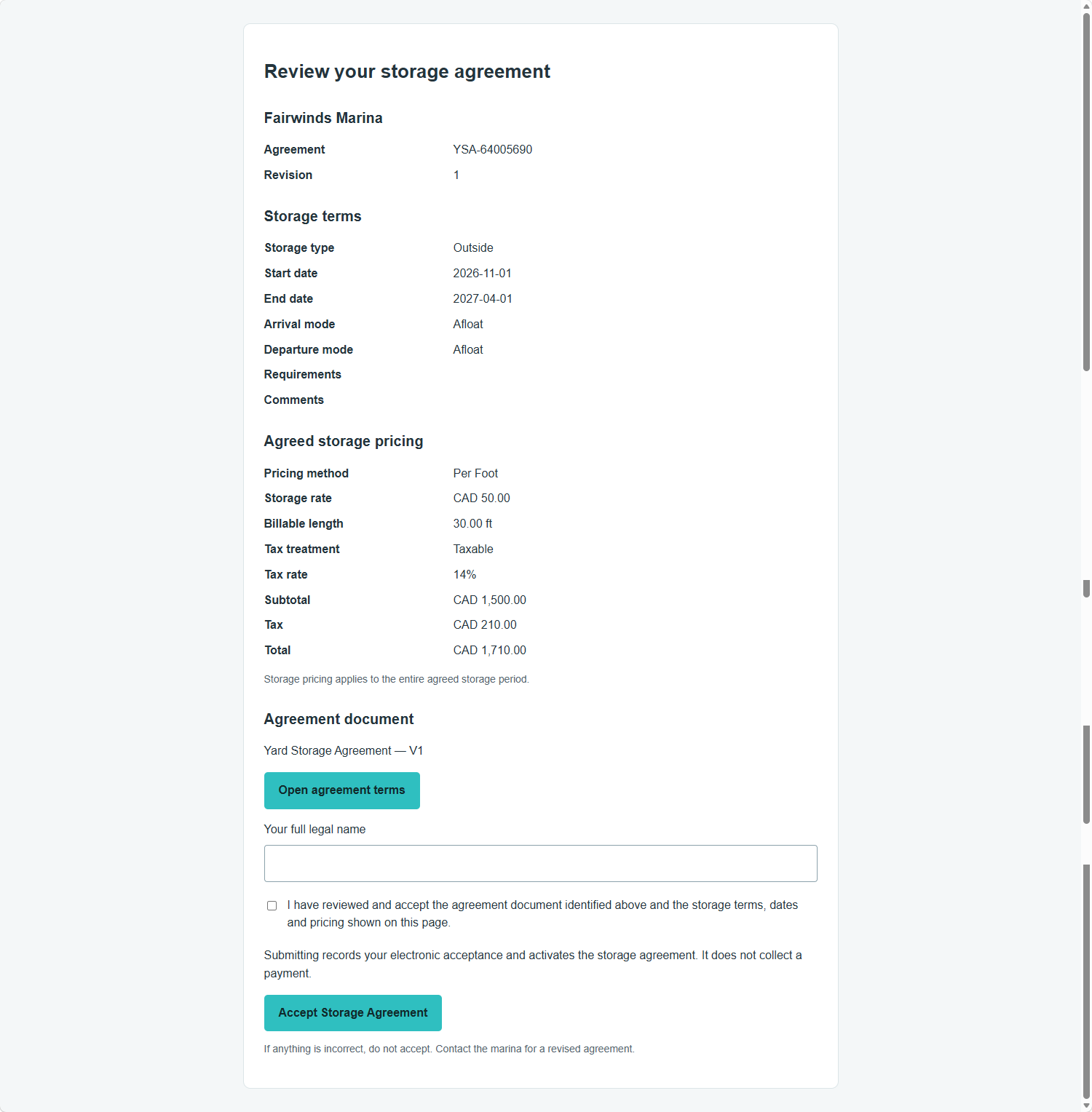
Where electronic acceptance is enabled, the customer reviews the storage terms, dates, pricing, and linked agreement document. The page asks for their full legal name and confirmation that they accept the displayed agreement.
The customer should not accept if anything is incorrect. Ask them to contact the marina so the agreement can be reviewed.
The electronic acceptance page is designed to record acceptance and activate the storage agreement on successful submission. It does not collect payment. Staff should reopen or refresh the booking and verify the saved result.
Other supported acceptance methods
If your marina supports staff-recorded acceptance, use the designated action and record the actual acceptance details and evidence required by that workflow. Do not use the customer's electronic acceptance page to impersonate the customer.
6. Verify activation and continue the operational workflow
After acceptance, verify that the agreement is Active and that the current revision is the accepted revision. The active booking workspace checks the agreement and revision links before displaying the operational stages.
If acceptance or activation reports an error, review the saved records before retrying. Do not assume that either step succeeded or failed solely because a browser page closed. Do not create replacement bookings, duplicate acceptance records, or new charges as a recovery shortcut.
Once the agreement is active, review the arrival and departure information and continue through the applicable scheduling and movement actions. Activation does not mean that a movement has been scheduled, the vessel has arrived, or work has been completed.
Understanding the workspace stages
Request review: Review the proposed storage requirement and obtain the required approval.
Agreement: Prepare, issue, and obtain acceptance of the applicable agreement.
Arrival: Review and carry out the relevant intake or placement work.
Storage: Review the vessel's recorded active storage location and associated work.
Departure: Review and carry out the relevant release work.
The displayed journey stage summarizes linked records. It is not a replacement for the agreement, job, or work-order statuses. If the workspace requests review, inspect those records instead of forcing a stage change.
Common questions
Why can I view the request but not confirm it?
Confirmation depends on the request's status and your approval permissions. Ask the authorized reviewer to handle the request if it is outside your role.
Why is the issued agreement read-only?
The workspace separates draft preparation from the issued revision awaiting acceptance. Corrections after issue need the supported revision workflow, not edits that obscure what the customer was asked to accept.
Why is the workspace reporting a link or revision error?
The booking, request, agreement, current revision, and company must be consistent. Duplicate pending acceptance records or mismatched links can block progress. Give the administrator the booking and agreement references and the exact message; do not delete records to clear the error.
Does an active agreement mean the customer has paid?
No. Agreement acceptance and activation are separate from customer billing and payment collection. Review the financial records through the relevant billing workflow.
Does cancelling a sales order cancel this booking?
No. A billing cancellation is a separate action. Review the booking, agreement, work order, and movement implications before using any cancellation process.