

Use the yard work-order billing workflow to prepare eligible customer charges and review the resulting sales orders. Check what is already covered by the storage arrangement before adding separate charges for yard work.
Storage arrangements, operational work and payment are separate. An accepted agreement is not proof of payment. Recording a placement or release does not itself establish that all charges have been billed or paid.
Check what the customer is being charged for
Before preparing billing, review the applicable agreement, existing invoices or sales orders, and the work-order items. A storage arrangement may cover some work while other items require separate billing. Do not assume that every job should generate an additional charge.
Confirm the current company, customer, vessel and work-order reference.
Check the scope and pricing of the storage arrangement, where applicable.
Identify charges already included or already billed elsewhere.
Review additional labour, services or materials that genuinely need separate billing.
Resolve missing billing decisions and items awaiting review.
This article concerns charges transferred from yard work orders. It is not a procedure for generating storage-agreement invoices, amending accepted agreement pricing, or issuing refunds.
Review the work-order items
Open the relevant customer yard work order from Yard Management → Work Orders. Review each item's billing treatment and the available linked billing information.
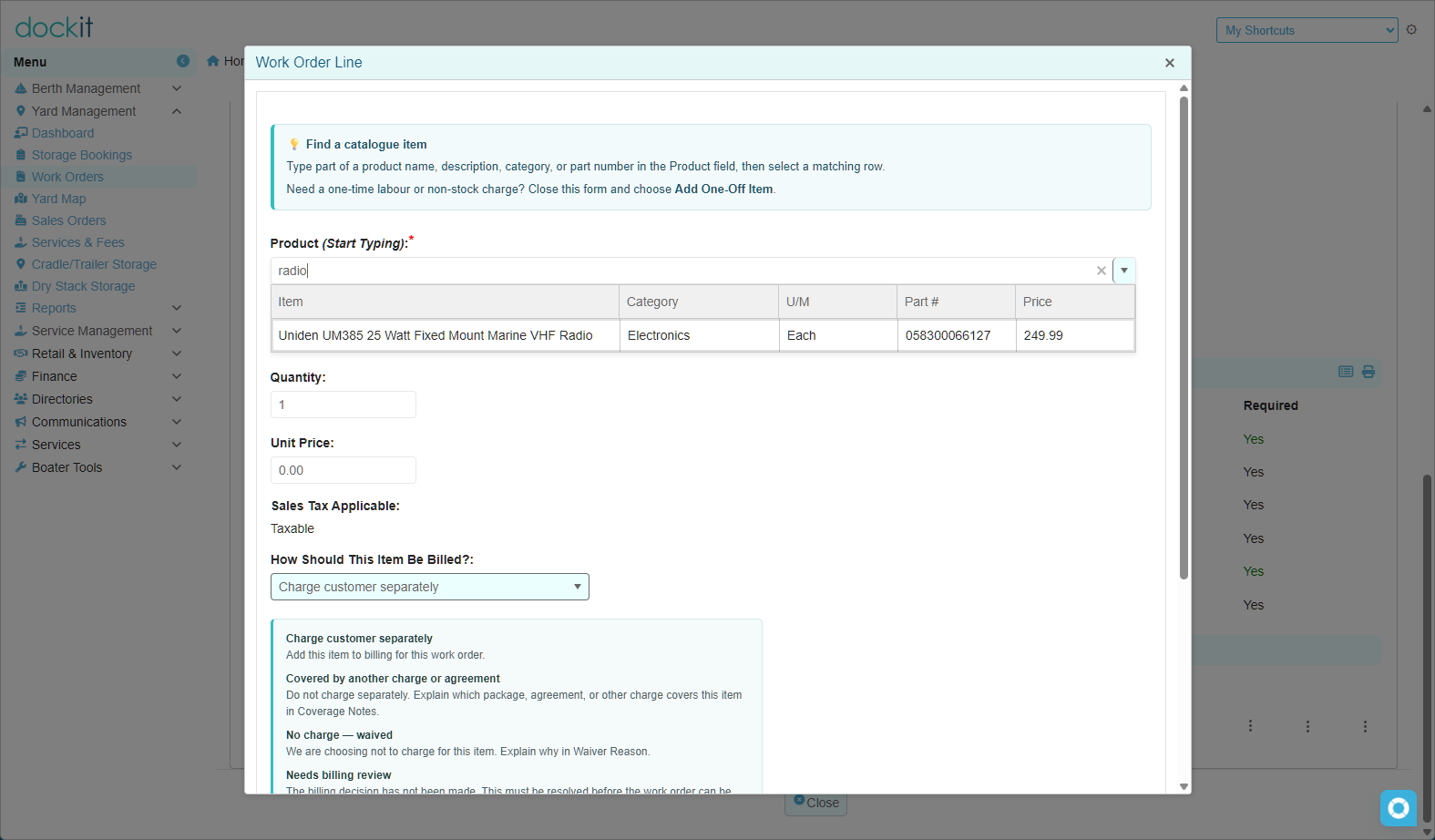
Items marked Charge customer separately are candidates for transfer. Items included in another charge or agreement, or waived under an approved decision, should not also be transferred as separate charges.
For every chargeable item, check the product or service, description, quantity, unit, price and tax setting. Inventory charges also require the applicable Retail & Inventory capability and a valid inventory-item selection.
Do not substitute a different product or invent a price to bypass validation. Ask the responsible staff member to correct the underlying item.
Prepare billing
Open the eligible customer yard work order and review its existing billing orders.
Select Prepare Billing where offered.
Review the Draft sales order that opens.
Check the customer, linked work order, transferred items, quantities, prices, tax and total.
Resolve discrepancies before proceeding into invoicing or payment.
The shared work-order preparation process supports eligible Authorized, In Progress, On Hold and Completed work orders. Internal work does not use this customer-billing route. Available actions also depend on staff permissions and the form in use.
Preparing billing transfers eligible chargeable items; it does not collect payment. Do not add the same item directly to the sales order as well as through the work-order transfer.
A work-order-generated sales order uses Order Source: Work Order and the shared Service fulfillment setting, including for this yard-work billing route. Do not change these identifying settings just because the work is performed in the yard.
Add further charges without duplicating earlier work
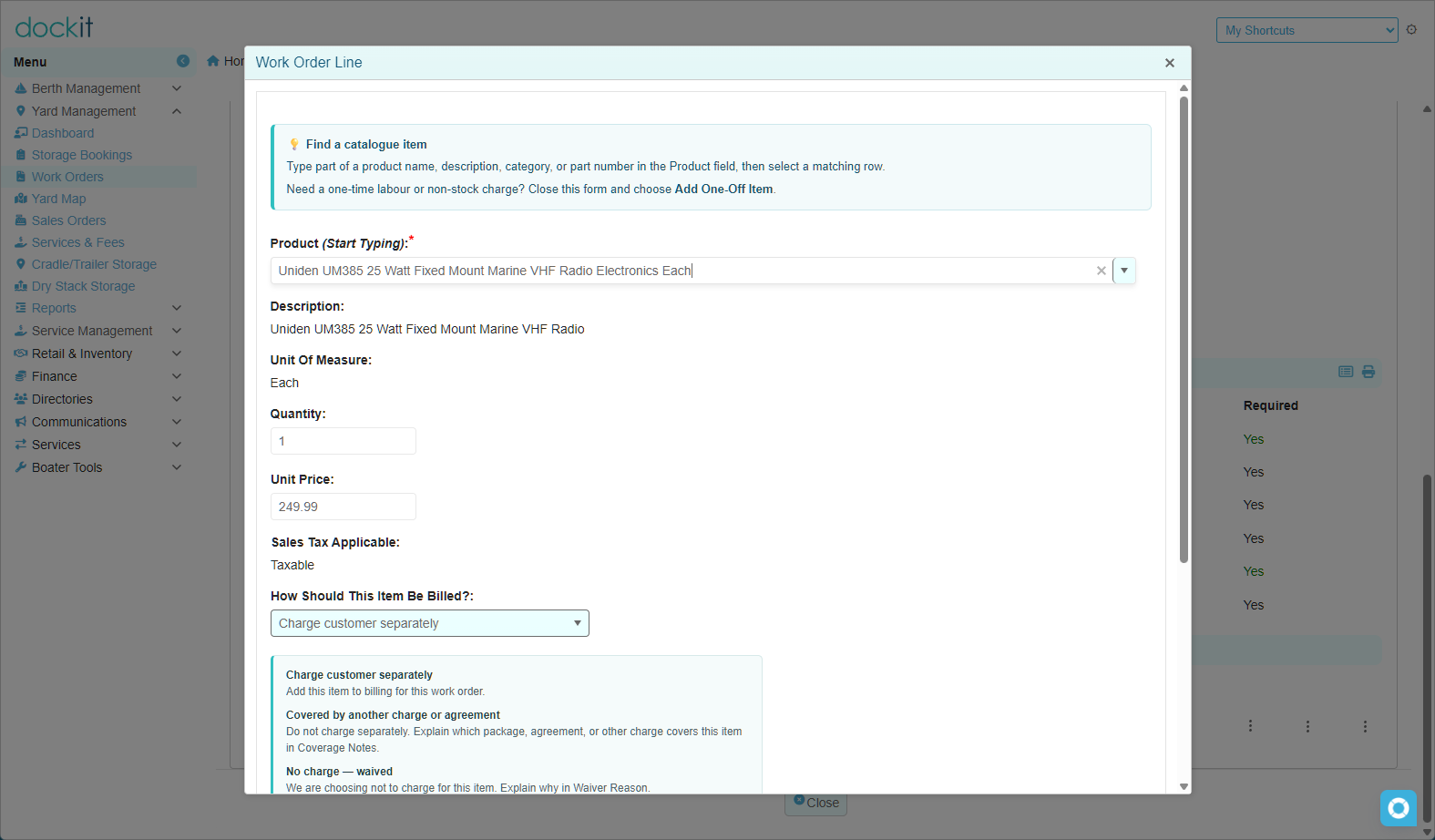
If additional work becomes chargeable while the work order remains eligible, add only the genuinely additional items and review their billing treatments.
Prepare Billing reuses one suitable matching Draft sales order when available. If no suitable Draft exists, it can create a new Draft for eligible items. Earlier billing remains linked.
For example, if one handling service has already been billed and the customer later requests an additional service, enter the additional service only. Do not recreate the original charge merely to present both on a new order.
If multiple Draft orders exist, or the Draft no longer matches the work order's company, customer, currency or fulfillment settings, the preparation process blocks transfer for review. Do not manually create another order to bypass that message.
A changed departure date does not automatically alter storage dates or charges. Review any resulting commercial adjustment separately rather than assuming rescheduling has recalculated the bill.
Find existing yard sales orders
Open Yard Management → Sales Orders, or use Yard Sales Orders under Open a workspace on the dashboard.
Use the customer, work-order reference and order number to identify the correct billing record. Where available, the work order's Billing Orders list provides the linked history.
Review individual statuses. An order shown as Open is not proof that it has been paid. A cancelled order may retain its original lines and amounts for historical reference.
Advance billing and handle payment
Use Proceed To Payment only when you intend to advance the reviewed Draft into the invoicing/payment workflow.
This is not a preview action. The workflow can finalize the sales order and create its invoice before a payment is collected. Closing or cancelling the payment-entry screen does not necessarily undo those changes.
Follow the marina's approved invoicing and payment procedures. Verify the resulting invoice status, balance and payment records. Do not record a fictitious payment to finish a work-order review or clear a dashboard queue.
If the result is uncertain, inspect the saved order and invoice before trying again.
Cancel an eligible Draft order
Use the whole-order Cancel action only when an intended Draft billing order needs to be withdrawn. Check the order number, company, customer and linked work order before confirming.
The ordinary Draft cancellation process requires Draft status, no linked invoice, and explicitly unposted inventory impact on every order line. Posted or unverified inventory impact blocks the operation for review.
Cancellation releases applicable tracked assignments and inventory reservations and retains the order, lines and work-order links as history. It does not cancel the storage booking, agreement or work order, waive the underlying charge, or refund a payment.
If the intended charge remains valid, use the supported work-order preparation workflow to review eligibility for replacement billing. Do not delete historical billing links or recreate the work-order item to force another transfer. If the charge should be waived or covered elsewhere, resolve that billing decision first.
An order with an invoice, or one that is no longer Draft, needs the appropriate invoice correction procedure rather than ordinary Draft cancellation.
Review outstanding billing work
The dashboard's Work Orders Pending Billing tile provides a follow-up queue. Open each work order and review the actual items and linked billing records rather than treating the count as an outstanding payment balance.
Refresh or reopen the work order after billing changes. Confirm which charges remain to be transferred, which are on Draft orders, and which have advanced into invoicing.
Finish the operational work and its review separately. Do not assume that finalizing billing completes the yard jobs, or that completing yard work marks the invoice paid.
missing or blocked
No Prepare Billing action: Check that this is eligible customer work with chargeable items still awaiting transfer, then refresh the record.
Existing link or Draft mismatch: Review the linked order rather than deleting the link or creating duplicates.
Invalid product, quantity, tax or inventory selection: Correct the item through the supported workflow.
Linked invoice blocks cancellation: Ask the billing administrator to review the invoice and the intended correction.
Unexpected amounts: Compare the work-order items with the agreement and existing billing before taking further action.
When requesting help, provide the work-order and sales-order references, action attempted and exact message. Do not include payment-card details, passwords or private acceptance links.