

Use Sales Orders to create and manage a retail sale for merchandise, services, or fees. An order keeps its customer, order source, fulfilment method, line items, tax, shipping and total together.
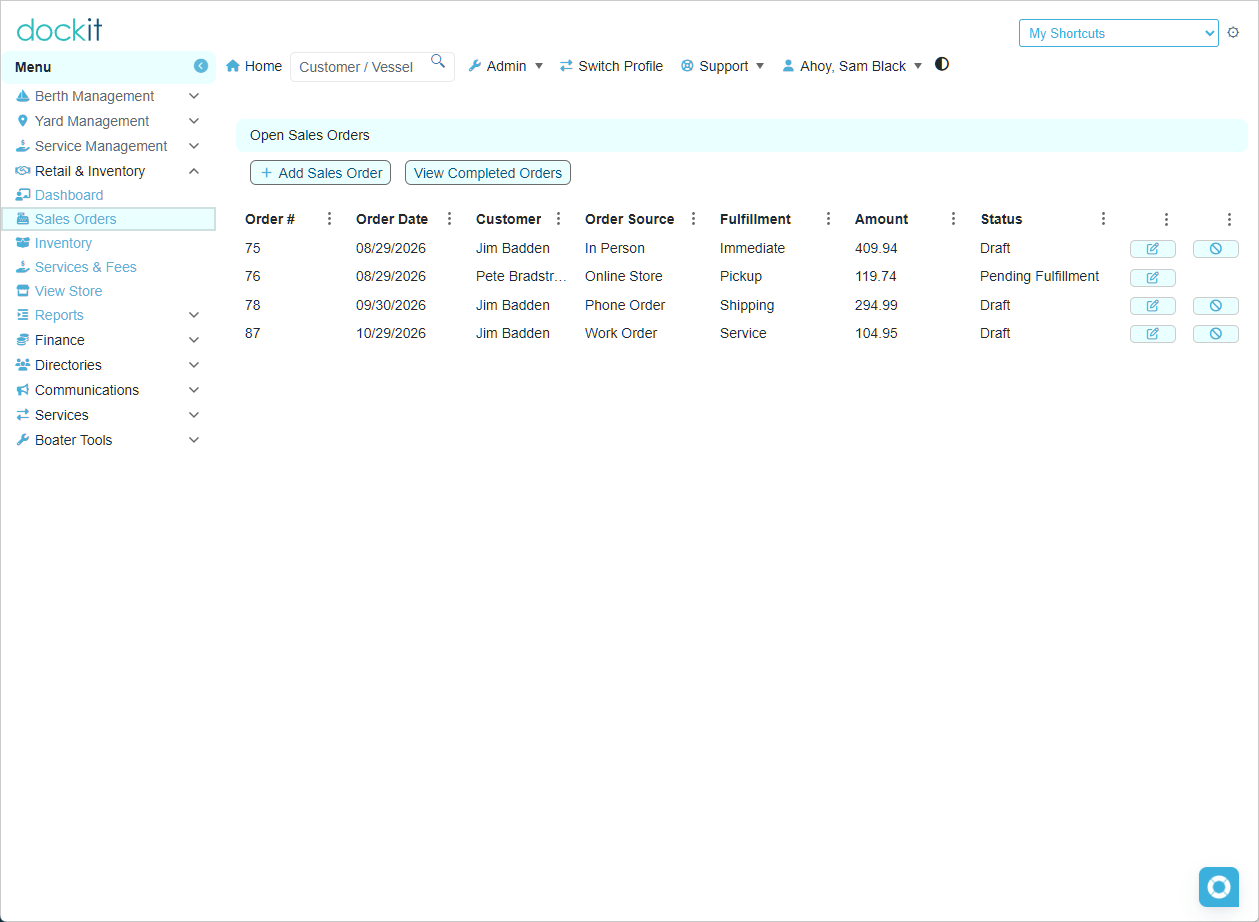
Open the Sales Orders list
Expand Retail & Inventory in the main menu.
Select Sales Orders.
Review the Open Sales Orders list.
The list displays each order’s number, order date, customer, order source, fulfilment method, amount and status. Select the row’s edit action to open an existing order. Select Add Sales Order to start a new one.
Select View Completed Orders when you need to review completed order history rather than open work.
Create or update a Sales Order
Open an existing Draft order or select Add Sales Order.
Confirm the Order Date.
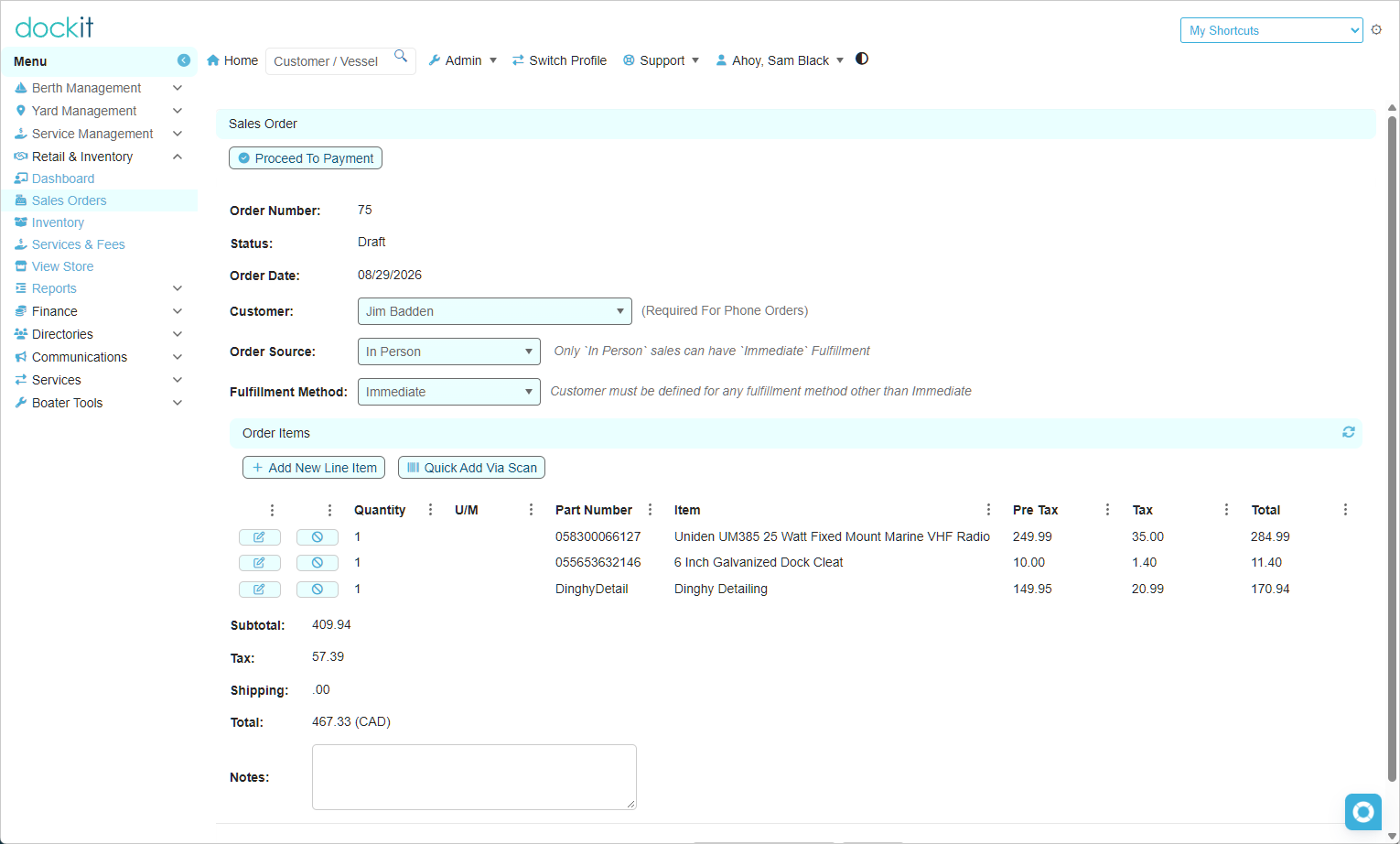
Choose the Customer when applicable. A customer is required for a Phone Order and for any fulfilment method other than Immediate.
Choose the Order Source. The screen currently supports sources including In Person, Online Store, Phone Order and Work Order.
Choose the Fulfillment Method. Only an In Person sale can use Immediate fulfilment.
Add order items
In the Order Items section, select Add New Line Item.
Search for and select the product, service or fee to add to the order.
Confirm the quantity and review the displayed unit of measure, part number, item, pre-tax amount, tax and line total.
Repeat for each additional item.
Where scanning is enabled for the company, select Quick Add Via Scan to add items using a barcode scanner. If you have a retail store where speed and accuracy of input is important, we recommend the purchase of an inexpensive barcode scanner. Our test unit was purchased from Amazon for less than $60 (Eyoyo 1D 2D Barcode Scanner Wireless Bluetooth Handheld Cordless) which can scan traditional barcodes found on product packaging and qr codes. During onboarding, we will assist in the setup and use of your scanner.
Review totals and notes
Before moving forward, review the order Subtotal, Tax, Shipping and Total. Add any useful internal order notes in the Notes field.
Check before payment: Correcting the customer, fulfilment method, quantity or item selection is simplest while the order is still Draft. Review the order lines and totals before selecting Proceed To Payment.
Proceed to payment
When the Draft order is correct, select Proceed To Payment. This starts the payment stage for the order.
Keep the stages distinct: opening the payment stage does not by itself prove that payment has been received, that the order is complete, or that its fulfilment is complete. Verify the resulting order status and follow the applicable payment and fulfilment procedures.
Related articles
Retail & Inventory Dashboard
Sales Order Payment and Completion
Fulfilling Orders - Pickup, Shipping and Delivery