

Use the Retail & Inventory dashboard to identify Sales Orders and stocked items that need staff follow-up. The tiles show counts for your current company and link to the relevant list or area.
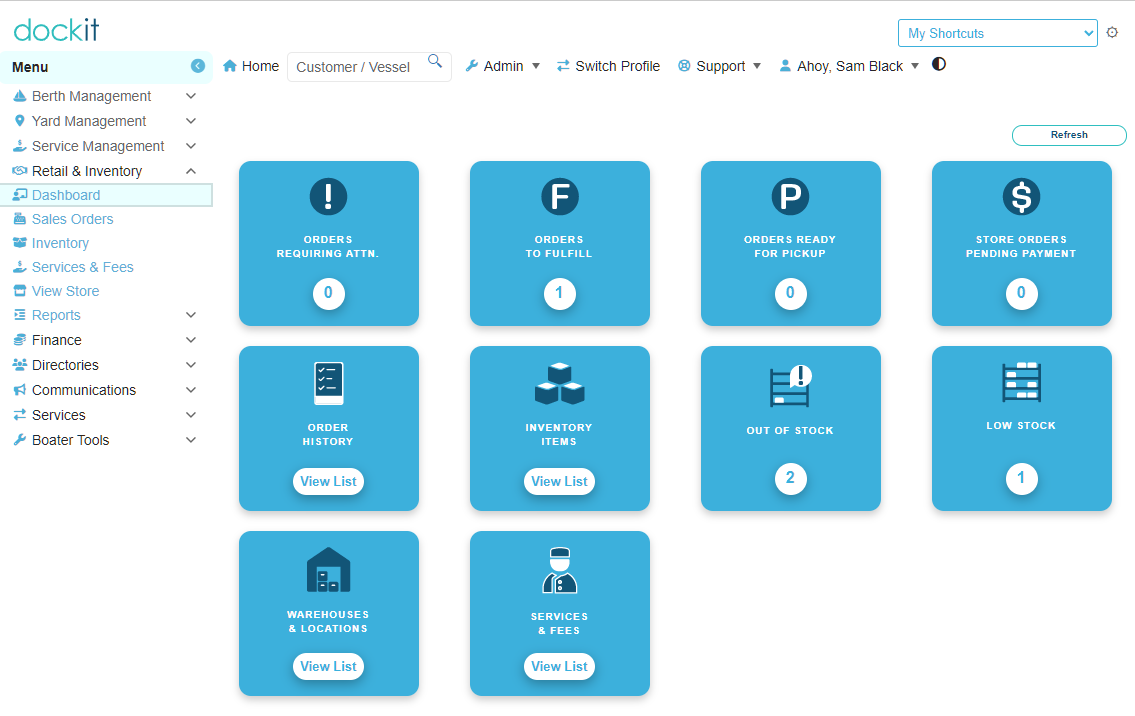
Open the dashboard
In the main menu, expand Retail & Inventory.
Select Dashboard.
Review the numbered tiles first. They highlight work that may require attention.
Understand the Sales Order tiles
Tile |
What the count means |
What happens when selected |
|---|---|---|
Orders Requiring Attn. |
Staff-created Sales Orders in Draft. Store Orders are excluded. |
Opens the company’s Retail Sales Orders Requires Attention list, showing Draft, non-store orders. |
Orders to Fulfill |
Sales Orders with the status Pending Fulfillment. |
Opens the company’s Retail Sales Orders Pending Fulfillment list. |
Orders Ready for Pickup |
Sales Orders with the status Ready For Pickup. |
Use the tile to review orders awaiting customer collection. |
Store Orders Pending Payment |
Store Orders with the status Pending Payment. |
Use the tile to review online/store orders that have not progressed beyond pending payment. |
Important: A dashboard count identifies a status to review. It does not, by itself, confirm that an order has been paid, completed, picked up, shipped or delivered. Check the Sales Order before taking action.
Understand the stock tiles
Tile |
What the count means |
|---|---|
Out of Stock |
Stocked inventory items whose combined on-hand quantity across their warehouse locations is zero or below. |
Low Stock |
Stocked inventory items with on-hand quantity above zero but at or below their configured minimum quantity. |
Use these tiles to prioritize review of item availability. The count is based on total on-hand quantity across applicable warehouse locations.
Other dashboard shortcuts
The dashboard also provides links to Order History, Inventory Items, Warehouses & Locations, and Services & Fees. Use these shortcuts to move to the relevant Retail & Inventory work area.
Good practice: Start with the order and stock exception tiles at the beginning of a shift. Open the linked list, review the record, and then follow the approved order or inventory process for the next action.
Related articles
Sales Orders - creating and managing an order
Stock Visibility - out-of-stock and low-stock follow-up
Warehouses & Locations