

Use the Pending Fulfillment worklist to prepare paid Pickup orders for customer collection. A Pickup order does not become complete merely because its payment has been processed; it must move through its fulfilment steps.
Open orders that need fulfilment
Open Retail & Inventory > Dashboard.
Select the Orders to Fulfill tile.
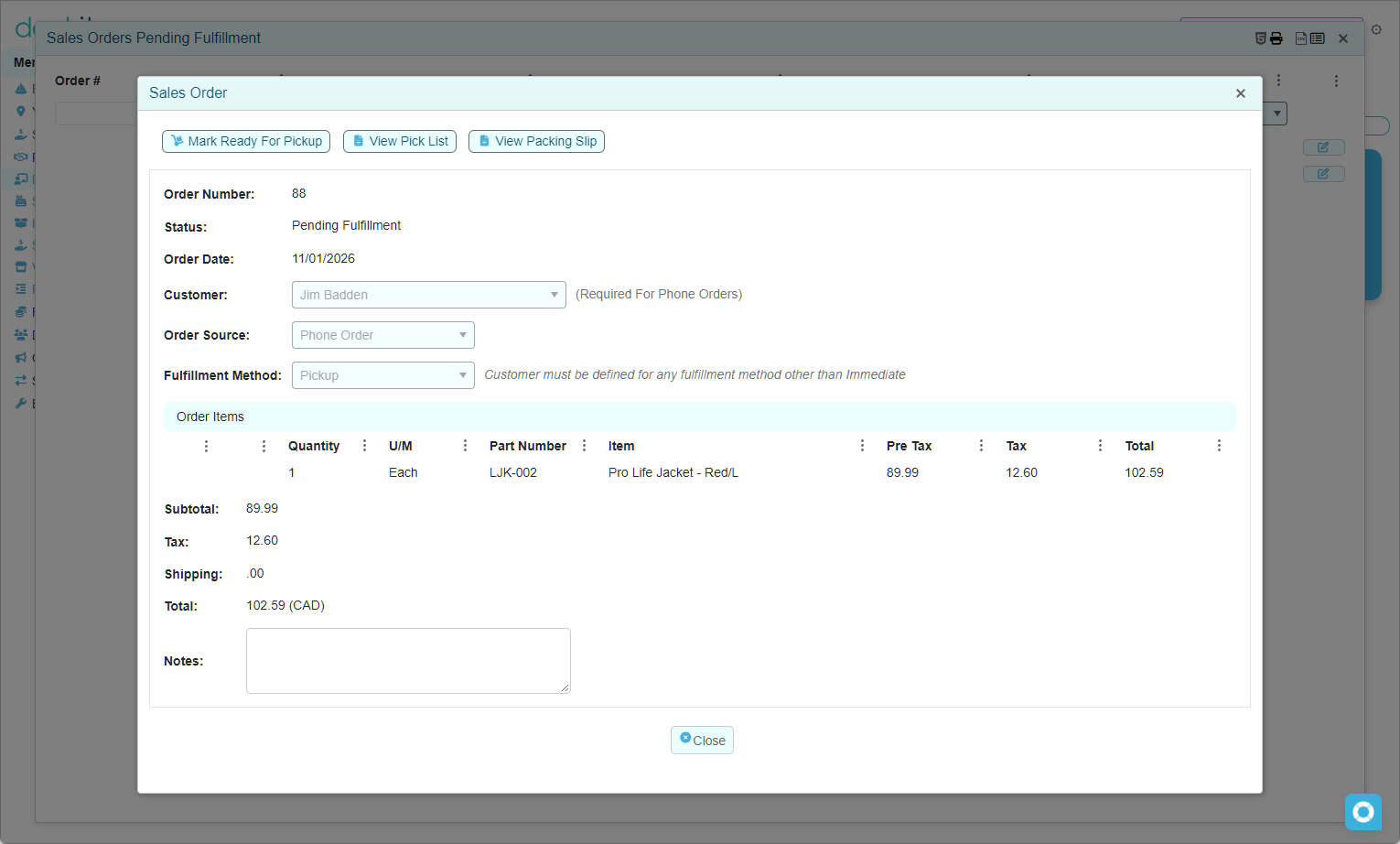
Open the required Sales Order from the Sales Orders Pending Fulfillment list.
The worklist contains Sales Orders at the status Pending Fulfillment.
Prepare a Pickup order
Confirm the order number, customer, item lines, quantities and total.
Confirm that Fulfillment Method is Pickup.
Select View Pick List when staff need a picking document.
Select View Packing Slip when staff need a packing document.
Pick and check the required items before changing the order’s fulfilment status.
Use the pick list
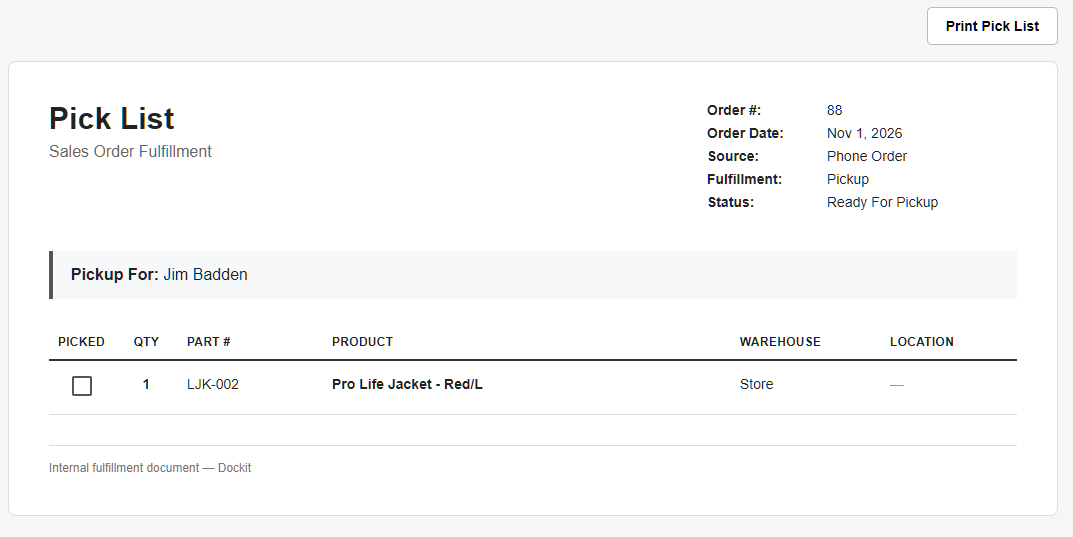
Select View Pick List to open the internal fulfilment document. The pick list is for staff preparing the order. It shows the Sales Order number and date, source, fulfilment method, current status, pickup customer, quantity, part number, product, warehouse and location.
Use the Picked checkbox on the printed list to confirm each item as it is collected. Select Print Pick List when a printed working copy is useful.
Use the packing slip
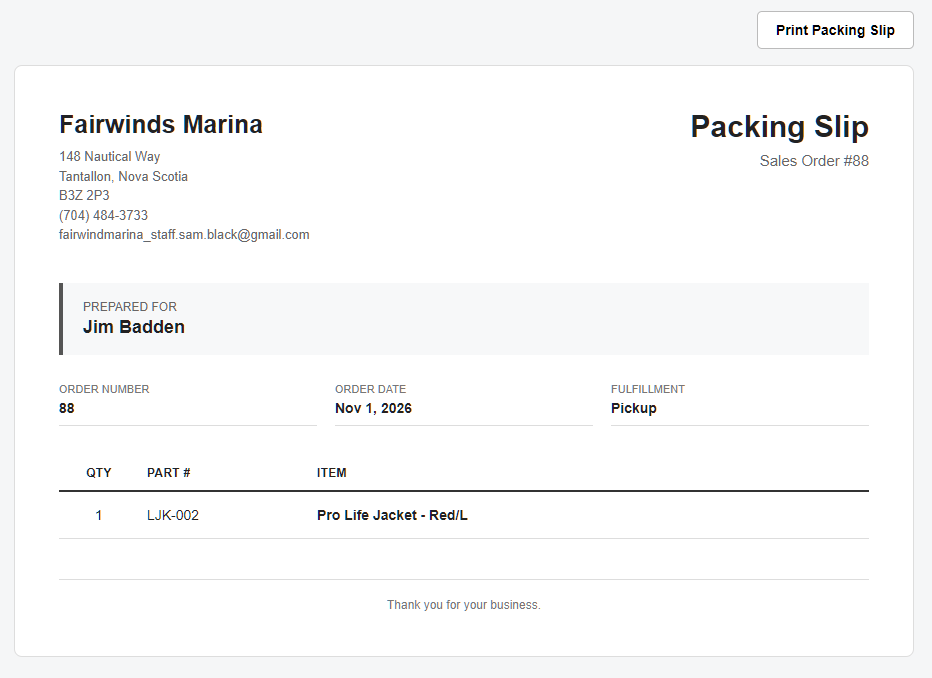
Select View Packing Slip to open the order document prepared for the customer. The packing slip identifies the marina, customer, order number, order date, fulfilment method, and the quantities, part numbers and items being provided.
Place the packing slip with the prepared order or use it as the customer-facing item check. Select Print Packing Slip when a printed copy is needed.
Mark the order ready
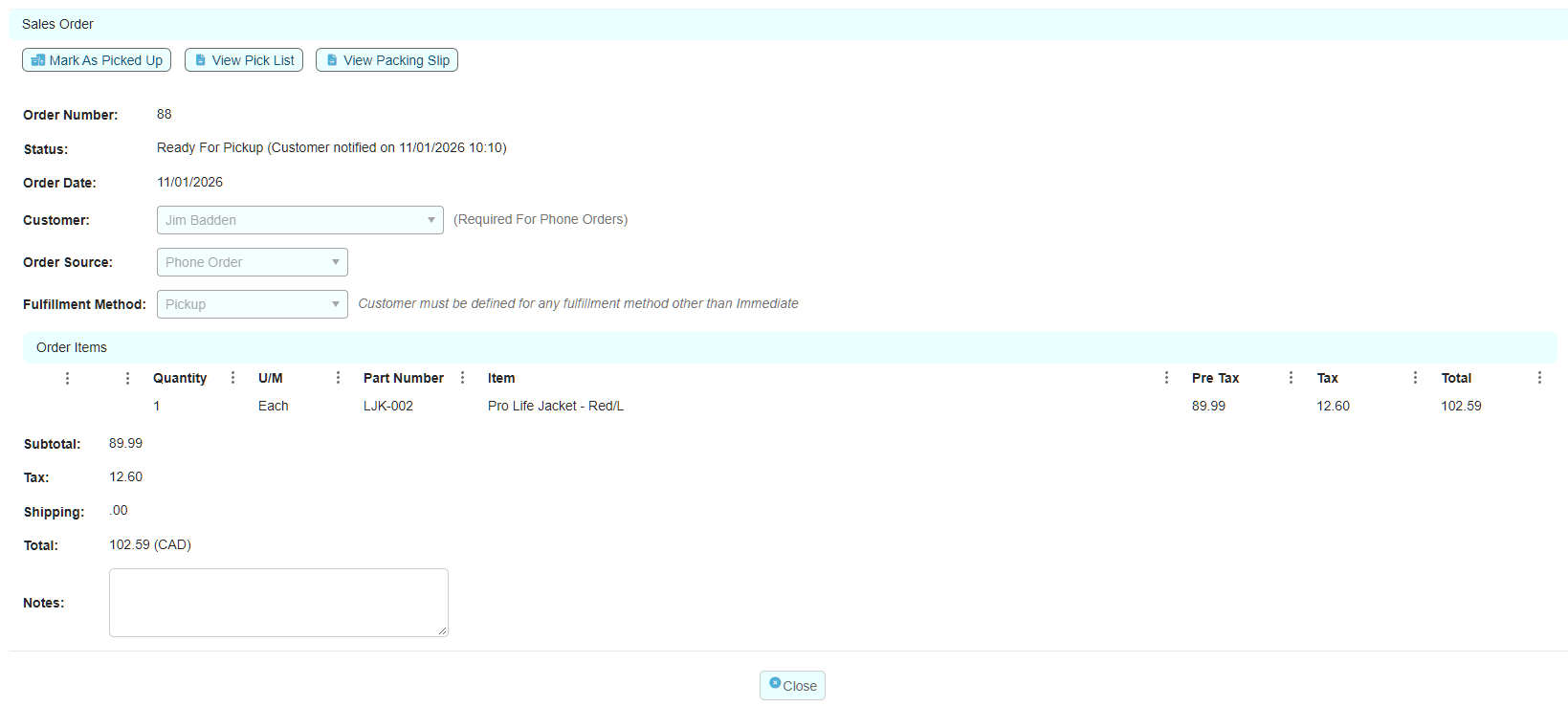
When the order has been prepared for collection, select Mark Ready For Pickup. The verified result is a status of Ready For Pickup, with the customer-notification date and time shown beside the status. The Retail & Inventory dashboard has a separate Orders Ready for Pickup tile for orders at that status.
At this stage, the order displays Mark As Picked Up. Use that action only when the customer has actually collected the order.
Do not skip the preparation check: payment status and fulfilment status are different. Only mark a Pickup order ready after the correct items have been picked and checked.
If the status does not change: do not tell the customer the order is ready. Refresh or reopen the order to confirm its status, then report the issue to the Dockit administrator with the order number.
Phone Order reminder: a customer is required for a Phone Order, and a customer is also required for any fulfilment method other than Immediate. Keep the customer selected so staff can identify the order at pickup.
Related articles
Sales Orders
Sales Order Payment
Immediate Fulfilment and Completed Orders