

Use Yard Management Summary to review yard activity during a selected period, see current operational counts, and export the report. Use the individual booking, agreement, work order and recorded history to investigate particular cases.
Operational reporting is not payment confirmation. A completed movement, completed work order or active agreement does not establish that a customer has paid. Review the linked sales orders, invoices and payment records separately.
Open Yard Management Summary
Open Yard Management → Reports → Summary View.
Select the start and end dates for the activity you want to review, then load the report.
Check the company name, date range and calendar time zone displayed at the top.
Review the selected-period activity separately from the current operational snapshot.
The displayed end date is included in the selected period. Completion timestamps are displayed and grouped using the company's calendar time zone.
Choose a period that includes the recorded event date you are investigating. A planned arrival or departure date is not the same as a completion date.
Understand selected-period activity
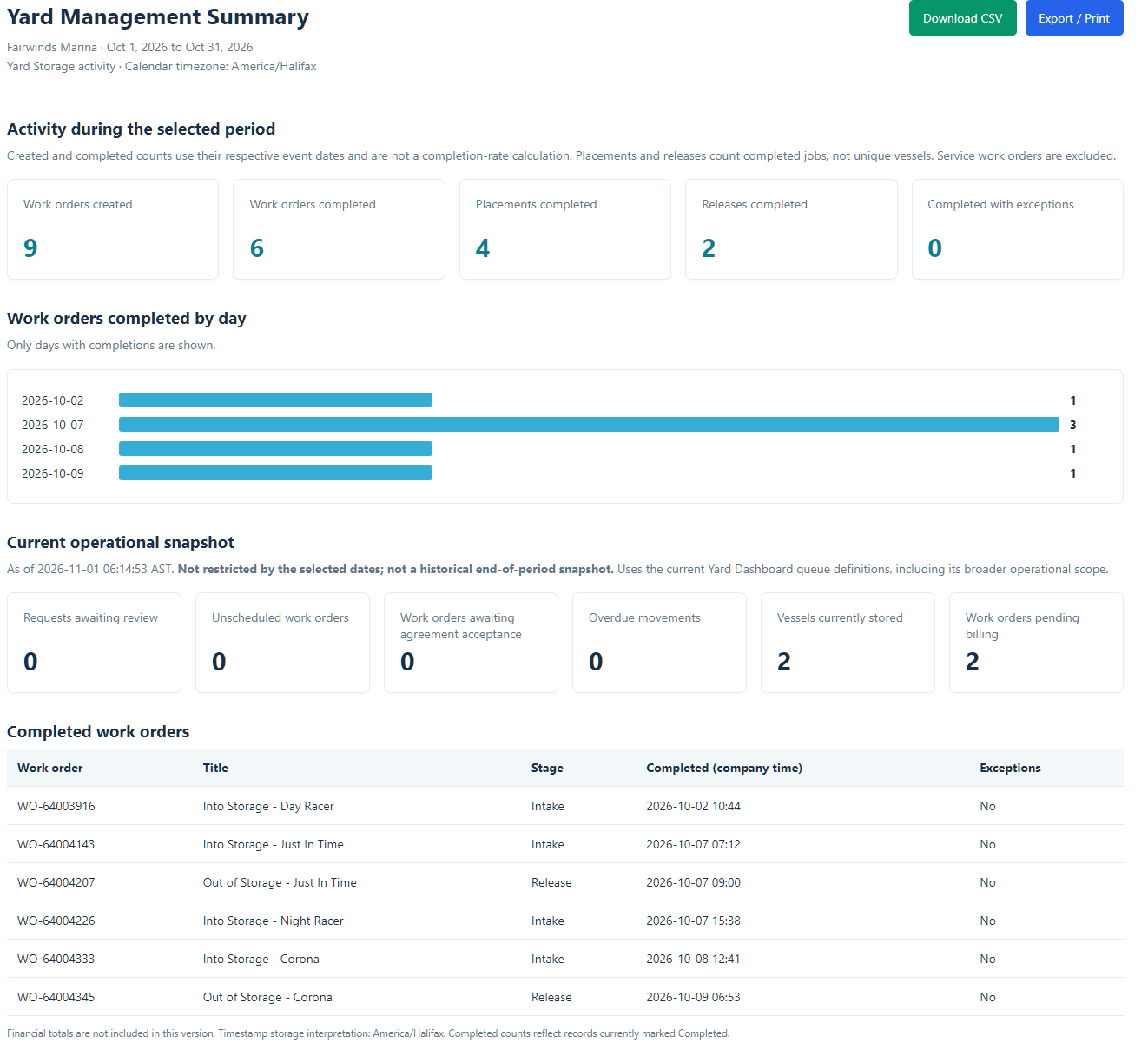
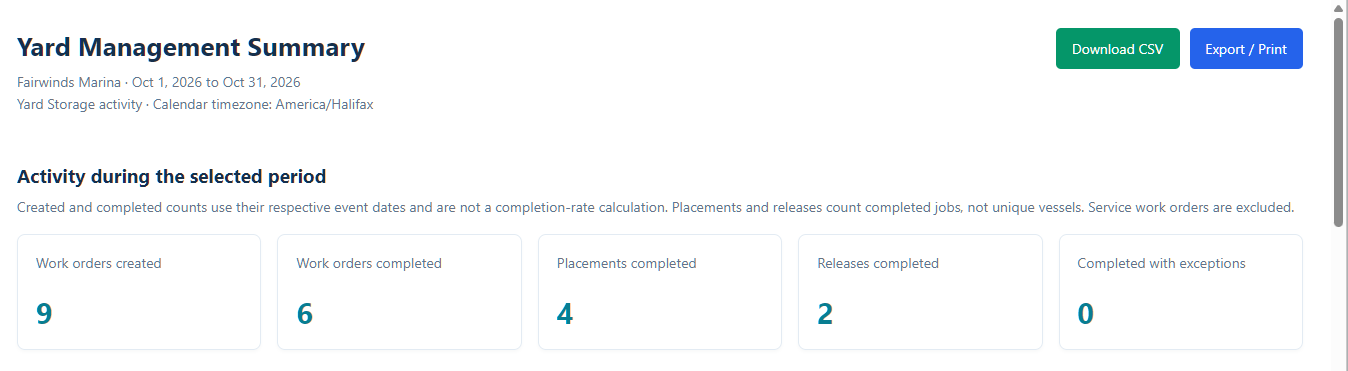
Work orders created: Yard Storage work orders created during the selected period.
Work orders completed: Yard Storage work orders currently marked Completed whose saved completion timestamp falls within the period.
Placements completed: Completed Intake / Place movement jobs with a completion timestamp in the period.
Releases completed: Completed Release / Release movement jobs with a completion timestamp in the period.
Completed with exceptions: The counted work-order completions whose exception flag is set.
These counts measure different events. A work order may be created in one period and completed in another. Placement and release counts are counts of completed movement jobs, not unique vessels or storage bookings.
Do not add the cards together as a total number of work orders. Do not divide completed by created and interpret the result as a completion rate for the same group of work.
The selected-period activity excludes Service work orders. It reflects current records and saved event dates, rather than reconstructing every past status change.
Review completion trends and details
Work orders completed by day groups counted work-order completions by their saved completion timestamp in company time. Only days with completions are shown.
The Completed work orders table identifies the matching records and shows the work-order reference, title, stage, completion timestamp and exception flag.
Use the reference to find the work order under Yard Management → Work Orders. Review its jobs, completion details and notes when you need to understand an exception or a particular vessel's work.
A placement may be completed while other work remains outstanding on the work order. Likewise, completing a release does not prove that all billing has been reviewed or paid.
Understand the current operational snapshot
This section describes the current operational position as of the displayed timestamp. It is not restricted by the selected report dates and is not a historical end-of-period balance.
For example, choosing last month's dates changes the period activity, but Vessels currently stored still describes the current recorded storage position.
The report's snapshot includes:
Requests awaiting review: Requests currently Submitted or Under Review.
Unscheduled work orders: Work orders meeting the report's current unscheduled-work criteria.
Work orders awaiting agreement acceptance: The unscheduled-work subset marked as requiring acceptance before scheduling.
Overdue movements: Eligible outstanding placement or release jobs with a planned movement date before today.
Vessels currently stored: Vessels linked to a matching Active yard-location record.
Work orders pending billing: Completed customer yard work meeting the report's billing follow-up criteria.
Queues can overlap. Do not add them together to obtain a total number of vessels, bookings or work orders. A billing follow-up count is not an outstanding payment balance.
Compare like-for-like measures. Overdue movements counts movement jobs; the dashboard's Overdue Yard Work queue includes broader yard work and is work-order based. Work orders awaiting agreement acceptance is also different from counting agreements pending acceptance. These figures need not match.
The summary cards are read-only. Use the dashboard and the appropriate booking or work-order list to investigate the underlying records. When comparing views, refresh them close together and check their definitions as well as their timestamps.
Investigate an individual booking or work order
Find the work order using its reference in Yard Management → Work Orders.
Confirm the company, vessel and associated storage arrangement before interpreting the details.
Review the relevant yard jobs and distinguish planned dates from recorded completion.
Review recorded history where available, alongside the current saved details.
Use the associated booking and agreement for storage terms, and linked billing records for charges and payment information.
Movement rescheduling records a schedule-update event through the scheduling workflow. Its details can identify the previous and new dates, the Keep Scheduled Date choice, and any recorded early-departure confirmation and reason.
History is supporting evidence for the events the system records. Do not assume it contains every field edit, all customer communications or all payment events. If history is not exposed in your Yard form, ask an administrator to review the recorded event rather than changing data to reproduce it.
A revised planned departure date does not itself amend accepted agreement dates or charges. Check those records separately.
Download CSV or print the summary
Select Download CSV to export the report. The export contains selected-period metrics, current snapshot counts, data-quality counts and completed work-order details in separate sections.
This is a multi-section report, not a single flat list. Keep the sections separate when analysing it in a spreadsheet. Do not add current snapshot counts to period activity totals.
Select Export / Print to open the browser's print options. Check the preview and select a printer or PDF destination where supported.
The summary does not provide financial totals. Use the appropriate billing reports for financial review.
Store and share exports according to the marina's information-handling procedures. Work-order titles and other exported details can contain private information. Do not share report access links containing private access tokens.
Missing dates and unexpected results
A missing-completion-date warning identifies Completed work orders or movement jobs that cannot be assigned to a completion period. These data-quality counts are not limited to the selected date range.
Ask the administrator or responsible staff member to review missing dates. Do not invent dates simply to make the totals balance.
If a result looks wrong:
Check the current company, selected dates and calendar timezone.
Identify whether the figure counts work orders, movement jobs, requests or vessels.
Distinguish period activity from the current snapshot.
Review the relevant record's current status and saved completion timestamp.
Check whether you are comparing different report and dashboard definitions.
Reopen the report through Dockit if its access link has expired.
When requesting assistance, provide the date range, metric label, affected work-order reference and exact discrepancy or message. Do not include private report access links, customer acceptance links or payment details.