

Use Services & Fees to maintain reusable non-inventory services and charges. When adding an item to a yard work order, choose an existing catalogue item or enter a one-off labour or non-stock charge.
A catalogue item is not a scheduled yard job. Adding a service or material to a work order does not schedule a haul out, place a vessel in storage, or record its departure. Review operational jobs and billing decisions separately.
Choose the appropriate route
Add Service / Fee: Create a reusable non-inventory entry in Services & Fees when authorized to maintain the catalogue.
Add Catalog Item: Select an existing product or service for a work order. Inventory products are available when the company's Retail & Inventory Management option permits them.
Add One-Off Item: Describe a one-time labour or non-stock charge for the work order without adding it to the normal reusable catalogue choices.
Use the actual inventory product for stocked materials. A one-off charge is not a substitute for recording inventory correctly.
Open Services & Fees
Select Yard Management → Services & Fees, or use the Services & Fees shortcut under Open a workspace on the dashboard.
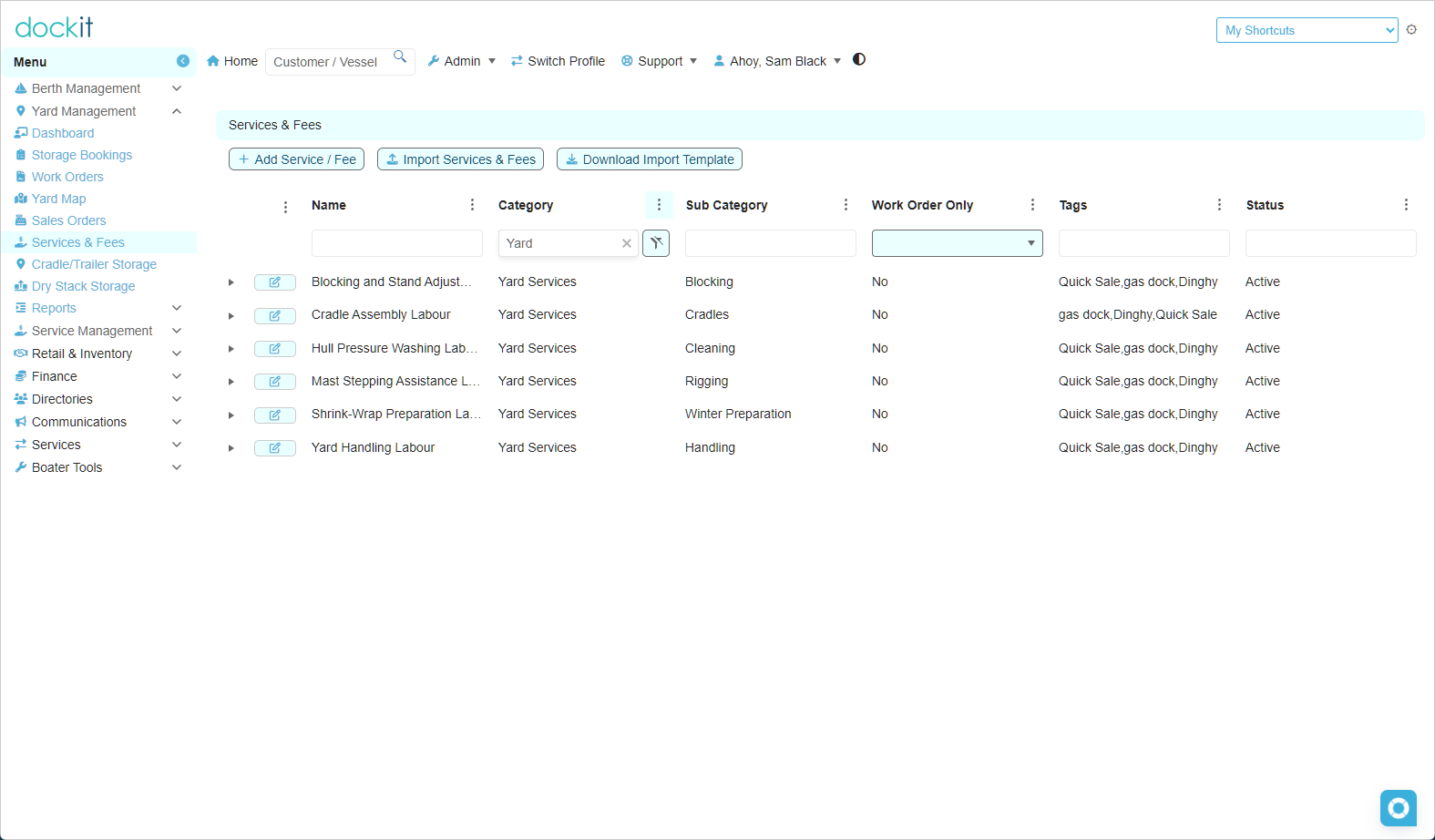
The list shows the current company's reusable non-inventory entries, including Active and Inactive records. It excludes one-off products. It is not a list of physical stock, and its entries may support more than one operational suite.
Search or filter the list before adding a new entry. Review the existing name, category, subcategory and status to avoid creating a second entry for the same service.
Where you have permission, use Add Service / Fee to create a reusable entry, or open an existing entry to review its settings. Check the description, unit, price and tax treatment wherever those settings are offered. Confirm any work-order or online-store availability settings before saving.
Download and prepare the import template
Open Services & Fees and select the template-download button beside Import Services & Fees.
Save a working copy of the downloaded CSV. Keep an unchanged copy of the template for reference.
Review any example rows. Remove examples you do not intend to import; do not treat example prices as the marina's approved prices.
Enter the intended services and fees using the template's column headings and supported values.
Review names, categories, prices, tax treatment, status, and any store-related settings included in the template.
Save the completed file as CSV, preserving the template's structure.
Do not rename the column headings, add a title row above them, or assume that a blank value means No or zero. If a required value or permitted choice is unclear, ask the catalogue administrator before importing.
When preparing the file in a spreadsheet, preserve product or part numbers as text so leading zeros are not removed. Check the saved CSV before upload.
Review before importing. The template may include example services and settings that are not appropriate for your marina. Downloading the template does not create catalogue records; importing the completed file can change the catalogue.
Import services and fees
Select Import Services & Fees.
Choose the reviewed CSV and follow the import prompts.
Review any validation messages or reported results before taking another action.
Refresh the Services & Fees list and inspect the imported records.
For an unfamiliar file, use an approved test environment and a small sample before importing the full catalogue. Verify descriptions, categories, prices, tax treatment, status and availability settings against the source file.
Do not assume that importing an existing name will update that record, or that uploading the same file again is harmless. Confirm the importer's matching and duplicate-handling rules with your administrator. If an import fails or its outcome is unclear, check whether records were created before retrying.
If the template link does not open, report the button used and the browser message. Do not substitute an unrelated template merely because it is also a CSV file.
Add a catalogue item to a yard work order
Open the correct yard work order and find Work Order Items.
Select Add Catalog Item.
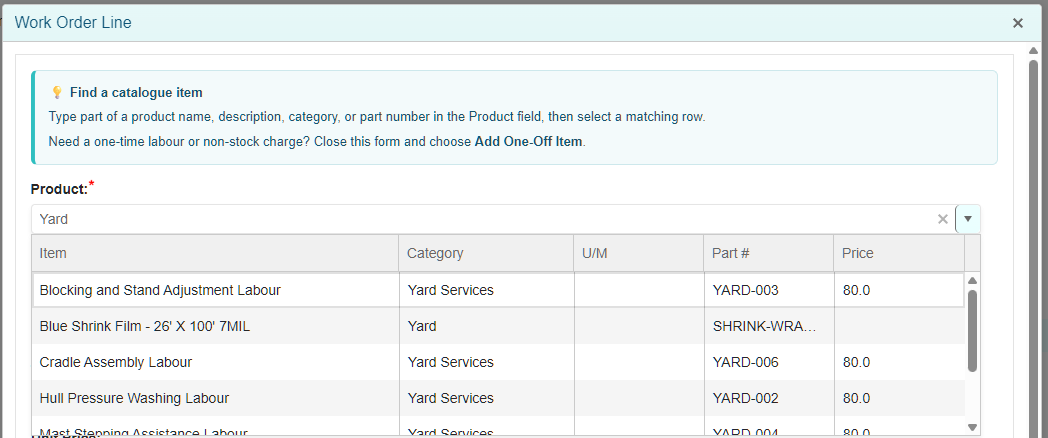
In Product (Start Typing), type part of a product name, description, category or part number.
Select the intended result. Use the Item, Category, U/M, Part # and Price columns to distinguish similar products.
Review the populated description and unit, then check quantity, unit price and tax treatment.
Choose the appropriate billing treatment and provide the required supporting notes.
Save the item and verify it in the work-order item list.
The selector searches as you type instead of loading the entire catalogue at once. Only eligible Active products for the current company are offered; one-off products are excluded from these reusable choices.
Select a result row rather than leaving only typed search text in the field. Before saving, confirm that the populated details belong to the intended item.
Add a one-off labour or non-stock item
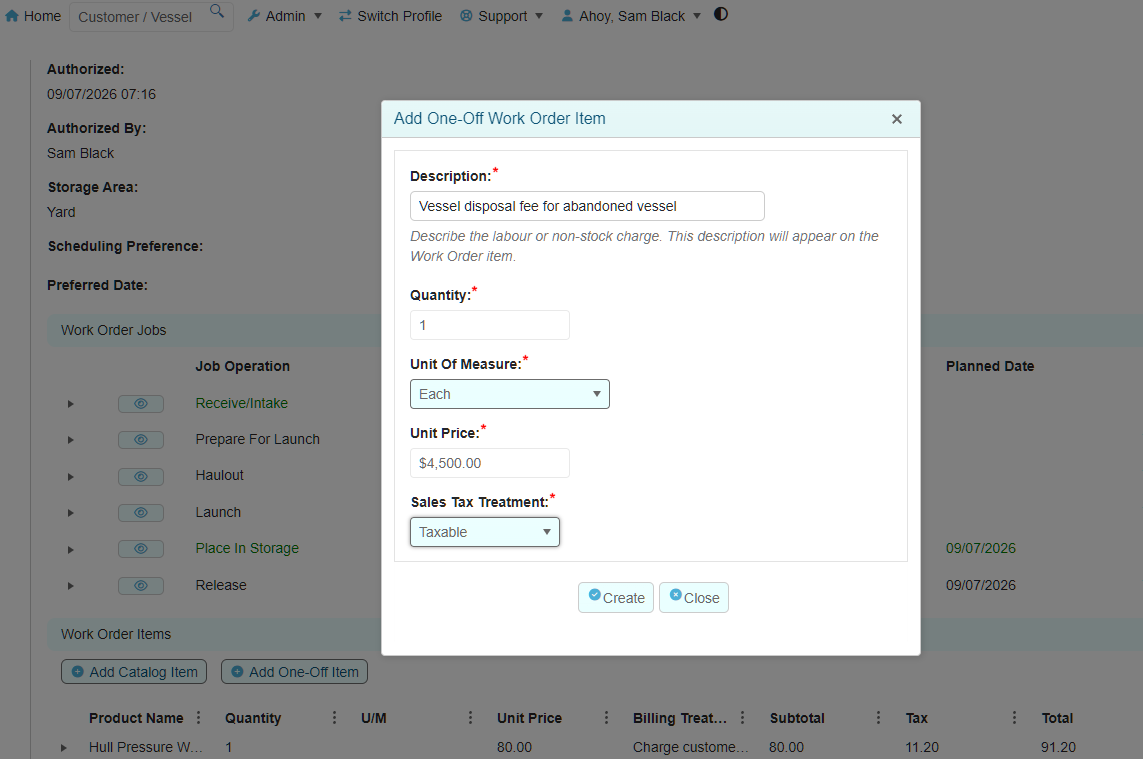
If the charge is genuinely a one-time item and no suitable catalogue entry exists, close the catalogue-entry form and select Add One-Off Item from Work Order Items.
Enter a clear description of the labour or non-stock charge.
Enter the quantity and select the appropriate unit of measure.
Enter the approved unit price and select the tax treatment.
Select Create.
Review the resulting work-order line and its billing treatment.
For the customer-work route, a new one-off line is created as chargeable. If another charge or agreement covers the work, or a waiver is intended, resolve the billing treatment through the supported item workflow before preparing billing.
One-off items are excluded from normal catalogue selection. If the service will be used regularly, ask the catalogue administrator to create a reusable service instead of repeatedly creating one-off entries.
Review how the item should be billed
Charge customer separately: Include the eligible item in work-order billing.
Covered by another charge or agreement: Explain the coverage rather than charging again.
No charge — waived: Record the approved reason for waiving the charge.
Needs billing review: Flag an unresolved decision for follow-up.
Adding an item is not payment collection. Continue with Billing and Additional Charges when you are ready to review and prepare eligible customer charges.
If an item cannot be found or added
No search results: Try a shorter name or another identifying term. Check the current company and the product's status.
Inventory product missing: Check the company's Retail & Inventory Management option and the product's eligibility with an administrator.
One-off product missing from the catalogue: This is expected; review it on its originating work order.
Incorrect unit, price or tax: Resolve the underlying setting rather than selecting an unrelated product.
Item changes blocked: Check work-order status and your permissions. Closed or cancelled work orders are not eligible for item changes through this workflow.
When requesting help, provide the work-order reference, product name or part number, action attempted and exact message. Do not include passwords, payment details or private customer links.