

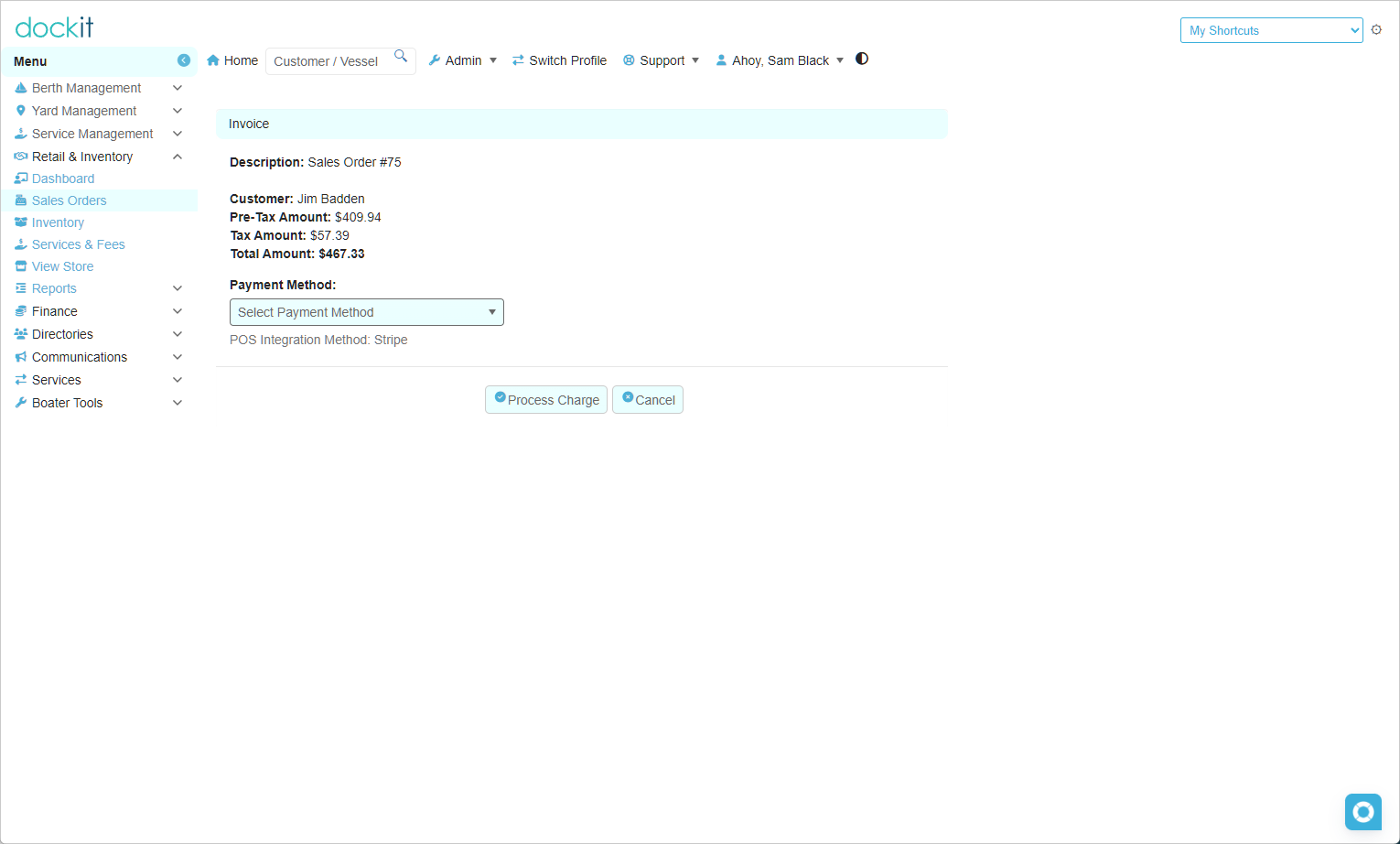
Use the Invoice payment screen to review the Sales Order amount and select how the customer will pay. Enter this screen from a correct Draft Sales Order by selecting Proceed To Payment.
Review the invoice
Before selecting a payment method, confirm:
The description identifies the correct Sales Order number.
The customer is correct.
The Pre-Tax Amount, Tax Amount and Total Amount match the order you reviewed.
Select a payment method
Open the Payment Method list. (we will assist in setting up your available payment methods during onboarding)
Select the method actually used for this transaction.
Confirm the displayed POS Integration Method, where shown. In the supplied example, it is Stripe.
Select Process Charge only when the order and payment method are correct.
Before processing: Do not use Process Charge as a test or simply to advance the order. Review the order number, customer, total and selected payment method first. Select Cancel if you need to return without initiating the charge.
What this screen does not prove
Selecting Process Charge initiates the charge workflow. It does not by itself confirm a successful payment, order completion, or fulfilment. After the payment workflow returns, verify the resulting Sales Order status before treating the order as paid or ready for its next operational step.
Tracked inventory: If an order contains a tracked inventory item, select the correct instance when Dockit asks for it before entering payment. The selected instance may be identified by serial number, lot number, expiry date or another configured identifier.
Related articles
Sales Orders
Fulfilling Orders - Pickup, Shipping and Delivery
Retail & Inventory Dashboard