

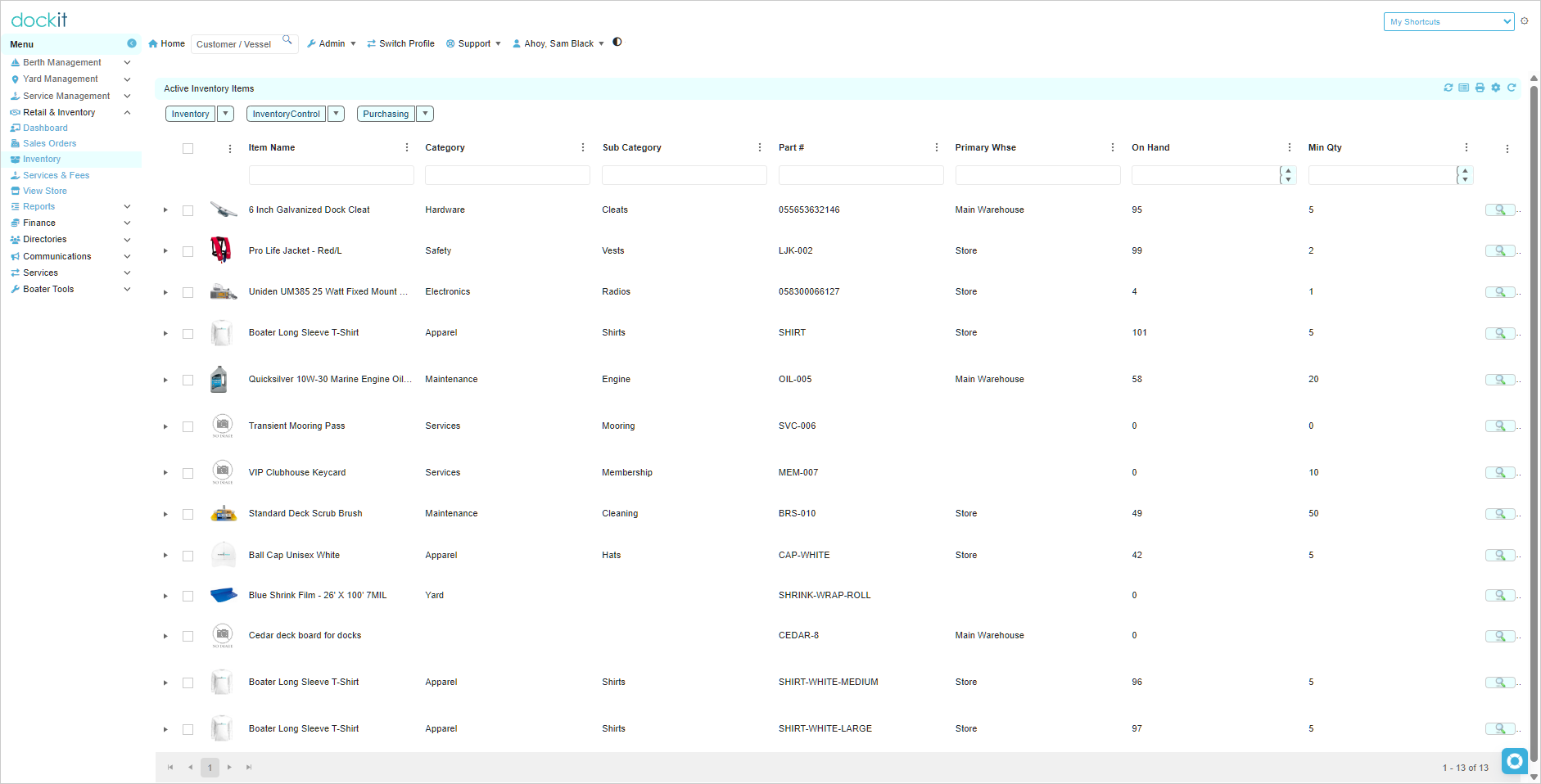
Use Inventory to maintain physical items that the marina stocks, sells or uses operationally. The Active Inventory Items list gives staff a quick view of the item catalogue and current stock indicators.
Find an inventory item
Expand Retail & Inventory in the main menu.
Select Inventory.
Use the column filters to find an item by name, category, subcategory, part number, primary warehouse, on-hand quantity or minimum quantity.
Open the required item using its view action.
The list identifies each item’s primary warehouse and its current on-hand quantity. Use the minimum-quantity column as a stock-review reference.
Review the item record
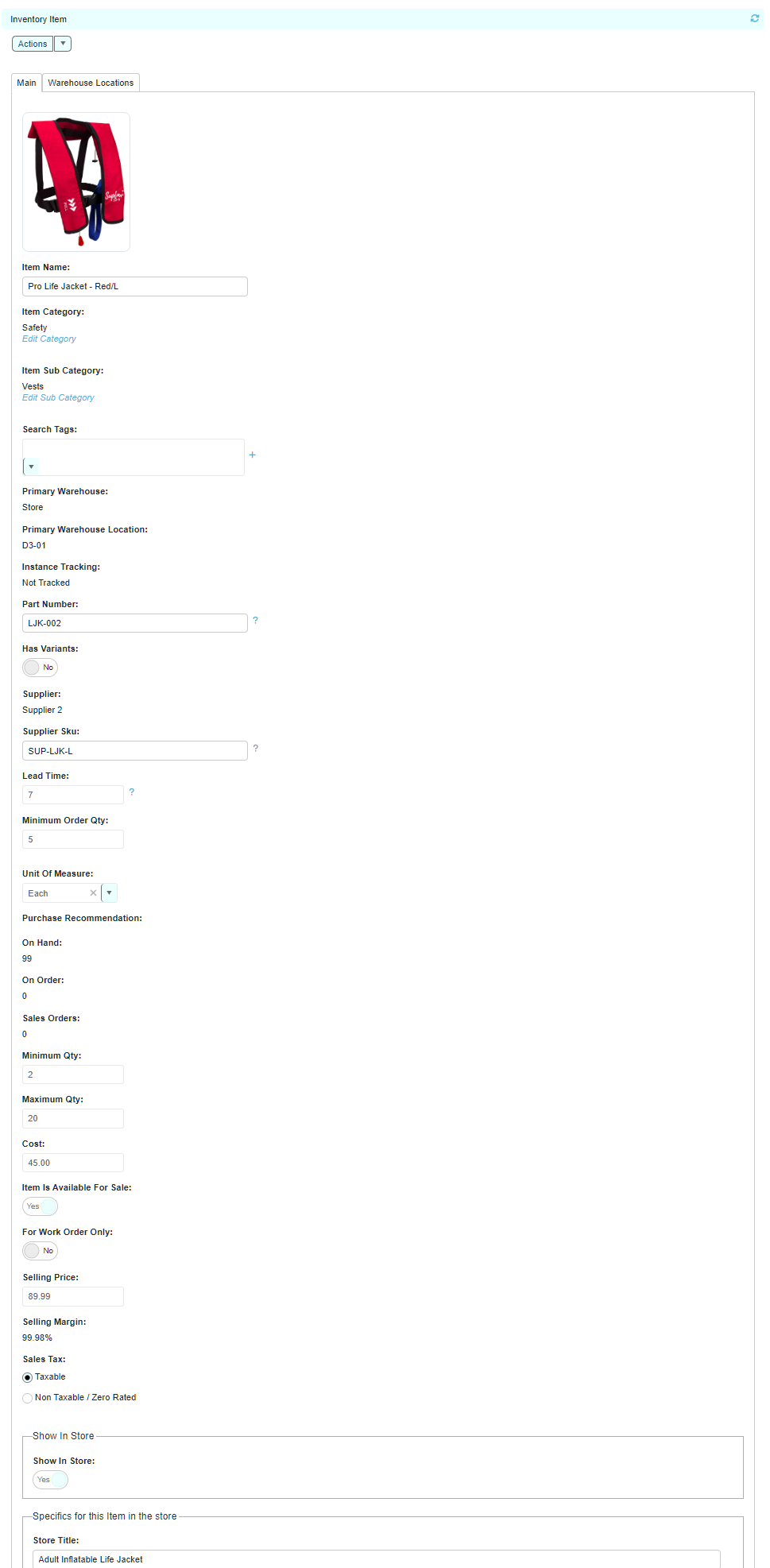
The Main tab contains the item’s catalogue, procurement, stock-control, sales and store details. The Warehouse Locations tab is available for location-specific stock information.
Area |
Examples shown on the item record |
|---|---|
Catalogue identity |
Item name, category, subcategory, search tags, image and part number. |
Stock and purchasing |
Primary warehouse, primary warehouse location, supplier, supplier SKU, lead time, unit of measure, on hand, on order, minimum quantity, maximum quantity and cost. |
Sales setup |
Available for sale, work-order-only setting, selling price, selling margin and sales-tax treatment. |
Store setup |
Show in Store and store-specific item content such as the store title. |
Quantity tracking and instance tracking are different: an item can have its on-hand quantity tracked without requiring staff to select a particular serial number, lot number, expiry date or other instance when it is sold. Review the item’s Instance Tracking setting separately from its on-hand quantity.
Use item actions carefully
The Actions menu provides options including:
Adjust On Hand Quantity
View Transaction Log
Upload Image
Edit Search Tags
Use on-hand adjustments only under the marina’s approved stock-adjustment procedure. The adjustment and transaction-log workflows are documented separately because they affect inventory history.
Add a new inventory item
From the Inventory menu, select Add A New Item.
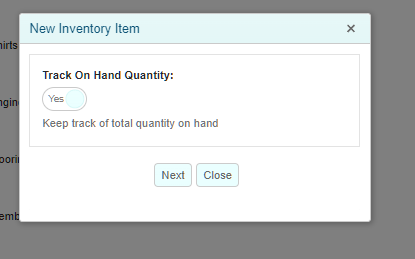
Choose whether to Track On Hand Quantity. Select Yes when Dockit should maintain the item’s total stock quantity, then select Next.
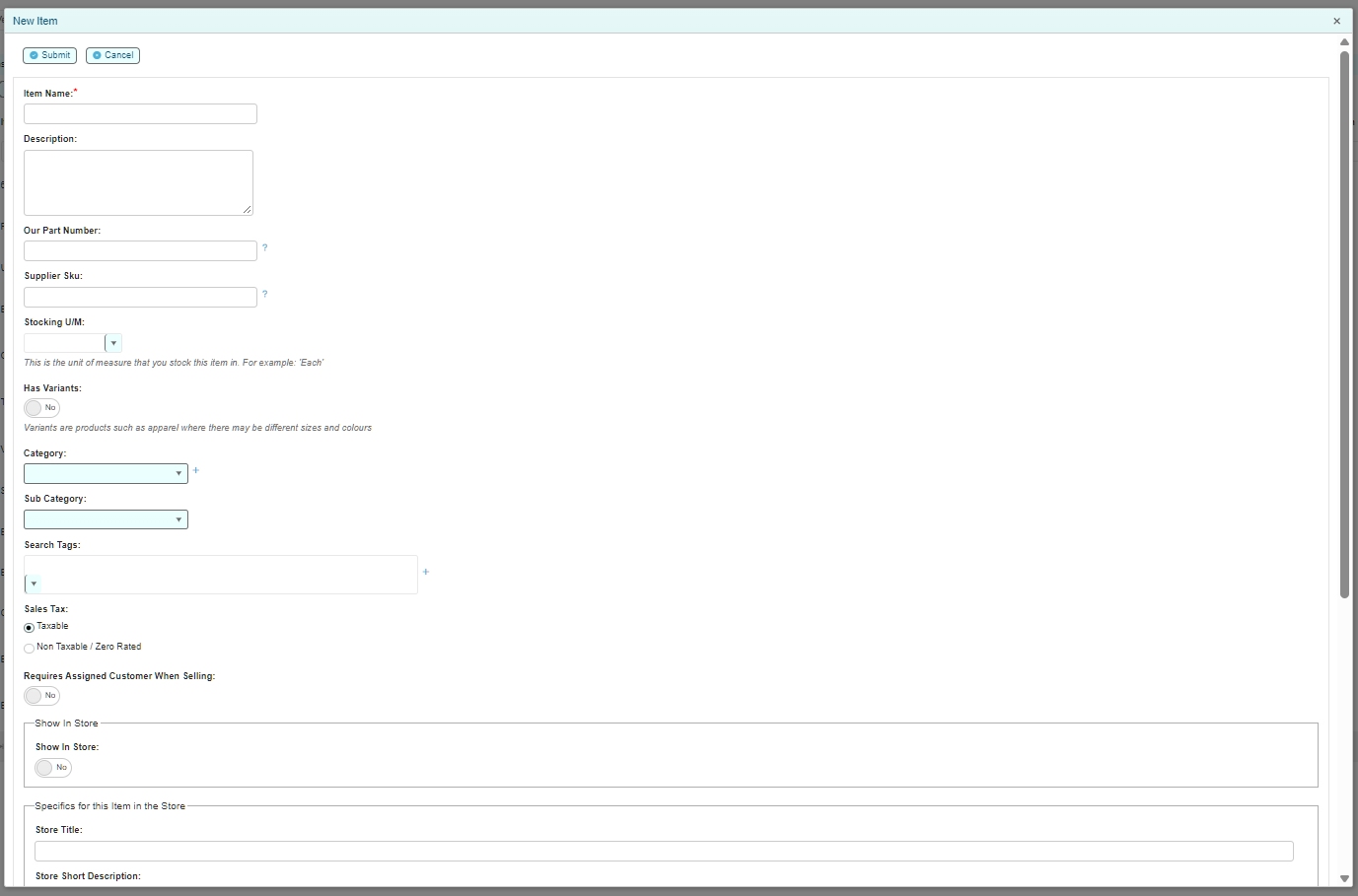
Enter the required Item Name.
Complete the applicable catalogue and purchasing fields: description, part number, supplier SKU, stocking unit of measure, category, subcategory and search tags.
Set variants when the item has options such as different sizes or colours.
Choose the correct sales-tax treatment and sales/store settings. Turn on Show In Store only when the item should appear in the marina’s store.
Select Submit when the setup is complete, or Cancel to leave without creating the item.
Before creating an item: search the active item list for the name and part number first. This helps avoid duplicate catalogue and inventory records.
Related articles
Stock Visibility - Out of Stock and Low Stock
Warehouses and Locations
Inventory Quantity Adjustments and Transaction History