

Use Warehouses and Locations to organize where inventory is held. A warehouse is the broad stock area; locations identify the specific places within that warehouse. Inventory items can show their on-hand quantity by warehouse/location.

Review warehouses
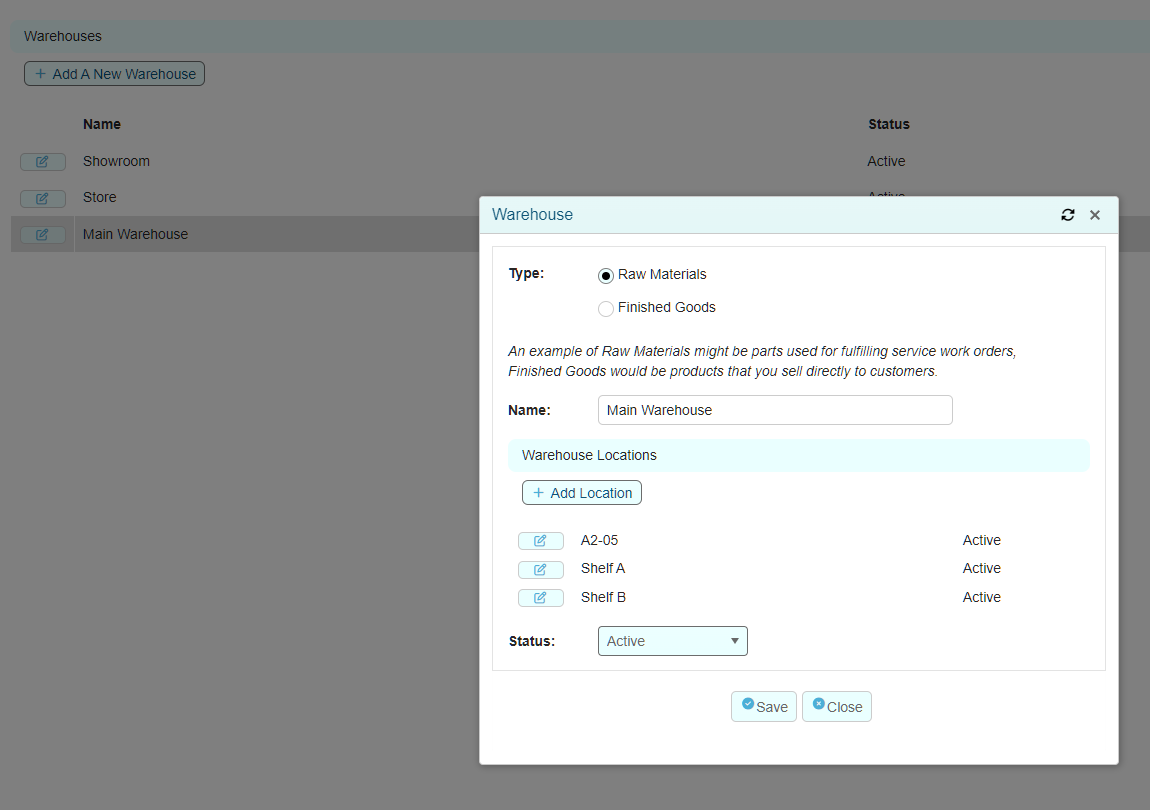
Open the Warehouses list to review each warehouse name and status. Select an existing warehouse to review or update it. Select Add A New Warehouse to create a new warehouse.
Each warehouse has a type:
Type |
Use |
|---|---|
Raw Materials |
Parts and materials used to fulfil service work orders. |
Finished Goods |
Products sold directly to customers. |
Manage warehouse locations
Open the required warehouse.
Review the Warehouse Locations section.
Select Add Location to add a location within that warehouse.
Confirm the location name and its Active status before saving.
Examples of location names can include aisle, shelf or bin references. Use clear, consistent names that staff can find physically.
Review an item by location
Open the Inventory Item.
Select the Warehouse Locations tab.
Review the warehouse, location, Primary Whse indicator and On Hand quantity.
The tab also displays the item’s total on-hand quantity beneath the location rows. When the item has one listed location, its location quantity and total quantity match.
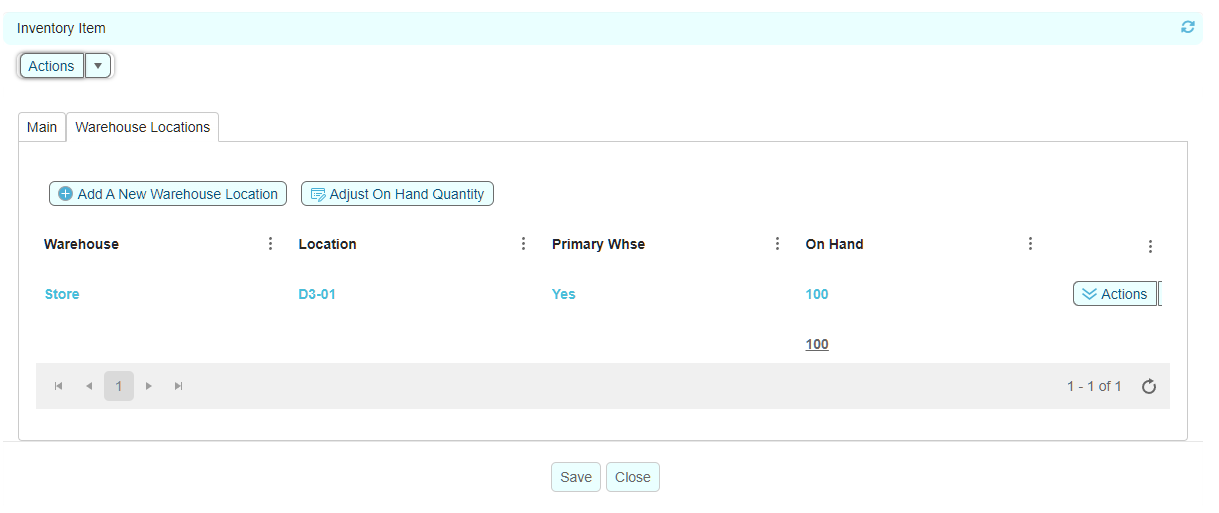
Primary warehouse: the Primary Whse indicator identifies the item’s primary warehouse/location record. Confirm it is correct when setting up or reviewing an item.
Stock-control safeguard: location-level quantities contribute to the item’s total on hand. Before using an on-hand adjustment from this tab, verify that you have selected the correct warehouse and location.
Related articles
Inventory Items
Inventory Quantity Adjustments and Transaction History
Stock Visibility - Out of Stock and Low Stock