

Use Services & Fees to maintain reusable non-inventory items such as marina services, labour and fees. They can be selected for sale, but they do not use on-hand stock quantities or warehouse locations.
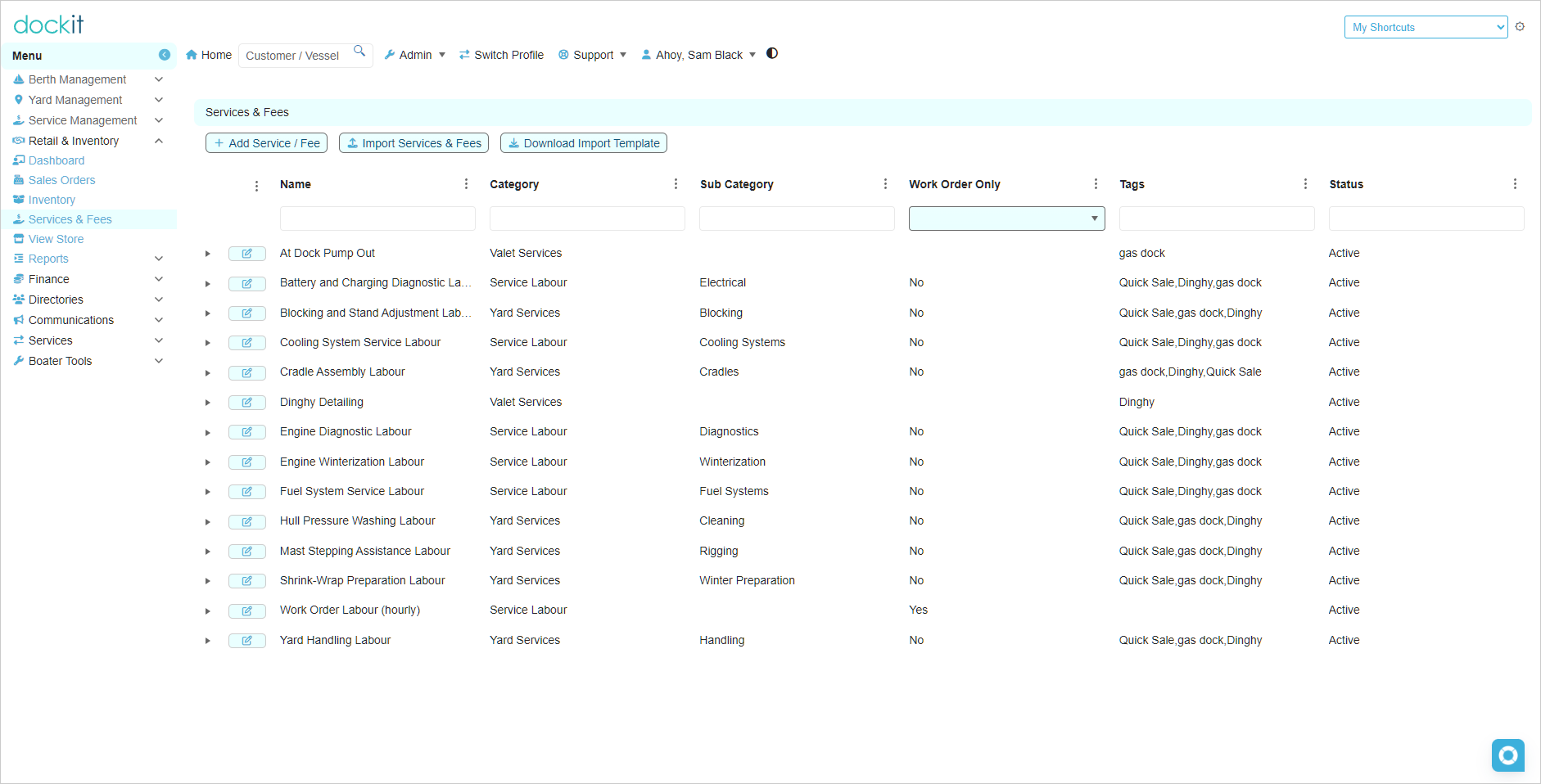
Find a service or fee
Open Retail & Inventory > Services & Fees.
Use the column filters to find an item by name, category, subcategory, Work Order Only setting, tags or status.
Open the item using its edit action to review or update it.
The list also provides Add Service / Fee, Import Services & Fees and Download Import Template. Bulk-import instructions are documented separately.
Review service or fee settings
Area |
What to review |
|---|---|
Catalogue content |
Item name, description, photo, category, subcategory, search tags and part number. |
Commercial setup |
Cost, available-for-sale setting, selling price, sales-tax treatment and whether a customer is required when selling. |
Operational control |
Work Order Only, which controls whether the item is restricted to work-order use. |
Store content |
Show In Store, store title, short description, detailed description, visibility, sort order and featured setting. |
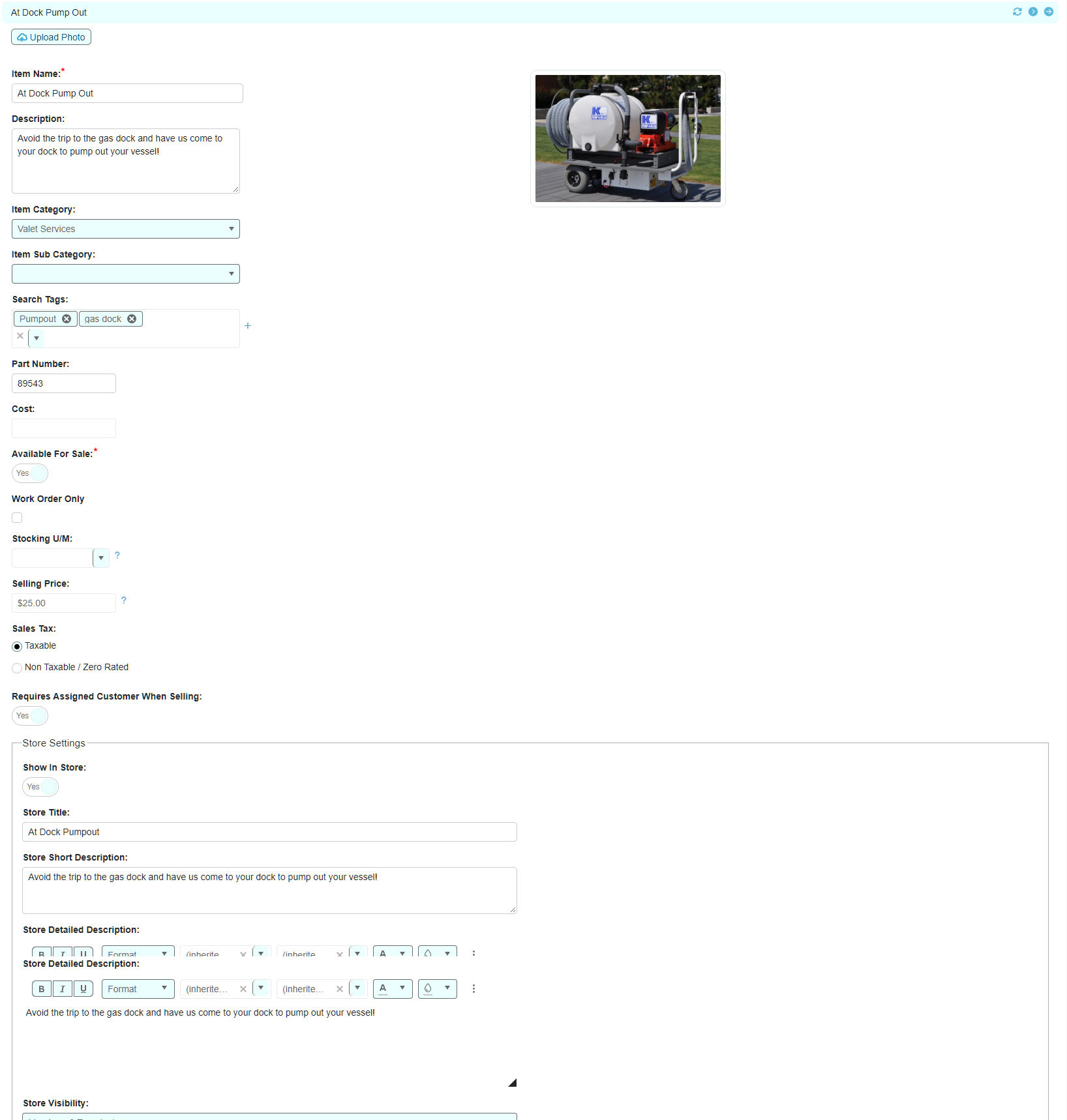
Add a service or fee
Select Add Service / Fee.
Enter the required Item Name.
Complete the applicable description, part number, stocking unit of measure, selling price, cost, category, subcategory and search tags.
Set Available For Sale appropriately.
Set Work Order Only to Yes only when the item should be used through a Work Order rather than selected in ordinary sales activity.
Select the appropriate sales-tax treatment and customer-requirement setting.
Complete Store Settings only if the item is intended for the store, then select Continue. Select Cancel to leave without creating it.
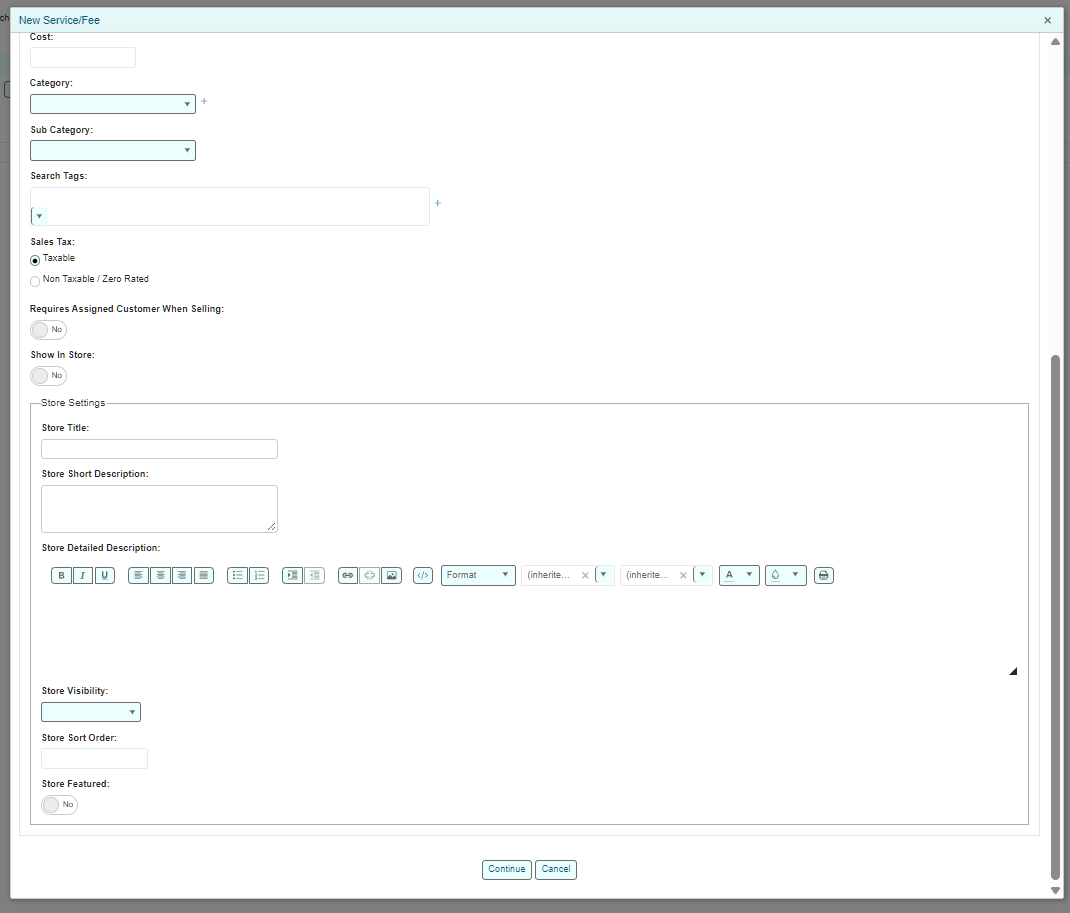
Import Services and Fees
Select Download Import Template to download the Services & Fees CSV template.
Open the downloaded CSV. It contains sample entries to illustrate the expected format.
Clear the sample entries, keeping the column headings unchanged.
Add the marina’s service and fee items to the template, then save it as a CSV file.
Select Import Services & Fees.
Select Select files... or drop the completed CSV into the upload area.
Select Next to upload the file. The imported items are added to the Services & Fees list.
Use the matching template: download the template from the Services & Fees screen for this import. Do not substitute an Inventory import template, because its columns are for a different record type. Duplicate and update behaviour has not yet been verified; start with a small, non-duplicate test file when possible.
Store settings
Turn on Show In Store only for an item that is ready to appear in the store. This would include services that you want to allow your customers to purchase directly from the in-app/online store. Then supply customer-facing content: a clear store title, short description and detailed description. Use the visibility, sort-order and featured controls according to the marina’s store-publishing policy.
Check before publishing: review price, tax treatment, customer requirement and customer-facing copy before turning on Show In Store. Store settings affect what customers can see, so do not use them as a draft workspace.
Keep stock and service records separate: use Inventory Items for physical stock that needs quantities and warehouse locations. Use Services & Fees for reusable non-inventory offerings such as labour and marina charges.
Related articles
Inventory Items
Sales Orders
View Store and Store Content