

Use Retail & Inventory > View Store to check how marina products and services appear to shoppers. This is the staff’s practical quality check for store content, availability labels, categories and product pages.
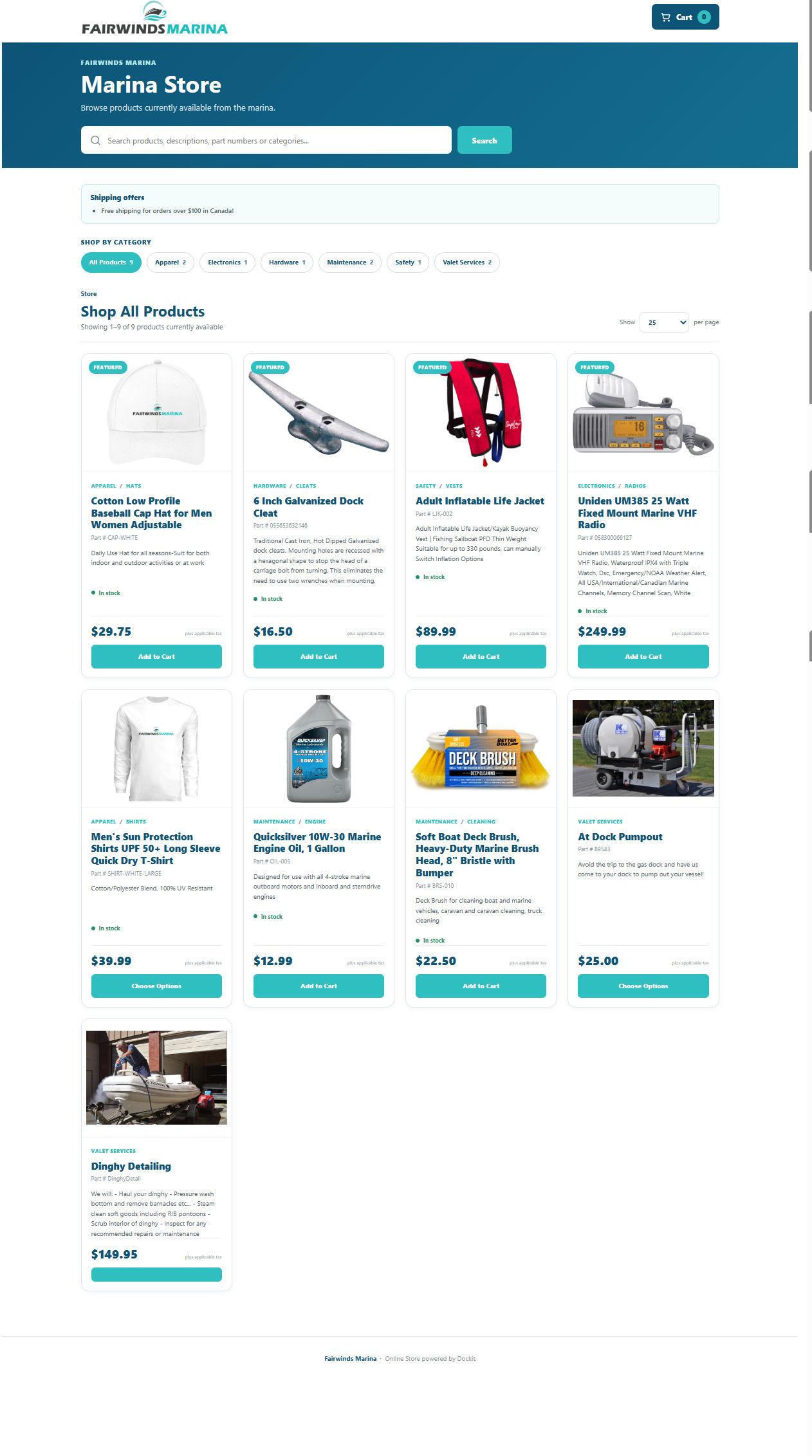
Browse and search the catalogue
Open Retail & Inventory > View Store.
Use the search field to look for product names, descriptions, part numbers or categories.
Select a category to narrow the catalogue.
Review the product cards shown in the results.
Cards can display an image, category and subcategory, title, part number, short description, stock message, price and an action such as Add to Cart or Choose Options. Featured items are marked with a Featured label.
Review a product or service page
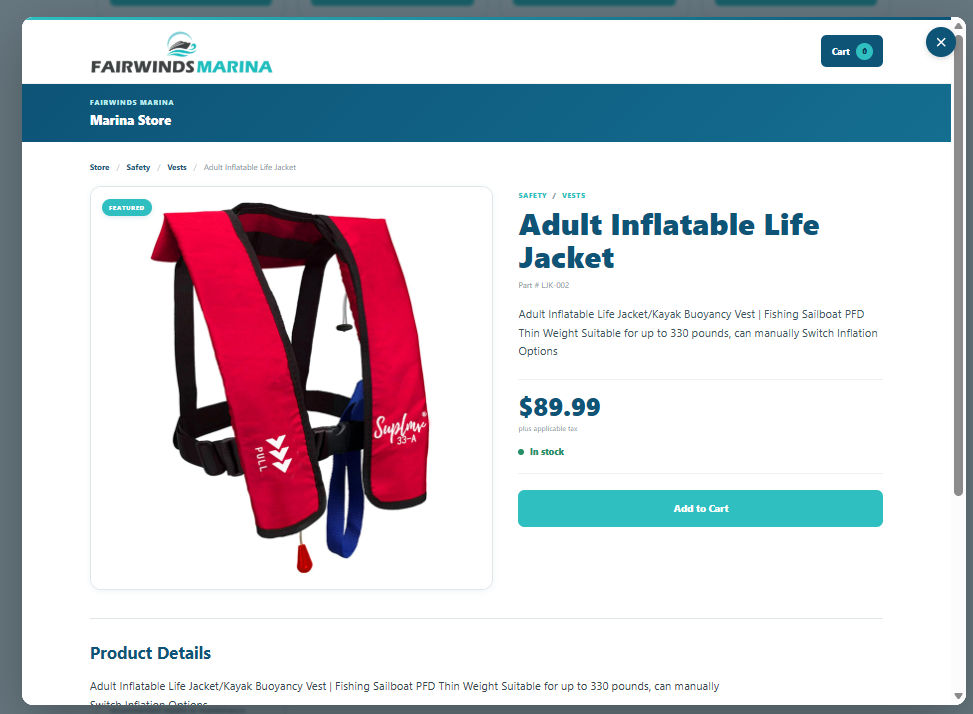
Select a card to open its detail page.
Confirm the title, part number, image, short description, price and stock message.
Review the Product Details content for accuracy, readability and useful customer information.
Confirm that the cart action is appropriate for the item.
Use the cart as a presentation check
The Cart button shows the current item count and gives shoppers an entry point to their basket. In this article, use it only to confirm that a suitable cart action is available. Customer checkout and online-order submission are documented separately after their workflow is verified.
Correct store content at the source
Do not edit the visible storefront directly. Return to the underlying Inventory Item or Service/Fee record and update the relevant store settings:
Show In Store controls whether the item is presented in the store.
Store Title, Store Short Description and Store Detailed Description supply the customer-facing copy.
Store visibility, sort order and featured setting control how the item is presented.
The item image and price should be checked against the corresponding item record.
Publishing safeguard: before enabling Show In Store or featuring an item, confirm its price, tax treatment, image, stock message, title and customer-facing descriptions. If the item is not ready for shoppers, correct the underlying record before publishing it.
Stock message: the store can display an In stock indicator for available merchandise. Treat the live item record and its warehouse/location quantities as the operational source of truth when investigating availability.
Related articles
Inventory Items
Services and Fees
Stock Visibility - Out of Stock and Low Stock